Custom Webhook Response: Send Your Own Status, Headers and Data
Reply to a webhook with data from the run: String, JSON or XML bodies, any HTTP status from 200 to 599, extra…


The FlowMattic visual workflow builder is where you build a workflow in WordPress. On one canvas you pick what starts a workflow, chain actions from your apps and add real logic such as routers, loops and delays, all inside the WordPress site you already run. Every field is filled by picking data from earlier steps, so you build without writing code.
It is for store owners, agencies and teams who want order handling, lead routing or publishing pipelines to run on their own server, with unlimited workflows and runs. This guide walks through the builder from a blank canvas to a published workflow, then covers the logic tools, the canvas controls and seven workflows worth building first.
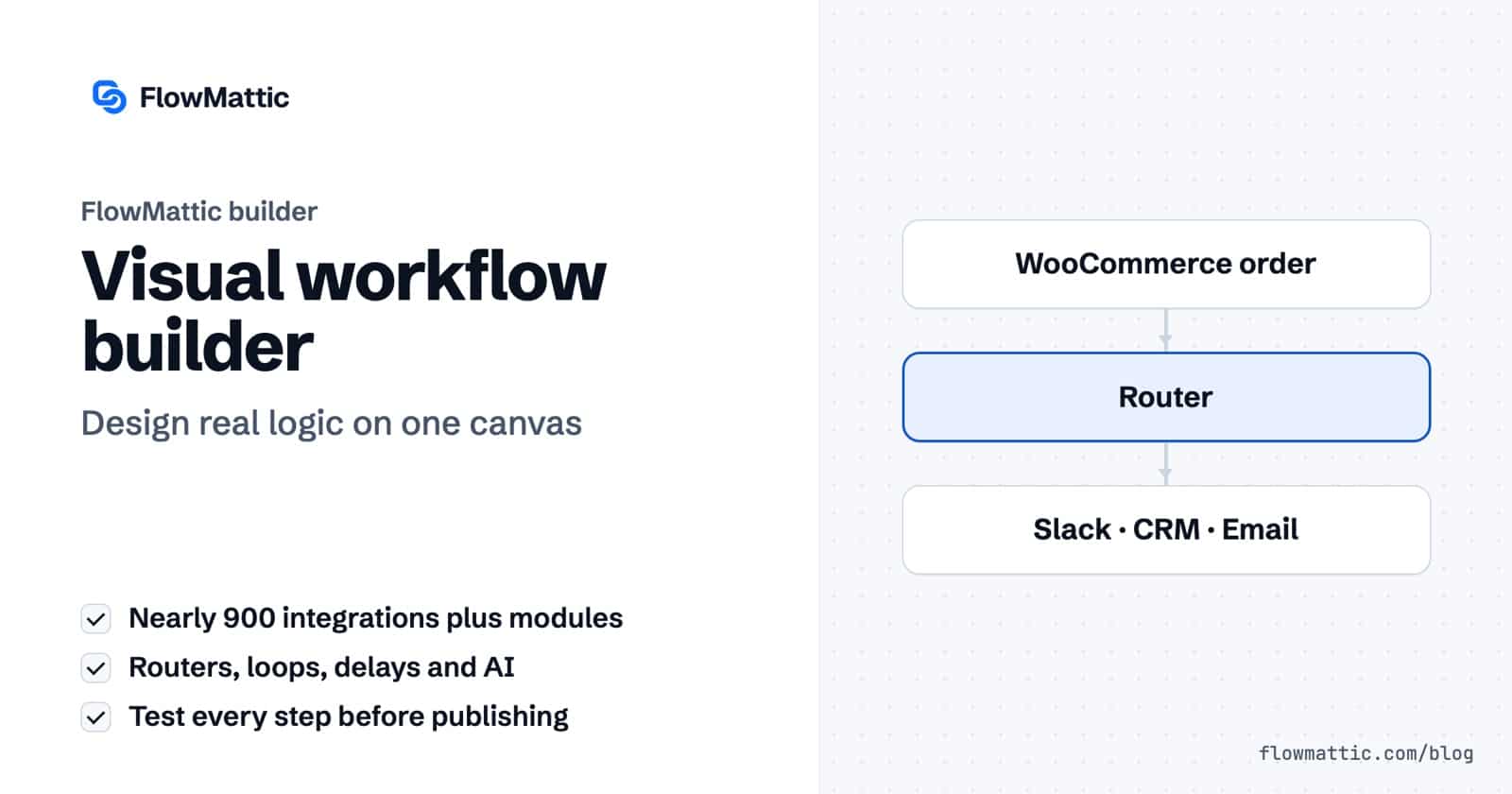
The visual workflow builder is FlowMattic’s canvas editor. A workflow is a trigger followed by steps: actions in any of nearly 900 integrations, or built-in modules such as Router, Filter, Iterator, Delay, API calls, PHP functions and AI Agents. The canvas shows each step as a numbered card connected top to bottom, or left to right if you prefer a horizontal layout.
You reach it from FlowMattic → Workflows. Click New Workflow and the “Create a New Workflow” dialog asks for a Workflow name and how to start: From Scratch, Generate with AI or Choose Template. The visual builder is the default; a Default Workflow Builder setting lets you switch to the older Static Builder if you need it.
A new canvas starts with one trigger card, set to Webhooks with the Capture Webhook Response event. Click it to open the step panel. On the Setup tab, change the App to WordPress, WooCommerce, a form, a schedule or any integration, and pick the Trigger Event.
On the trigger’s Capture tab, click Capture Response and cause the event: place a test order, submit the form, send the webhook. The panel lists up to five recent responses; choose one and click Use selected response. For a webhook whose sender cannot fire a test, paste a sample JSON payload instead. Later steps map their fields from this sample.
Click the + below the last card, or the + on any connector to insert a step between two others. The app picker opens with a search box, “Search apps and tools…”, and a sidebar of categories: Apps, AI, Flow Controls, Utilities, Custom and Modules. Its home view lists your installed apps, popular built-in tools and FlowMattic modules.
Each step’s panel walks through Setup, Configure, Conditions and Test, with a Continue button that becomes Save & Close on the last tab. On Configure, choose the connect account and fill the fields. To insert data from an earlier step, click the + beside a field, or type / or @, and pick from the “Insert data” list. Mapped values appear as dynamic tags such as {webhook1.email}; Variables appear as {{name}}.
On the Test tab, Test Action runs the step for real with the captured data and shows Data in and Data out. The Do a Test Run button in the header runs the whole workflow against a captured response. Click Save Workflow to save, then turn on the Publish Workflow switch in the left sidebar. Published workflows show as Live on the Workflows screen; the rest are Drafts.
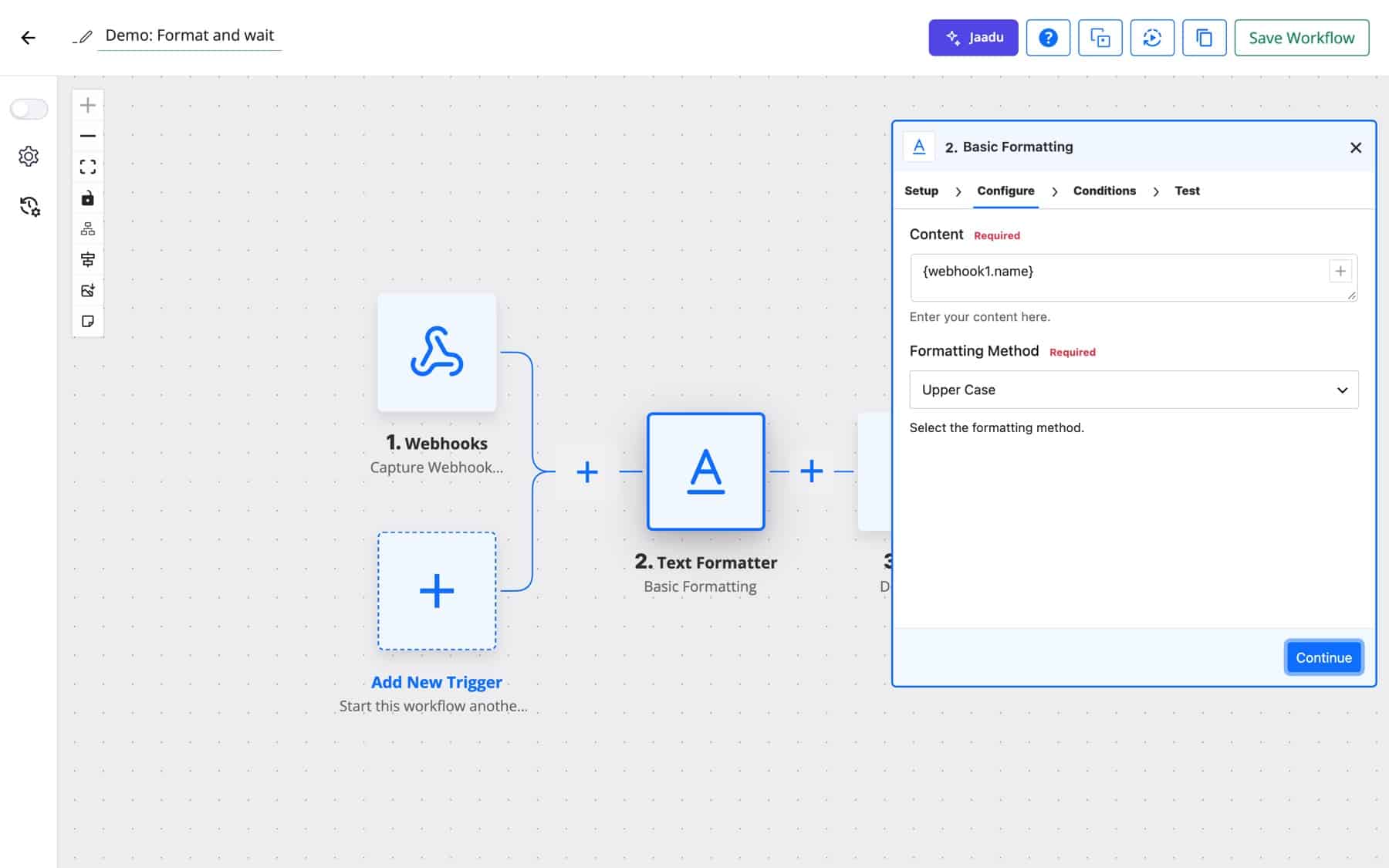
Real processes branch, loop and wait. The builder has a module for each:
Any step can also have its own conditions. On the Conditions tab, Enable Conditional Execution runs the step only when its conditions are met, and Ignore Errors treats a step’s error response as a success, so the run carries on and no failure email is sent. A trigger’s Conditions tab adds Skip Duplicate Events, which records a repeat of the same event within a time window as skipped.
| Tool | What it does |
|---|---|
| Zoom In, Zoom Out, Fit View | Navigate the canvas. Scrolling pans rather than zooms. |
| Switch to horizontal or vertical layout | Lay steps out left to right or top to bottom. The default is set in Settings as Default Layout Direction. |
| Auto-fix layout | Re-spaces the cards neatly. |
| Add sticky note | Notes with a title, text, links and six colours, for documenting a workflow on the canvas. |
| Download workflow as PNG | Exports the canvas as an image for docs or handover. |
| Step menu (⋮) | Rename, Duplicate, Copy, Paste below, Paste to replace, Manage Notes and Delete. Copied steps can be pasted into another workflow. |
| Add New Trigger | Adds another trigger, numbered 1.1, 1.2 and so on, for a multi-trigger workflow. |
| Settings (gear) | Workflow Name, folder, Workflow Description and Webhook Request Queue, which queues simultaneous webhook requests to the workflow. |
| Copy Workflow JSON | Copies the workflow’s configuration to the clipboard. |
| Share Workflow | Creates a share link, permanent or temporary, that you can rotate or revoke. |
| Show history | Opens Task History for the workflow in a new tab. |
The Workflows screen adds folders, a Live and Draft filter, bulk turn on and off, import from a JSON file or a shared link, export, and cloning. A clone is named “Name (copy)”, then “(copy 2)”, so copies never share a name.
Each paid order goes to your fulfilment partner, the customer gets a tagged CRM record, and large orders alert the team.
WooCommerce new order → API request to fulfilment → FluentCRM add tag → Branch (total over 500) → Slack
A contact form’s budget and service fields decide which team gets the lead. A Join after the routes logs every lead to one sheet, whichever route ran.
Form submission → Router (Design · Development · Other) → Join → Google Sheets add row
When a post is published, an AI Agent writes social copy, the copy lands in the team chat and the post is logged on the content calendar.
WordPress new post → AI Agent → Telegram message → Google Sheets add row
A refund request waits for a manager’s approval by email. Approved requests notify finance; rejected ones send the manager’s note to the customer.
Form submission → Human in the Loop (email approval) → Router (Approved · Rejected) → Slack · Email
Every morning, unpaid rows are read from WP Tables, and each one gets a PDF invoice by email.
Schedule (daily 09:00) → WP Tables Find Multiple Records → Iterator → PDF Builder → Send email
Sign-ups arrive from a billing webhook and from a WordPress registration. Two triggers feed one workflow, mapped onto the same field names, so the onboarding steps are built once.
Webhook (billing) + WordPress new user → Create CRM contact → Delay 1 day → Welcome email
An AI Agent reads each new ticket and returns a category and urgency as JSON, and a Router sends urgent ones to the on-call channel.
Help desk new ticket → AI Agent → Router → Slack · Email
No. Triggers, actions and logic modules are set up in forms, and fields are filled by picking data from earlier steps. A PHP Function module is there for the rare transformation no module covers.
As many as you need. Workflows run on your own WordPress server, with no per-task fee, so the limit is your hosting rather than a plan quota.
Yes. Click Add New Trigger, then map each extra trigger’s fields onto the first trigger’s names. Auto-map matching keys does the obvious ones in one click.
The run is recorded as failed in Task History, with what each step received and returned. Fix the cause and re-execute the run, or turn on Ignore Errors for steps that may fail without stopping the rest.
Yes. Choose Template when creating a workflow to start from a ready-made one, or import a workflow file or shared link on the Workflows screen.
Build your first workflow this afternoon: try the builder on a live demo site, or install FlowMattic and keep every run on your own server.
Reply to a webhook with data from the run: String, JSON or XML bodies, any HTTP status from 200 to 599, extra…
Post workflow data to any webhook URL as JSON, multipart form data or URL-encoded fields, with nested bracket keys and the receiver's…
Give any app a URL on your WordPress site and turn each request into a workflow run, with signature checks, sample payloads…