

Add new leads to Brevo and send a welcome email
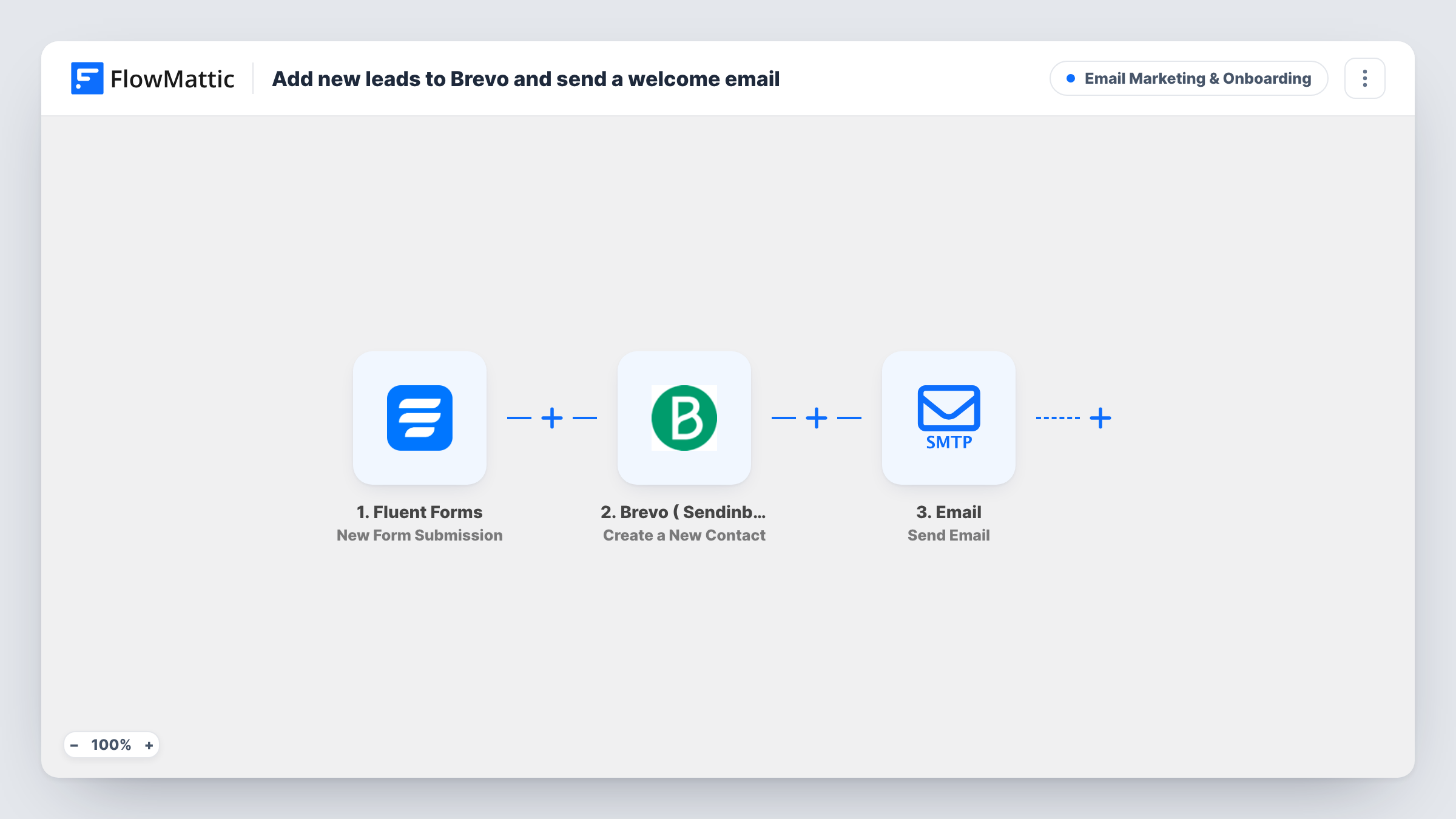
New leads from a Fluent Forms form are created as contacts in Brevo with their email and first name, and each one then gets a welcome email thanking them by name for joining.
 Fluent Forms
 Brevo ( Sendinblue )
 Email
Email3 steps Setup ~5 min Used on 1.4k sites Marketing Free to import
What this workflow does
If you send campaigns with Brevo but collect leads with Fluent Forms on your WordPress site, the two lists drift apart unless someone exports and imports them. This workflow creates each lead in Brevo the moment the form is sent, then says hello so the lead knows the form worked.
The Fluent Forms trigger fires when your form is submitted. FlowMattic passes the email and name fields to Brevo, where Create a New Contact adds the person with their email and first name. Next, the Email step sends a short welcome to the same address and thanks them by name for joining.
The welcome is sent through the SMTP account connected to FlowMattic, not by Brevo. If you'd rather run your welcome as a Brevo automation, delete the Email step and let Brevo take over once the contact exists. Leads who submitted before you turned the workflow on aren't sent to Brevo.
Free consultation requests
Prospects book a call through a Fluent Forms form. They become Brevo contacts for your nurture emails, and the welcome confirms you got their request.
Download gate for a guide
People leave their email to get a PDF. Brevo holds them for future campaigns, and you can put the download link in the welcome email.
Local business mailing list
A cafe or studio collects sign-ups on its WordPress site. Each one joins the Brevo list used for offers, with a thank-you sent on the spot.
How this workflow runs
What happens at each step once the workflow is on, and what you need before you import it.
 Fluent Forms New Form Submission
Fires each time your Fluent Forms form is submitted. The email and name answers are passed to Brevo and to the welcome email.
- Brevo ( Sendinblue ) Create a New Contact
Creates a contact in Brevo from the submission, with the form's email and the name as the first name. Connect your Brevo account on import.
 Email Send Email
Sends a welcome email to the lead's address through FlowMattic's SMTP connection, thanking them by name. Rewrite the subject and body in this step to match your brand.
What you need
- FlowMatticCore
- Fluent Forms PluginPlugin
- Brevo ( Sendinblue ) AccountAccount
After importing, map your own data. To keep the template universal, not every step is pre-filled. Open each step in the builder and connect your accounts and fields (channels, lists, sheets, recipients) before you switch the workflow on.
Make it yours
Changes worth making after you import it.
- Put something useful in the welcome email, such as the guide they asked for or the next step, instead of the template's one-line thank-you.
- If you segment by interest in Brevo, add a dropdown to your form and use a Filter or Router so each interest gets its own Create a New Contact step.
- Add a Filter after the trigger on a marketing consent checkbox, so only people who agreed to hear from you become Brevo contacts and get the welcome.
Questions about this workflow
What happens if the lead is already a Brevo contact?
The step creates a contact and doesn't check first. Brevo may refuse an email address it already holds, and the run shows that in Task History. Test with an existing contact's address to see what happens in your account.
Is the welcome email sent by Brevo?
No. It goes out through the SMTP account you connect to FlowMattic's Email module. Brevo only receives the new contact.
Can I add Fluent Forms leads to a specific Brevo list?
The template maps only email and first name. Open the Brevo step after import and run a test to see which other options it offers before relying on one.
More Email Marketing & Onboarding workflows
Other ready-to-import templates from the same category.





Import this workflow into your WordPress site
Download the JSON, import it from the Workflows screen and connect your accounts. Every run stays on your server, with no per-task fees.
30-day money-back guarantee Unlimited workflows and runs Self-hosted