

Summarize new articles with AI from the fully rendered page
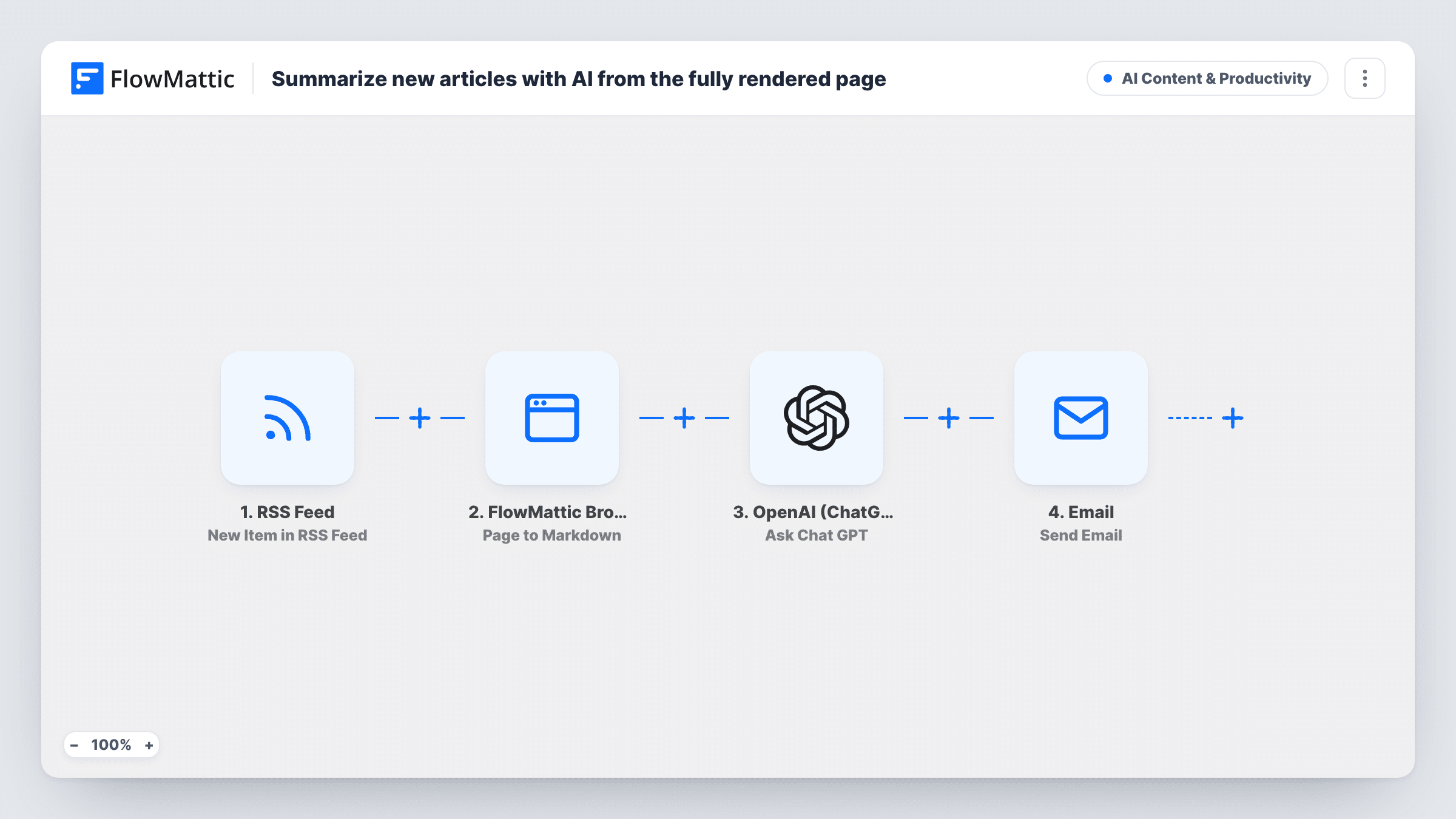
For each new item in an RSS feed, this workflow opens the article in FlowMattic Browser, turns the rendered page into Markdown, has ChatGPT summarize it in five bullet points and emails you the summary with a link.
 RSS Feed
 FlowMattic Browser
 OpenAI (ChatGPT)
 Email
4 steps Setup ~8 min Used on 442 sites Content Ops Free to import
What this workflow does
Feeds often carry only a headline and a teaser, and some sites build their article text with JavaScript, so a plain fetch of the page comes back nearly empty. This workflow reads the article the way a visitor's browser would, then hands the full text to AI for a short summary you can scan in your inbox.
The RSS Feed trigger fires on each new item in the feed you set. The item's link goes to FlowMattic Browser, whose Page to Markdown action loads the page in a headless browser and returns its content as clean Markdown. That Markdown is placed into a prompt for OpenAI (ChatGPT) asking for a summary in five bullet points.
The last step emails the result. The subject is the article title, and the body holds ChatGPT's bullets followed by a link to the full article. As imported, it goes to [email protected], a placeholder you replace with your own address. Each feed item sends its own email, so a busy feed means many messages.
Following an industry news site
You track a trade publication whose feed shows only headlines. Each new story arrives as a five-point summary, and you open the link only for the ones worth reading.
Watching a competitor's blog
Point the trigger at a rival's blog feed. Your product team gets a short summary of each post they publish, without visiting the site every week.
Research on JavaScript-heavy sites
Some publishers render articles in the browser, so simple fetchers miss the text. The Browser step loads the rendered page first, giving ChatGPT the actual article to summarize.
How this workflow runs
What happens at each step once the workflow is on, and what you need before you import it.
 RSS Feed New Item in RSS Feed
Fires on each new item in the RSS feed you enter. The item's title and link are used later in the workflow.
- FlowMattic Browser Page to Markdown
Opens the item's link in FlowMattic Browser's headless browser and returns the rendered page as Markdown. The Browser app needs your Cloudflare Browser Rendering credentials saved in FlowMattic Settings.
- OpenAI (ChatGPT) Ask Chat GPT
Sends ChatGPT a prompt asking for the article in five bullet points, with the Markdown from the previous step appended. Connect your OpenAI account and edit the prompt if you want a different length or tone.
 Email Send Email
Emails the summary to [email protected] with the article title as the subject and the article link under the bullets. Swap in your own address. It sends through WordPress mail or the SMTP account you set.
What you need
- FlowMatticCore
- OpenAI (ChatGPT) AccountAccount
After importing, map your own data. To keep the template universal, not every step is pre-filled. Open each step in the builder and connect your accounts and fields (channels, lists, sheets, recipients) before you switch the workflow on.
Make it yours
Changes worth making after you import it.
- Change the email address in the last step before you switch the workflow on. The shipped address is a placeholder and won't reach you.
- Only care about some topics? Put a Filter after the trigger that continues when the item title contains a keyword, so the Browser and ChatGPT steps run only for those articles.
- Prefer a team channel to an inbox? Replace the Email step with Slack's Send Channel Message and post the title, bullets and link there.
- Tune the prompt to your readers, for example asking for one line on why the article matters to your business after the five bullet points.
Questions about this workflow
Why convert the article with FlowMattic Browser before ChatGPT?
RSS items often hold only a short excerpt. The Browser step loads the full page, including text added by JavaScript, so ChatGPT summarizes the whole article rather than the teaser.
Is this one digest email or one email per RSS item?
One per item. Each new feed entry starts its own run and sends its own message. To batch them, you would need a different design, such as logging summaries to a sheet and sending that on a schedule.
What do I need to set up for the Browser step?
FlowMattic Browser runs on Cloudflare Browser Rendering, so add your Cloudflare credentials in FlowMattic Settings. You also connect an OpenAI account for the summary step.
What if the page is behind a login or paywall?
The Browser opens the link as an anonymous visitor, so it gets whatever a logged-out reader sees. ChatGPT then summarizes that, which may be only the free part of the article.
More AI Content & Productivity workflows
Other ready-to-import templates from the same category.





Import this workflow into your WordPress site
Download the JSON, import it from the Workflows screen and connect your accounts. Every run stays on your server, with no per-task fees.
30-day money-back guarantee Unlimited workflows and runs Self-hosted