

Generate an Open Graph image for every new WordPress post
When you publish a new WordPress post, this workflow has FlowMattic Browser render a PNG social card with the post title and a subtitle, then adds that image to your Media Library.
 WordPress
 FlowMattic Browser
3 steps Setup ~5 min Used on 392 sites Marketing Free to import
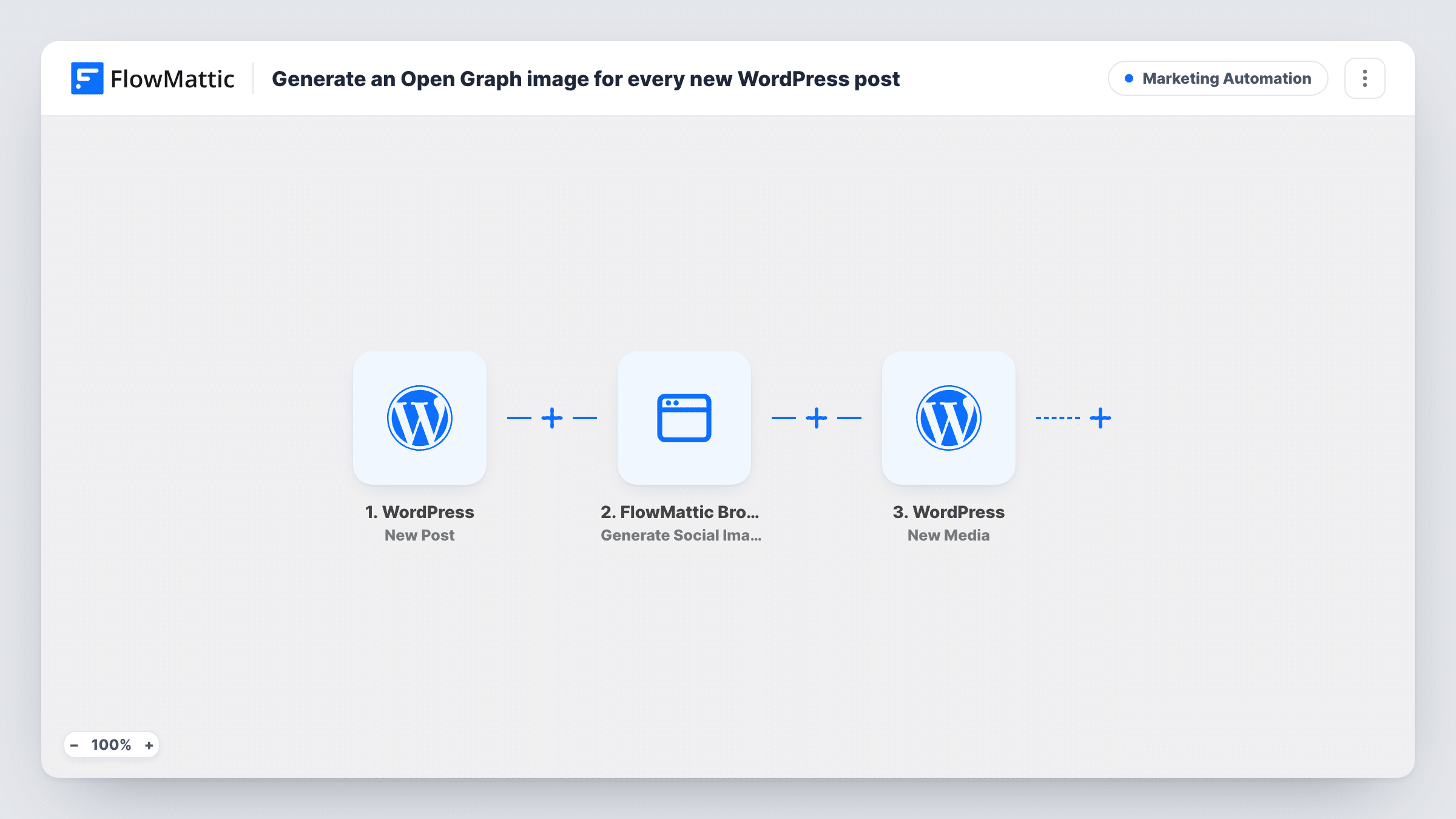
What this workflow does
Posts shared without a proper preview image look bare on social networks and in chat apps. Designing a card for every article is a chore, so many blogs skip it. This workflow makes a simple title card for each new post as soon as it goes live.
The WordPress New Post trigger starts a run the first time a post goes live, and only then. FlowMattic passes the post title to FlowMattic Browser, whose Generate Social Image (OG) action renders a PNG with that title and the subtitle yourcompany.com, which you change to your own site name. The WordPress New Media step then adds the image to your Media Library, titled "OG" plus the post title.
That is where the workflow stops. The image is not attached to the post, set as its featured image or written into your SEO plugin's social settings. You pick it from the Media Library, or add a step that sets it for you, as the tips explain.
A news blog with daily posts
Editors publish several articles a day. Each one gets a matching title card in the Media Library, ready to choose as the share image.
Consistent cards for a company blog
Every card carries the same subtitle, such as your brand or domain, so posts shared by staff look alike on LinkedIn and X.
Guest posts and contributors
Writers who don't design their own images still get a card for their post the moment it is published.
How this workflow runs
What happens at each step once the workflow is on, and what you need before you import it.
 WordPress New Post
Fires when a post is published for the first time. Edits to a post that is already live don't run it again. The post title is passed on for the image.
- FlowMattic Browser Generate Social Image (OG)
Renders a PNG social card in FlowMattic Browser with the post title and the subtitle yourcompany.com. Replace the subtitle with your own text. The Browser app needs Cloudflare Browser Rendering credentials in FlowMattic Settings.
- WordPress New Media
Adds the rendered image to the WordPress Media Library from the URL the Browser step returns, with a title made of "OG" and the post title. The Browser step already saves the PNG to the Media Library, so the New Media step adds a second copy of the same card; check the Media Library after your first test post.
What you need
- FlowMatticCore
After importing, map your own data. To keep the template universal, not every step is pre-filled. Open each step in the builder and connect your accounts and fields (channels, lists, sheets, recipients) before you switch the workflow on.
Make it yours
Changes worth making after you import it.
- To make the card the post's featured image, add the WordPress Set Post Thumbnail action at the end and map the post ID from the trigger and the media ID that New Media returns in your test run.
- Change the subtitle from yourcompany.com before going live, for example to your site name or the post's category.
- Only want cards for one post type? Set the New Post trigger's post type setting so other types don't create images.
Questions about this workflow
Does this set the Open Graph image on my WordPress post?
Not as imported. It creates the image and adds it to the Media Library only. Choose it as the share or featured image yourself, or add the Set Post Thumbnail step described in the tips.
Will updating an old post create a new image?
No. The WordPress New Post trigger fires when a post first moves to published. Editing a post that is already live, or publishing a page, does not run the workflow.
What does FlowMattic Browser need to render the card?
The Browser app runs on Cloudflare Browser Rendering, so add your Cloudflare credentials in FlowMattic Settings before testing. No other outside account is used.
Can I change how the card looks?
The template sets the title, the subtitle and the PNG format. Run a test, look at the card, then adjust the Generate Social Image step's options to suit your brand.
More Marketing Automation workflows
Other ready-to-import templates from the same category.








Import this workflow into your WordPress site
Download the JSON, import it from the Workflows screen and connect your accounts. Every run stays on your server, with no per-task fees.
30-day money-back guarantee Unlimited workflows and runs Self-hosted