

AI agent that categorises and files expense submissions
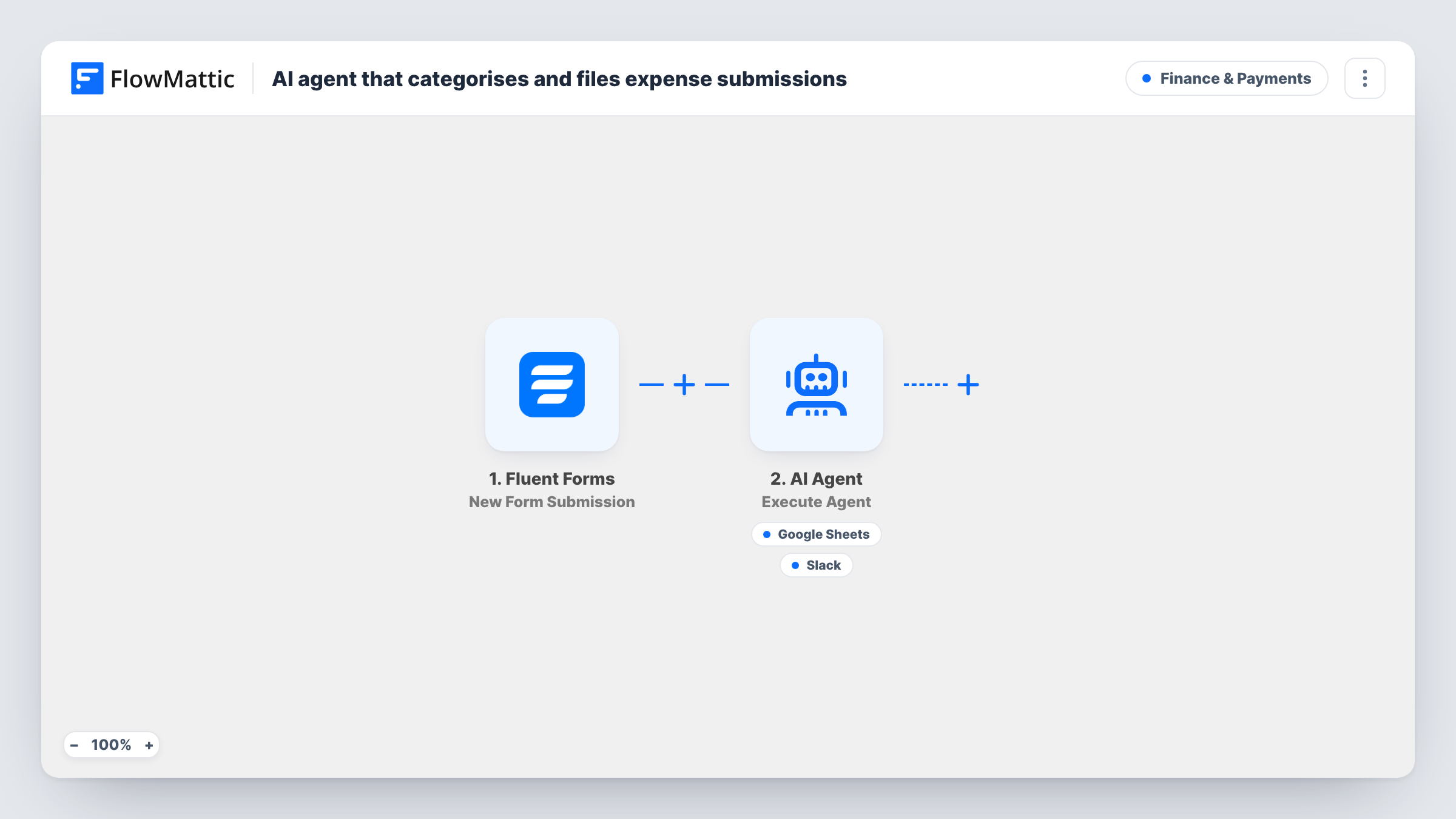
Staff send expenses through a Fluent Forms form, an AI Agent assigns a category and GL code, records the expense in Google Sheets, and can flag over-policy amounts in Slack for someone to approve.
 Fluent Forms
 AI Agent
 Google Sheets
 Slack
4 steps Setup ~8 min Used on 2.4k sites Finance Free to import
What this workflow does
Expense claims arrive with a vendor and a reason but no accounting category. Someone in finance has to read each one, pick a GL code and copy it into a sheet before month end. This workflow passes that first sorting pass to an AI Agent as soon as the claim is sent.
A Fluent Forms submission hands the amount, vendor, purpose and the submitter's email to the AI Agent. Its instructions are to categorise the expense with a category and GL code, record it, and flag over-policy amounts for approval. It has two tools: Add New Row in Google Sheets for the record, and Send Channel Message in Slack for the flag, with text the agent writes. The agent decides on each run which tools it uses.
Two things are yours to set after import. The Google Sheets tool has no columns set in the template, so you map the sheet's columns and confirm the category and GL code reach them. The instructions also do not state your policy limits or chart of accounts, so add both, or the agent will judge from general knowledge. Task History keeps each run for checking.
Small team without an expense app
Staff fill in a short Fluent Forms form for each receipt, and the bookkeeper gets a sheet that already has a suggested category and GL code on every line.
Travel claims with a per-day limit
Write your daily travel limit into the agent's instructions, and claims above it are posted in Slack for a manager to approve.
Agency recharging client costs
Tell the agent to use a rechargeable category when the purpose names a client project, and the sheet then shows which costs to bill back each month.
How this workflow runs
What happens at each step once the workflow is on, and what you need before you import it.
 Fluent Forms New Form Submission
Starts whenever someone sends your Fluent Forms expense form. It needs fields that map to amount, vendor, purpose and email, because the agent's input uses those four values.
- AI Agent Execute Agent
The AI Agent picks a category and GL code for the expense and checks it against policy, then calls its tools. OpenAI GPT-4o is the model in the template, used through your own AI provider connection.
- Google Sheets Add New Row
The agent's tool for recording the expense in Google Sheets. The template sets no columns, so connect Google, choose the sheet and map its columns, then confirm with a test claim.
- Slack Send Channel Message
The agent's tool for raising an over-policy expense in Slack, with a message the agent writes. Connect your workspace and use a test claim above your limit to see where it posts.
What you need
- FlowMatticCore
- Fluent Forms PluginPlugin
- AI ProviderAccount
- Google Sheets AccountAccount
- Slack AccountAccount
After importing, map your own data. To keep the template universal, not every step is pre-filled. Open each step in the builder and connect your accounts and fields (channels, lists, sheets, recipients) before you switch the workflow on.
Make it yours
Changes worth making after you import it.
- Paste your list of categories and GL codes into the agent's instructions. The agent then chooses from your chart of accounts instead of inventing codes.
- State your policy limits in the instructions, for example a meal limit per person, so the agent has a clear rule for when to post an approval flag in Slack.
- Add a Filter after the trigger that skips submissions with an empty amount, so incomplete claims never reach the agent or the sheet.
Questions about this workflow
Does the AI Agent know my company's GL codes?
Not unless you add them. As imported, the instructions only ask for a category and GL code, so give the agent your own list to choose from.
Who approves expenses that the agent flags in Slack?
The workflow only posts the flag. Approving or rejecting happens with whoever reads that Slack channel, and nothing in the flow waits for their answer.
Can staff attach a receipt to the Fluent Forms submission?
The agent's input in this template uses only the amount, vendor, purpose and email. Fluent Forms stores the entry as usual, so any uploaded file stays with the form entry.
Will every expense reach the Google Sheets record?
The agent is told to record each one, but it chooses when to use its tools. Check Task History for the first claims, and add a fixed Google Sheets step after the agent if every row must be written.
More Finance & Payments workflows
Other ready-to-import templates from the same category.






Import this workflow into your WordPress site
Download the JSON, import it from the Workflows screen and connect your accounts. Every run stays on your server, with no per-task fees.
30-day money-back guarantee Unlimited workflows and runs Self-hosted