

Deflect support questions from your contact form with an AI agent
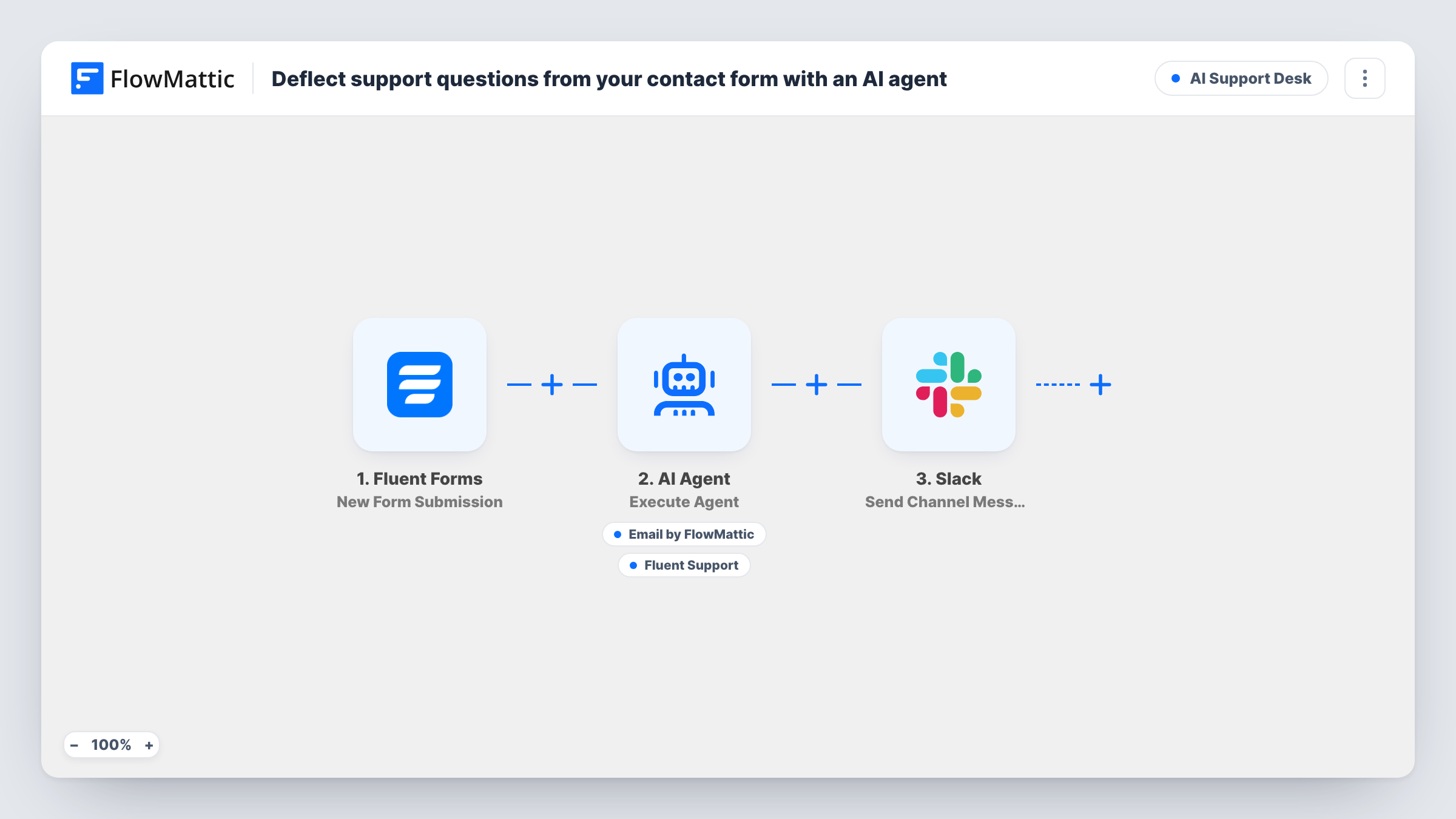
Questions sent through your Fluent Forms contact form go to an AI agent that can answer the visitor by email or open a Fluent Support ticket when a person is needed. Slack hears about every submission.
 Fluent Forms
 AI Agent
 Email
Email
 Fluent Support
 Slack
Slack5 steps Setup ~8 min Used on 2.5k sites Agentic Support Free to import
What this workflow does
Contact forms collect a lot of questions your site or docs already answer. Each one still lands in someone's inbox and waits for a reply. This workflow lets an AI agent handle the first response, so visitors get an answer by email quickly and only the harder questions become tickets for your team.
When a visitor submits your Fluent Forms contact form, FlowMattic passes their name, email and message to an AI Agent running OpenAI's GPT-4o. Its instructions are to answer the question by email, and to open a support ticket if it needs a human. It has two tools. One sends an email to the visitor's address, with a subject and body the agent writes. The other creates a ticket in Fluent Support for the visitor's email, with a title and content the agent writes.
After the agent step, Slack receives a message saying the AI answered a support form from that visitor. That message is posted after every submission, whichever tool the agent used, so treat it as a log of activity rather than proof of an answer.
Online course with repeat questions
Visitors ask how to access lessons or reset a password. The agent emails the answer, and requests about billing disputes turn into Fluent Support tickets.
Product site with a pre-sales form
Questions about features and compatibility get a quick emailed answer, while requests for a custom quote become tickets your team picks up.
Small business without a support rota
Messages sent in the evening still get a reply. Anything the agent hands over is waiting as a ticket in Fluent Support the next morning.
How this workflow runs
What happens at each step once the workflow is on, and what you need before you import it.
 Fluent Forms New Form Submission
Runs each time a visitor submits your Fluent Forms contact form. Their name, email and message are passed to the AI Agent.
- AI Agent Execute Agent
Gives the agent the visitor's name, email and message, with instructions to answer the question by email and to open a support ticket if it needs a human.
 Email Send Email
A tool the agent can call to email the visitor at the address they entered, with a subject line and message it composes. Delivery uses the SMTP connection you set up in FlowMattic.
- Fluent Support Create a New Ticket Using Customer
A tool the agent can call to create a Fluent Support ticket for the visitor's email address. The agent writes the ticket title and content from the visitor's question.
- Slack Send Channel Message
Posts a Slack message saying the AI answered a support form from the visitor's name. It runs after the agent on every submission, whatever the agent did.
What you need
- FlowMatticCore
- Fluent Forms PluginPlugin
- AI ProviderAccount
- Fluent Support PluginPlugin
- Slack AccountAccount
After importing, map your own data. To keep the template universal, not every step is pre-filled. Open each step in the builder and connect your accounts and fields (channels, lists, sheets, recipients) before you switch the workflow on.
Make it yours
Changes worth making after you import it.
- Give the agent your key facts in its instructions, such as opening hours, delivery times and links to help pages, so its emailed answers match what your site says.
- Tell the agent in its instructions to send the visitor a short email saying a person will follow up whenever it opens a ticket, if you want them told either way.
- Add a Filter after the trigger that stops submissions with an empty message, so the agent isn't asked to answer a blank form.
Questions about this workflow
Will the agent email the visitor and open a Fluent Support ticket for the same question?
It can. The instructions describe both jobs and the agent picks which tools to call. Read Task History for your first submissions to see what it does in practice.
Does Fluent Forms still store the contact form entry?
Yes. The workflow starts after the entry is submitted, so Fluent Forms saves it as usual and the agent works from a copy of the answers.
What if the visitor is not yet a Fluent Support customer?
The ticket tool uses Create a New Ticket Using Customer with the visitor's email. Run a test with a new address to see how Fluent Support handles a first-time customer.
Which AI model writes the emailed answers?
The AI Agent step uses OpenAI's GPT-4o. You need an AI provider connected in FlowMattic for it to run.
More AI Support Desk workflows
Other ready-to-import templates from the same category.



Import this workflow into your WordPress site
Download the JSON, import it from the Workflows screen and connect your accounts. Every run stays on your server, with no per-task fees.
30-day money-back guarantee Unlimited workflows and runs Self-hosted