

AI agent that handles new payments end to end
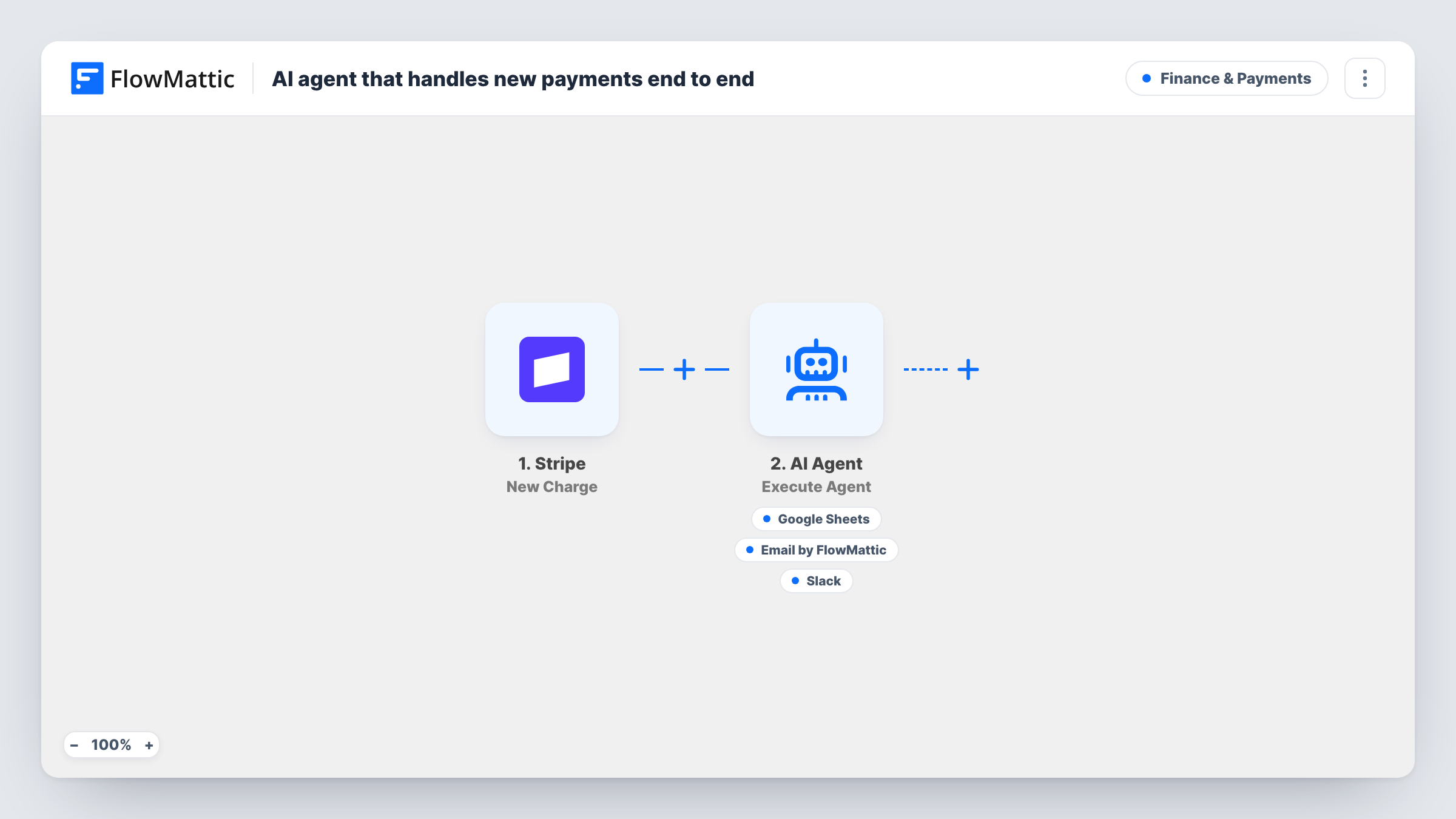
When a Stripe charge succeeds, an AI Agent is told to log the payment in a Google Sheets ledger, email the customer a receipt it writes, and post a revenue update to Slack, using the tools it is given.
 Stripe
 AI Agent
 Google Sheets
 Email
Email
 Slack
Slack5 steps Setup ~8 min Used on 1.5k sites Finance Free to import
What this workflow does
Each successful payment usually means three small jobs: note it in your records, thank the customer, and let the team know money came in. Done by hand, those jobs slip on busy days, and the ledger falls behind the Stripe dashboard. This workflow gives all three to one AI Agent the moment the charge goes through.
The Stripe trigger listens for New Charge, set to the charge.succeeded event, so only successful charges start a run. The currency, amount, customer email and charge description go to the AI Agent. Its instructions are to record the payment to the ledger, send the customer a clear receipt and post a revenue update to finance. It has three tools: Add New Row in Google Sheets, Send Email to the customer's address, and Send Channel Message in Slack.
The agent writes the receipt and the Slack text, and it decides which tools to call on each run. The Google Sheets tool comes with no columns set in the template, so you map the ledger columns yourself after import. Task History shows each run, including what the agent passed to each tool.
Freelancer taking payments by Stripe link
Each paid invoice gets a short receipt in your own words, a ledger row you can hand to your accountant, and a Slack note so you know without opening Stripe.
Small online course sold through Stripe
Every successful charge is logged with the description of what was bought, and the student gets a receipt that names the course in the description.
Agency with a finance channel
Account managers see each payment posted in Slack, while the sheet builds a running record of charges you can sort by customer or month.
How this workflow runs
What happens at each step once the workflow is on, and what you need before you import it.
 Stripe New Charge
Runs on each successful Stripe charge, through the charge.succeeded event. The currency, amount, customer email and description of the charge are passed to the agent.
- AI Agent Execute Agent
The AI Agent reads the payment details and is told to record the payment, send a receipt and post a revenue update. The template uses OpenAI GPT-4o, through your own AI provider connection.
- Google Sheets Add New Row
The agent's tool for writing the payment to your ledger sheet. No columns are set in the template, so connect Google, choose your sheet and map its columns, then confirm with a test charge.
 Email Send Email
The agent's tool for the receipt. It goes to the customer email from Stripe, with a subject and body the agent writes, sent through your FlowMattic email settings.
- Slack Send Channel Message
The agent's tool for posting a revenue update to Slack, with text the agent writes. Connect your Slack workspace and check after a test charge which channel the update appears in.
What you need
- FlowMatticCore
- Stripe AccountAccount
- AI ProviderAccount
- Google Sheets AccountAccount
- Slack AccountAccount
After importing, map your own data. To keep the template universal, not every step is pre-filled. Open each step in the builder and connect your accounts and fields (channels, lists, sheets, recipients) before you switch the workflow on.
Make it yours
Changes worth making after you import it.
- Run a test charge and look at the amount in Task History. If it arrives in the smallest currency unit, such as cents, tell the agent in its instructions to convert it before writing the receipt.
- Stripe can send its own receipts too. Decide which receipt you want customers to get, so they do not receive two for the same payment.
- Add a Filter after the trigger on the description or amount if only some charges, such as one product line, should go through the agent.
Questions about this workflow
Does a failed or refunded Stripe charge start this workflow?
No. The trigger is set to charge.succeeded, so only successful charges run it. Failed payments and refunds would need their own workflow with a different Stripe event.
Is the AI-written email a legal or tax invoice?
No. It is a thank-you receipt the agent writes from the amount, currency and description. If you need formal invoices, issue them from your billing system and keep this email as a courtesy note.
Will every payment be logged in the Google Sheets ledger?
The agent is told to record each one, but it chooses when to call its tools. Review Task History for the first runs, and add a fixed Google Sheets step after the agent if every row must be guaranteed.
Which payment details does the AI Agent see?
Only the currency, amount, customer email and charge description from Stripe. Card details are not part of its input in this template.
More Finance & Payments workflows
Other ready-to-import templates from the same category.





Import this workflow into your WordPress site
Download the JSON, import it from the Workflows screen and connect your accounts. Every run stays on your server, with no per-task fees.
30-day money-back guarantee Unlimited workflows and runs Self-hosted