

AI agent that enriches new leads and books the right follow-up
An AI agent reads each Fluent Forms lead and can add it to FluentCRM, note a next step, book a follow-up in Google Calendar and alert sales in Slack. The lead then gets a thank-you email.
 Fluent Forms
 AI Agent
 FluentCRM
 Google Calendar
 Slack
Slack
 Email
Email7 steps Setup ~12 min Used on 3.1k sites Revenue Ops Free to import
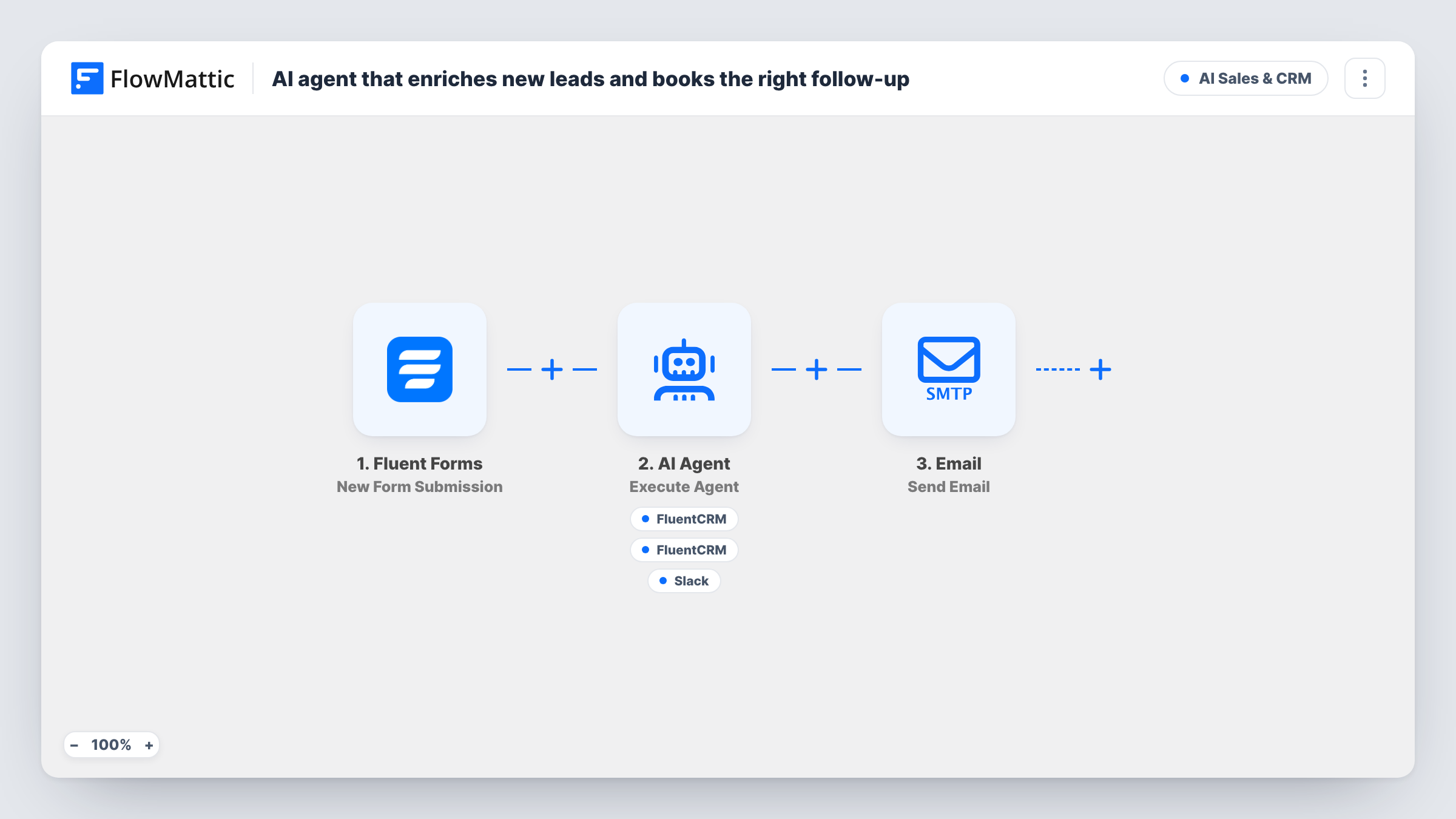
What this workflow does
Qualifying a new lead usually means several small jobs: put them in the CRM, decide what to do next, find a slot for the call and tell the rep. This workflow gives those jobs to an AI agent with the tools to do each one, and still sends the lead a plain thank-you whatever the agent decides.
The Fluent Forms trigger passes each new submission to the AI Agent step, set to OpenAI GPT-4o. It is told to qualify and enrich the lead, create or update the CRM contact, add a note with a recommended next step, book a follow-up event at the right time and alert the sales rep. It works from the lead's name, company, message and budget as the form gives them. It has no web browsing tool as imported, so any enrichment comes from what the lead wrote.
Its four tools are FluentCRM Create or Update Contact and Add Note to Contact, Google Calendar Create Quick Event, and Slack Send Channel Message. The agent writes the note, the event title and times, and the Slack text. It chooses which tools to use on each run, so check Task History on test leads.
After the agent, a regular Email step, not one of its tools, sends the lead "Thanks, let's talk" with a note that you will be in touch.
Agency enquiry form with budgets
An agency's contact form asks for budget, and the agent notes whether each enquiry fits, books a call slot on the team calendar and tells the account lead.
Consultancy discovery calls
A consultant lets the agent read each enquiry and put a follow-up on their own Google Calendar, so no lead waits for them to check the inbox.
Small sales team triage
A two-person sales team gets a Slack summary per lead with the agent's suggested next step, and the full note waits on the FluentCRM contact.
How this workflow runs
What happens at each step once the workflow is on, and what you need before you import it.
 Fluent Forms New Form Submission
Fires on each new submission of your Fluent Forms form. The name, email, company, message and budget fields are passed to the agent and the email.
- AI Agent Execute Agent
Runs an AI agent on OpenAI GPT-4o, told to qualify the lead, update the CRM, add a next-step note, book a follow-up and alert the rep. It works from the lead's name, company, message and budget.
- FluentCRM Create or Update Contact
Agent tool: creates a FluentCRM contact from the lead's email, or updates the existing one, with the name as the first name.
- FluentCRM Add Note to Contact
Agent tool: adds a note to the lead's FluentCRM contact, found by email, with a title and text the agent writes. The contact must already exist, so check that the agent created it first.
- Google Calendar Create Quick Event
Agent tool: creates a Google Calendar event with a title and start and end times chosen by the agent. Connect your calendar after import and review the times it picks on test leads.
- Slack Send Channel Message
Agent tool: posts a message the agent writes to the Slack channel you pick, as the alert to the sales rep.
 Email Send Email
Emails the lead with a thank-you subject using their name and a line saying you will reach out shortly. It's a regular step after the agent, not a tool, so the agent doesn't decide whether it runs.
What you need
- FlowMatticCore
- Fluent Forms PluginPlugin
- AI ProviderAccount
- FluentCRM PluginPlugin
- Google Calendar AccountAccount
- Slack AccountAccount
After importing, map your own data. To keep the template universal, not every step is pre-filled. Open each step in the builder and connect your accounts and fields (channels, lists, sheets, recipients) before you switch the workflow on.
Make it yours
Changes worth making after you import it.
- Give the agent the FlowMattic Browser tool so it can open pages by URL, such as the lead's company website, and add a website field to the form so it has an address to open.
- Tell the agent your working hours and how far ahead to book in its instructions, so follow-up events land at times you can take them.
- Map the lead's email, plus a phone field if your form has one, into the agent's input as well, so the Slack alert and note can include contact details.
- Run several test submissions and read each run in Task History before turning it on, then tighten the instructions where the agent's choices don't suit you.
Questions about this workflow
Does the AI agent look up the lead's company online?
Not as imported. It only has the four tools listed and works from what the lead typed into the form. Add the FlowMattic Browser tool if you want it to open web pages by URL.
Does the Google Calendar event invite the lead?
The tool creates an event with a title and times on the calendar you connect. The template doesn't add the lead as a guest, so arrange the call with them separately or adjust the tool.
Will every Fluent Forms lead get a CRM contact, note, event and Slack alert?
Not necessarily. The agent is told to do all four, but it chooses when to use each tool. Check Task History on test leads to see what it did.
Which AI provider does the enrichment agent use?
It is set to OpenAI GPT-4o, so connect your OpenAI account in FlowMattic before turning the workflow on.
More AI Sales & CRM workflows
Other ready-to-import templates from the same category.





Import this workflow into your WordPress site
Download the JSON, import it from the Workflows screen and connect your accounts. Every run stays on your server, with no per-task fees.
30-day money-back guarantee Unlimited workflows and runs Self-hosted