

Send leads to enterprise, mid-market, or self-serve based on budget
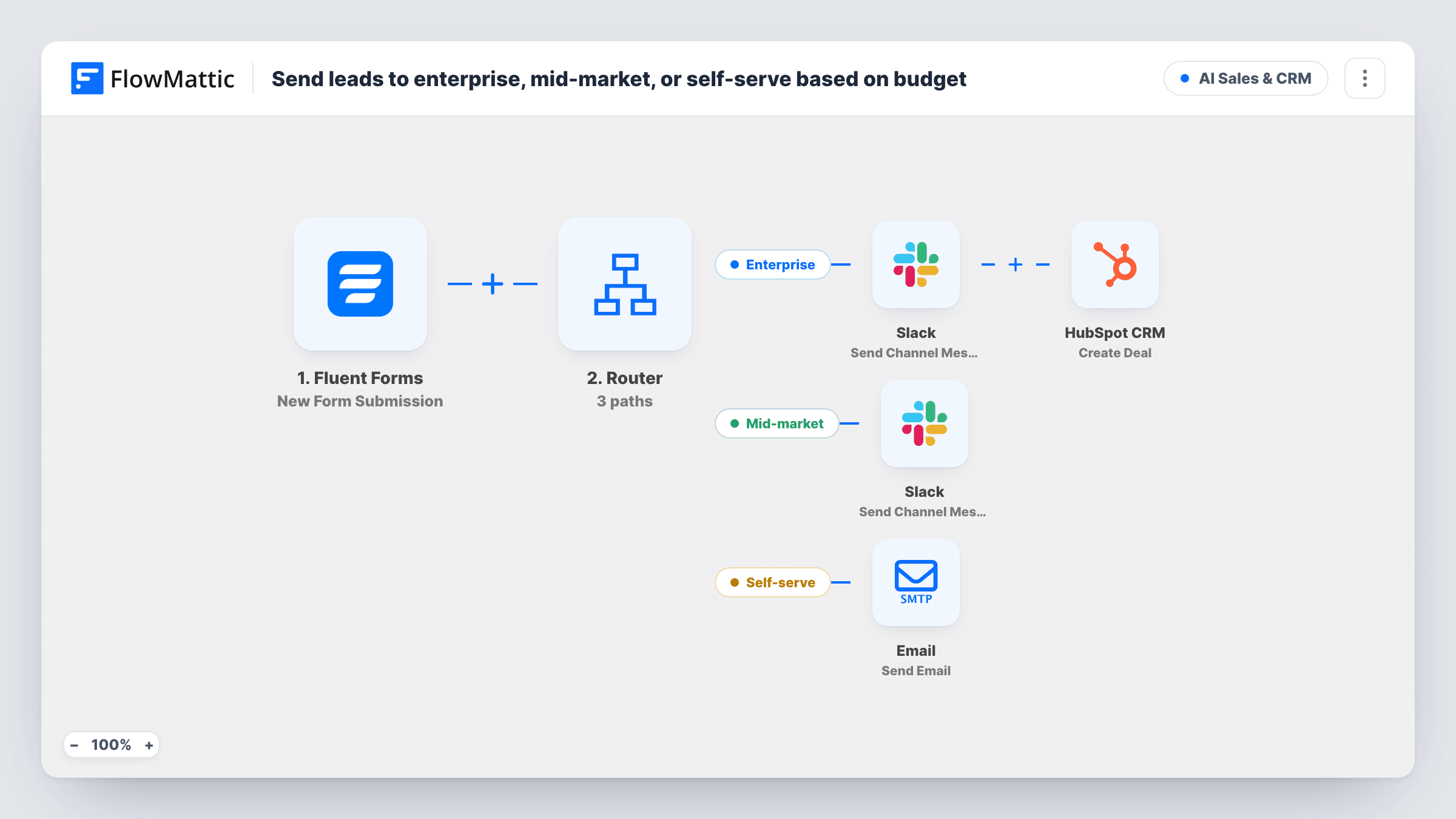
A Router reads the budget on each Fluent Forms sales inquiry: 50,000 and above alerts the enterprise channel in Slack and creates a HubSpot deal, 10,000 to 49,999 alerts the mid-market channel, and under 10,000 emails the lead a self-serve getting-started message.
 Fluent Forms
 Router
 Slack
Slack
 HubSpot CRM
 Email
Email6 steps Setup ~12 min Used on 2.2k sites Revenue Ops Free to import
What this workflow does
When one enquiry form serves every kind of buyer, the sales team spends time sorting big opportunities from small ones by hand. This workflow does the sorting from the budget the lead types in, so large prospects reach a salesperson and small ones get a self-serve reply straight away.
The Fluent Forms trigger starts on each new submission. A Router then compares the form's budget field with three ranges. FlowMattic compares these values as whole numbers, so the bands don't overlap and each lead follows exactly one route: 50,000 and up is Enterprise, 10,000 to 49,999 is Mid-market, and under 10,000 is Self-serve.
Enterprise leads post a Slack message with the company and budget, then a HubSpot deal named after the company, with the budget as its amount. Mid-market leads post their own Slack message with the company name. Self-serve leads receive an email from FlowMattic's Email module, sent to the address on the form, greeting them by name and pointing them to your self-serve plan.
The routes read fields called budget, company, email and name. Rename your form fields to match, or remap each step after import. A blank budget counts as 0, so it takes the Self-serve route.
Agency enquiry form
A web agency asks for a project budget on its contact form. Six-figure projects open a HubSpot deal for the founder, while small requests get an email pointing to its fixed-price packages.
SaaS demo requests
A software company sends large-budget demo requests to the enterprise team's Slack channel and points small teams to the self-serve trial.
Consulting intake
A consultancy posts mid-range enquiries to a shared Slack channel so any consultant can pick them up, and keeps HubSpot for the large engagements.
How this workflow runs
What happens at each step once the workflow is on, and what you need before you import it.
 Fluent Forms New Form Submission
The workflow starts automatically when a new form submission is received in Fluent Forms. FlowMattic captures that data for the steps below.
- Router 3 paths
The Router checks your conditions and sends each run down the matching path of 3 — Enterprise, Mid-market, Self-serve — so different cases get different actions.
- Slack Send Channel Message
On the “Enterprise” path — Slack — post or Schedule a new message to a specific #channel. Data is mapped from earlier steps; connect your Slack account on import.
- HubSpot CRM Create Deal
On the “Enterprise” path — HubSpot CRM — creates a deal in HubSpot. Data is mapped from earlier steps; connect your HubSpot CRM account on import.
- Slack Send Channel Message
On the “Mid-market” path — Slack — post or Schedule a new message to a specific #channel. Data is mapped from earlier steps; connect your Slack account on import.
 Email Send Email
On the “Self-serve” path — Email — send an email using built-in WP mail function or custom SMTP. Data is mapped from earlier steps; connect your Email account on import.
What you need
- FlowMatticCore
- Fluent Forms PluginPlugin
- Slack AccountAccount
- HubSpot CRM AccountAccount
After importing, map your own data. To keep the template universal, not every step is pre-filled. Open each step in the builder and connect your accounts and fields (channels, lists, sheets, recipients) before you switch the workflow on.
Make it yours
Changes worth making after you import it.
- Use a number field for the budget in Fluent Forms. The Router reads the value as a whole number, so text like 50,000 with a comma or a currency sign would be read as a much smaller number or as 0.
- Change the thresholds in the Router's route conditions if your bands differ. Keep the ranges from touching so no lead matches two routes.
- Add HubSpot's Create Contact action on the Enterprise route, between the Slack step and the Create Deal step, so the person behind the deal is in HubSpot too.
- Put a link to your pricing or sign-up page in the self-serve email, since the template's message only mentions the plan.
Questions about this workflow
Can one Fluent Forms lead run more than one route?
No, as long as you keep the imported budget bands. The Router runs every route whose condition matches, but these three bands don't overlap once the budget is read as a whole number, so each lead matches one of them.
What happens if the lead leaves the budget empty?
An empty budget counts as 0. It fails both greater-than checks and passes the under-10,000 check, so the lead gets the self-serve email.
Is a HubSpot contact created for enterprise leads?
No. The Enterprise route creates a deal with a name and amount only. Add a HubSpot Create Contact step before the deal if you want the person in HubSpot as well.
Do mid-market leads go anywhere besides Slack?
Not as imported. The Mid-market route ends with its Slack message. Add a CRM or email step after that message if those leads need a record or a reply.
Which email account sends the self-serve message?
FlowMattic's Email module, which sends through WordPress mail or the SMTP account you set up in it. Use an address your domain is set up to send from.
More AI Sales & CRM workflows
Other ready-to-import templates from the same category.







Import this workflow into your WordPress site
Download the JSON, import it from the Workflows screen and connect your accounts. Every run stays on your server, with no per-task fees.
30-day money-back guarantee Unlimited workflows and runs Self-hosted