

AI order-ops agent that logs, notifies and thanks for every order
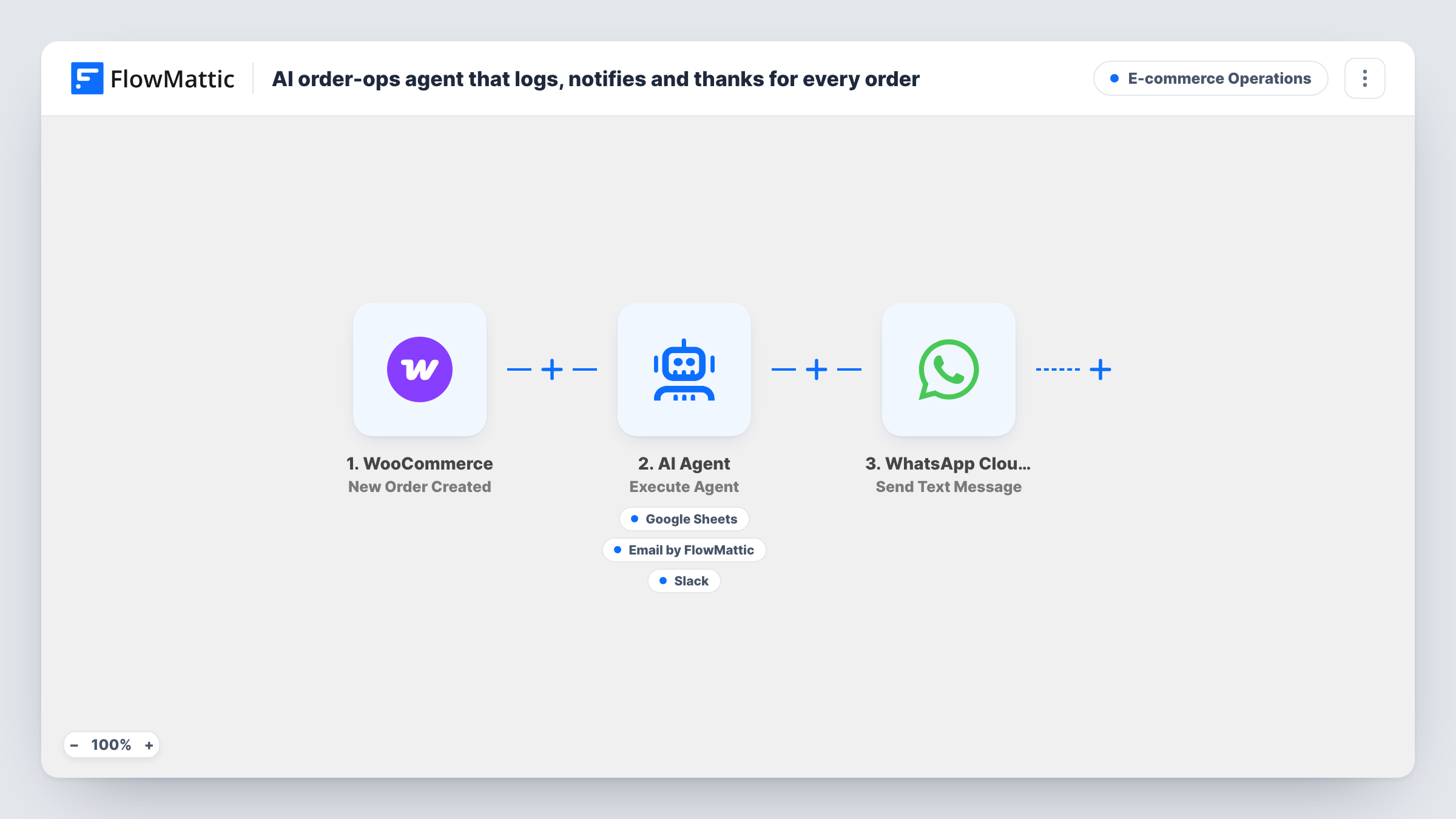
Each new WooCommerce order goes to an AI agent told to log it in Google Sheets, email the buyer a thank-you and post a summary to Slack, then a fixed WhatsApp confirmation goes to the billing phone.
 WooCommerce
 AI Agent
 Google Sheets
 Email
Email
 Slack
Slack
 WhatsApp Cloud API
6 steps Setup ~12 min Used on 717 sites Store Ops Free to import
What this workflow does
A busy shop repeats the same chores for every sale: note the order somewhere the team can see it, thank the buyer, and tell whoever packs it. This workflow hands those chores to an AI agent and adds a WhatsApp confirmation that is sent the same way every time.
The WooCommerce trigger fires when a new order is created. FlowMattic passes the order number, currency, total and billing name to the AI Agent step, which runs on OpenAI GPT-4o. Its instructions are to log the order to the orders sheet, send the customer a warm thank-you, and post an ops summary to Slack. It has three tools for that: Add New Row in Google Sheets, Send Email addressed to the billing email, and Send Channel Message in Slack. The agent writes the email subject, email body and Slack text itself, and it decides when to call each tool.
After the agent step, the WhatsApp Cloud API step sends a text to the billing phone number. That message is not written by AI. It greets the buyer by first name and confirms the order number.
Because the agent chooses its own tool calls, read Task History for your first few orders. It shows which tools ran and what the agent wrote.
Solo store owner without an ops team
You run the shop alone. The agent keeps a sheet of orders and a Slack log you can scan on your phone, and each buyer gets a personal thank-you email you never had to type.
Shop that confirms orders on WhatsApp
Your customers prefer WhatsApp to email. Every order triggers the same short confirmation to the billing phone, while the email and Slack work happens through the agent.
Small warehouse watching Slack
Packers keep a Slack channel open during the day. The agent's summary of each order gives them the buyer name and total without logging in to WooCommerce.
How this workflow runs
What happens at each step once the workflow is on, and what you need before you import it.
 WooCommerce New Order Created
Fires each time WooCommerce creates a new order on your store. The order number, currency, total, billing name, billing email and billing phone are passed on to the later steps.
- AI Agent Execute Agent
Runs an AI agent on OpenAI GPT-4o with one order summary as its input. It is told to log the order, thank the customer and post an ops summary, and it picks which of its three tools to call to do that.
- Google Sheets Add New Row
A tool the agent can call to add a row to your orders spreadsheet in Google Sheets. Connect your Google account after import, then place a test order to see where the row lands and what the agent writes into it.
 Email Send Email
A tool the agent can call to email the customer. The recipient is fixed to the order's billing email, and the agent writes the subject and the body of the thank-you.
- Slack Send Channel Message
A tool the agent can call to post to a Slack channel. The agent writes the message text as a short summary of the order for your team.
- WhatsApp Cloud API Send Text Message
Sends a WhatsApp text to the order's billing phone through your WhatsApp Cloud API account. The text is fixed: it greets the buyer by first name and confirms the order number.
What you need
- FlowMatticCore
- WooCommerce PluginPlugin
- AI ProviderAccount
- Google Sheets AccountAccount
- Slack AccountAccount
- WhatsApp Cloud API AccountAccount
After importing, map your own data. To keep the template universal, not every step is pre-filled. Open each step in the builder and connect your accounts and fields (channels, lists, sheets, recipients) before you switch the workflow on.
Make it yours
Changes worth making after you import it.
- Add a Filter after the trigger if some orders should be left out, for example orders with a total of 0. Every later step, including WhatsApp, then runs only for orders that pass.
- Make the system prompt more specific about the sheet. Name the columns you want filled, in order, so the agent's rows line up with your headers from one order to the next.
- Billing phone numbers are often saved without a country code. Check a test order in Task History, and adjust how you map the phone into the WhatsApp step if the format doesn't work.
- Rewrite the agent's instructions to set the tone of the thank-you email, such as a sign-off with your name or a line about delivery times you actually offer.
Questions about this workflow
Will the AI agent log, email and post to Slack for every WooCommerce order?
It is told to do all three for each order, but the agent decides which tools to call, so a run can miss one. Task History shows the tool calls for each order, which is the place to check while you test the prompt.
Is the WhatsApp confirmation written by the AI?
No. The WhatsApp Cloud API step runs after the agent and sends a fixed text with the buyer's first name and order number. It goes out for every order the workflow runs on.
Which AI model does the agent use, and do I need my own key?
This template is set to OpenAI GPT-4o. You connect your own AI provider account in the AI Agent step before the workflow can run.
Will customers get a WhatsApp message if they never messaged my business?
That depends on Meta's rules for messages a business starts, which can require an approved template. Check what your WhatsApp Cloud API setup allows, and test with a number that has not messaged you first.
Does this work for orders placed before I import it?
No. The trigger fires on orders created after the workflow is turned on. Earlier WooCommerce orders are not sent to the agent or to WhatsApp.
More E-commerce Operations workflows
Other ready-to-import templates from the same category.




Import this workflow into your WordPress site
Download the JSON, import it from the Workflows screen and connect your accounts. Every run stays on your server, with no per-task fees.
30-day money-back guarantee Unlimited workflows and runs Self-hosted