

AI agent that sends smart, personalised review requests after delivery
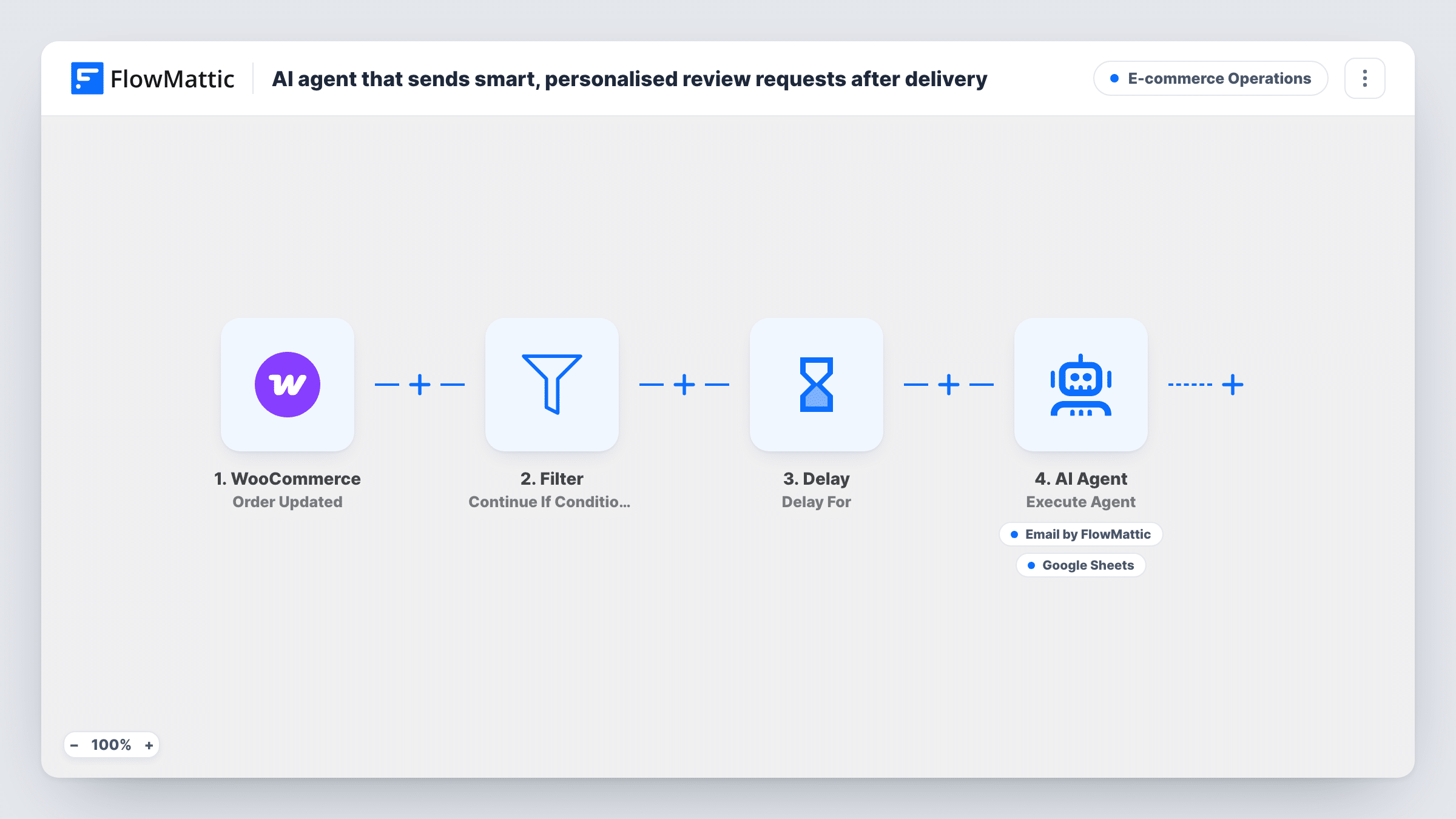
When a WooCommerce order is updated to completed, this workflow waits 7 days, then an AI agent writes a review request about the product the customer bought, can email it to them and log it in Google Sheets.
 WooCommerce
 Filter
 Delay
Delay
 AI Agent
 Email
Email
 Google Sheets
6 steps Setup ~12 min Used on 3.4k sites Store Ops Free to import
What this workflow does
Review requests work best when they arrive after the customer has had time with the product and mention what they actually bought. Writing those by hand for every order isn't realistic. This workflow times the request and lets an AI agent write it.
The WooCommerce trigger fires whenever an order is updated. A Filter lets the run continue only when the order status contains completed, and a Delay then waits 7 days. After that, an AI Agent on OpenAI GPT-4o receives the customer's first name, the product name and the order number. It is told to write and send a warm, personalised review request, then log it. It has two tools: an email to the order's billing address, with the subject and body written by the agent, and a Google Sheets Add New Row step for the log.
Completed is the status WooCommerce uses once an order is fulfilled, which isn't always the delivery date, so set the delay to match your shipping times. The trigger also fires on any later update to a completed order. Each of those updates starts another run, which can mean a second review request a week later.
Shops that mark orders completed on dispatch
Orders move to completed when they ship. The 7-day wait gives the parcel time to arrive before the customer is asked for a review.
Handmade and small-batch products
The agent can mention the exact item by name, which reads like a note from the maker rather than a bulk email.
Tracking review outreach in a sheet
Each request the agent logs adds a row to Google Sheets, so you can see who was asked and compare that with the reviews that come in.
How this workflow runs
What happens at each step once the workflow is on, and what you need before you import it.
 WooCommerce Order Updated
Fires each time a WooCommerce order is updated, for any change. The order's status, billing first name, billing email, product name and order number are passed on.
- Filter Continue If Condition Meet
Lets the run continue only when the order status contains completed. Updates to orders in any other status stop here.
- Delay Delay For
Waits 7 days after the order passes the Filter before the agent runs. Change the number of days to match your delivery times.
- AI Agent Execute Agent
Runs an AI agent on OpenAI GPT-4o with the customer's first name, the product and the order number. It is told to write and send a review request for that product, then log it.
 Email Send Email
Agent tool that emails the review request to the order's billing email. The agent writes the subject and the body, mentioning the product the customer bought.
- Google Sheets Add New Row
Agent tool that adds a row to Google Sheets to log the outreach. It comes unconfigured in the template, so set it up after import and check the row with a test order.
What you need
- FlowMatticCore
- WooCommerce PluginPlugin
- AI ProviderAccount
- Google Sheets AccountAccount
After importing, map your own data. To keep the template universal, not every step is pre-filled. Open each step in the builder and connect your accounts and fields (channels, lists, sheets, recipients) before you switch the workflow on.
Make it yours
Changes worth making after you import it.
- Add your review page link to the agent's instructions so every email points customers to the right place to leave a review.
- If you mark orders completed on delivery rather than dispatch, shorten the Delay to 2 or 3 days so the request arrives while the purchase is still fresh.
- Mark a test order completed after import, temporarily set the Delay to a few minutes, and read the email the agent writes before going live.
Questions about this workflow
When does the WooCommerce review request go out?
Seven days after the order update that set it to completed, as long as the order status contained completed at that moment. Change the Delay to adjust this.
Can a customer get two review requests for one order?
Yes. The trigger runs on every order update, so if a completed order is updated again, the Filter passes it a second time and another request follows a week later.
Will the agent always log the request in Google Sheets?
It is told to, but the agent chooses when to call its tools. Check Task History for the first few orders to confirm it sends and logs as you expect.
Does the review request mention every product in the WooCommerce order?
The agent is given the product name from the order and writes around that. Place a test order with two items and read the email the agent produces to see how it handles them.
More E-commerce Operations workflows
Other ready-to-import templates from the same category.




Import this workflow into your WordPress site
Download the JSON, import it from the Workflows screen and connect your accounts. Every run stays on your server, with no per-task fees.
30-day money-back guarantee Unlimited workflows and runs Self-hosted