

AI agent that recommends and offers a tailored upsell after checkout
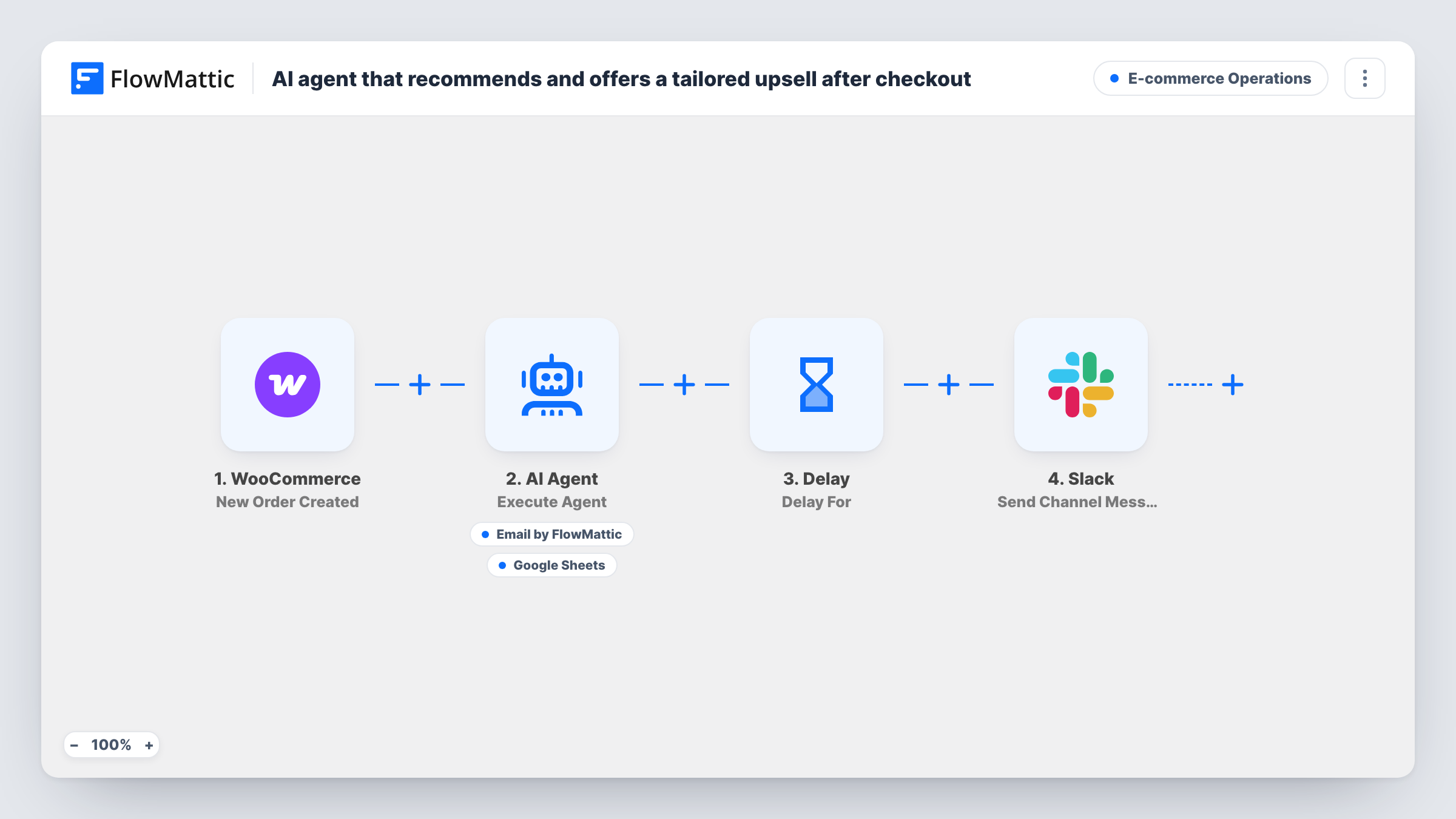
After each new WooCommerce order, an AI agent reads what was bought, browses your products, picks one complementary item and emails the buyer a low-pressure offer, then logs it. Five days later Slack gets a note.
 WooCommerce
 AI Agent
 Email
Email
 Google Sheets
 Delay
Delay
 Slack
Slack8 steps Setup ~12 min Used on 2.5k sites Store Ops Free to import
What this workflow does
Suggesting the right add-on by hand means opening each order, thinking about what goes with it and writing a note. This workflow gives that job to an AI agent that works from your real order and product data, so each buyer gets a suggestion that fits what they just bought.
Each run starts with a fresh order in WooCommerce. The AI Agent step receives the customer's first name, order ID, order number and total. Its instructions tell it to act as a merchandiser: look up the order, list the store's products, choose one complementary product that was not in the order, write a friendly upsell email, send it and log the pick.
The agent has four tools for this. Get Order by ID reads the order's items, Get All Products browses your catalogue, Send Email writes to the order's billing email with a subject and body the agent composes, and a Google Sheets row records the recommendation. The agent decides when to use each tool, so read a few runs before relying on it.
After the agent finishes, a Delay waits five days and then a Slack message tells your channel an upsell was offered for that order. That note is posted whether or not the agent sent an email, so check the sheet for what it actually did.
Accessories for a camera shop
A buyer orders a camera body, and the agent suggests a matching memory card or bag from the store's own products in a short follow-up email.
Refills for a skincare store
Someone buys a cleanser and gets an offer for the toner from the same range, written to sound helpful rather than pushy.
Reviewing what the AI recommends
A store owner reads the Google Sheets log each week to see which products the agent pairs together and adjusts its instructions if picks look off.
How this workflow runs
What happens at each step once the workflow is on, and what you need before you import it.
 WooCommerce New Order Created
Starts as soon as WooCommerce records a new order. The order ID, number, total, billing first name and billing email are passed to the agent and its tools.
- AI Agent Execute Agent
Runs an AI agent on GPT-4o, told to act as a merchandiser and pick one complementary product not in the order, email a low-pressure offer and log the recommendation. You connect your AI provider.
- WooCommerce Get Order by ID
Agent tool that reads the items in the order, using the order ID from the trigger, so the agent knows what the customer already bought.
- WooCommerce Get All Products
Agent tool that lists the store's products so the agent can browse them and choose the upsell. It ships with no extra settings.
 Email Send Email
Agent tool that emails the upsell offer to the order's billing email. The agent writes the subject and body itself each time it uses the tool.
- Google Sheets Add New Row
Agent tool that adds a row to Google Sheets with the agent's recommendation. Connect your account and pick the spreadsheet and sheet after import.
- Delay Delay For
Waits five days after the agent step finishes before the workflow continues to the Slack message.
- Slack Send Channel Message
Posts a note to a Slack channel that an upsell was offered to the billing email for the order number. The channel is yours to choose once imported.
What you need
- FlowMatticCore
- WooCommerce PluginPlugin
- AI ProviderAccount
- Google Sheets AccountAccount
- Slack AccountAccount
After importing, map your own data. To keep the template universal, not every step is pre-filled. Open each step in the builder and connect your accounts and fields (channels, lists, sheets, recipients) before you switch the workflow on.
Make it yours
Changes worth making after you import it.
- Add a line to the agent's instructions naming products it should never suggest, such as gift cards or out-of-stock items, if your catalogue has items that make poor upsells.
- Remove the Delay, or shorten it, if you want the Slack note when the offer goes out rather than five days later.
- Ask the agent in its instructions to include the product link in the email, so the customer can open the suggested item in one click.
- Add the order number and the customer's email as extra columns in the Google Sheets tool, so each logged recommendation can be traced back to its order.
Questions about this workflow
Does the AI agent always email an upsell for every WooCommerce order?
Every new order starts a run, and the agent is told to send one offer each time. It still chooses when to use its tools, so check the Google Sheets log and Task History on a few orders to see what it did.
Can the agent recommend a product the customer already bought?
Its instructions say to pick a product that was not in the order, and it reads the order items first to check. Review early runs to confirm it follows that.
Why does the Slack message arrive five days after the order?
A five-day Delay sits between the agent and the Slack step. Change or remove it if your team wants the note sooner.
Which AI model does the upsell agent use?
This upsell agent ships configured for GPT-4o from OpenAI. Connect your own AI provider account in the agent step before the first test order.
More E-commerce Operations workflows
Other ready-to-import templates from the same category.



Import this workflow into your WordPress site
Download the JSON, import it from the Workflows screen and connect your accounts. Every run stays on your server, with no per-task fees.
30-day money-back guarantee Unlimited workflows and runs Self-hosted