

Send a re-engagement email to cold CRM contacts and remove their cold tag
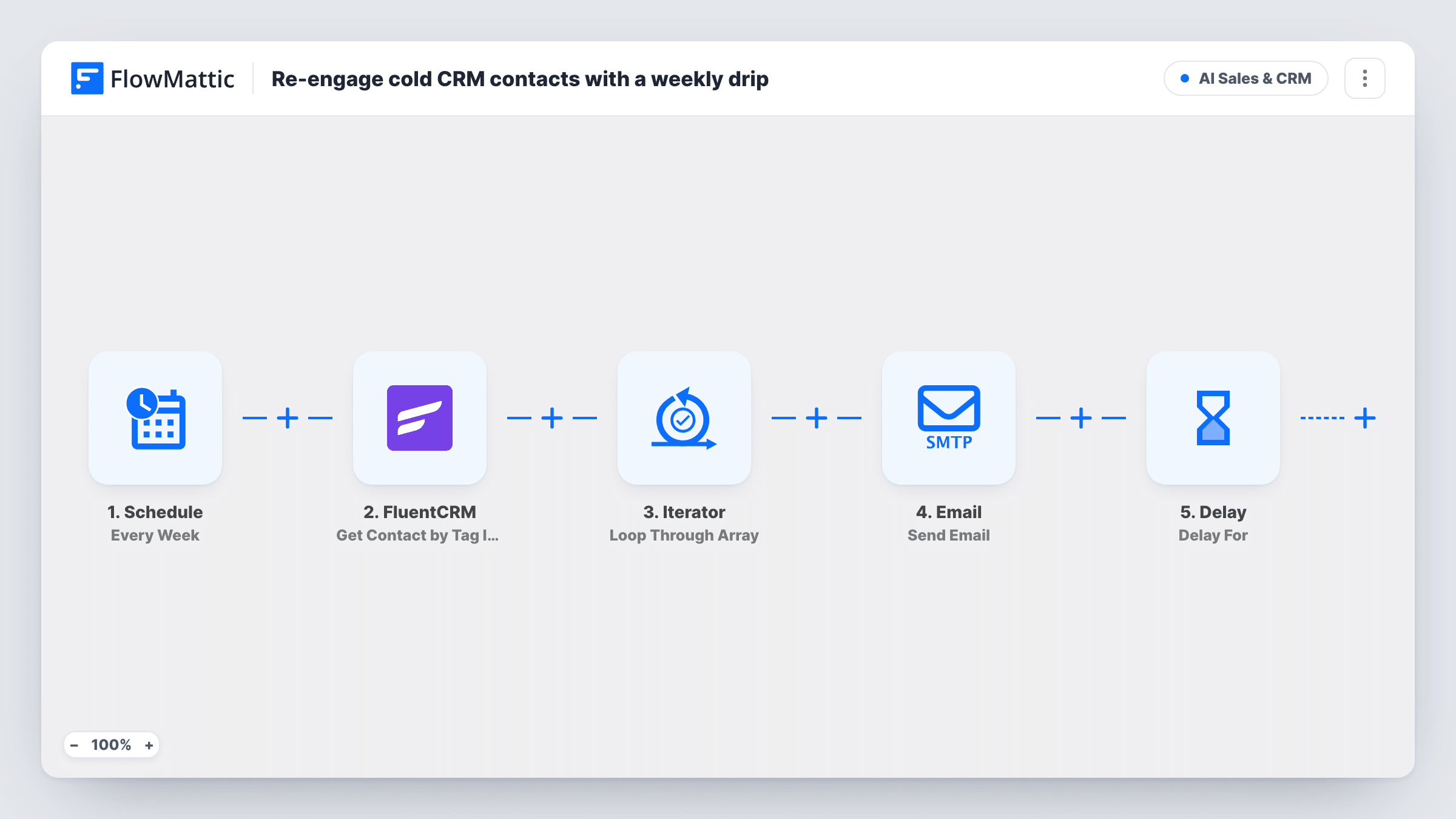
Every week, FlowMattic fetches the FluentCRM contacts with your cold tag, sends each one a re-engagement email, then removes the tag so they aren’t emailed again next week.
 Schedule
 FluentCRM
 Iterator
 Email
5 steps Setup ~8 min Used on 2.8k sites Revenue Ops Free to import
What this workflow does
Contacts who stopped opening your emails or never bought tend to sit in the CRM untouched. If you mark them with a cold tag in FluentCRM, this workflow gives each of them one friendly nudge, then clears the tag so the same person isn't chased every week.
The Schedule trigger runs the workflow weekly. The FluentCRM Get Contact by Tag IDs step fetches the contacts with your cold tag. The template doesn't set the tag in this step or in the last one, so choose your cold tag in both before you turn the workflow on, and test with one tagged contact first.
Those contacts are handled one at a time by an Iterator. For each, the Email step sends "Still thinking it over" with their first name, and a short note that a lot has shipped since you last spoke. Edit that body to say what's actually new and link to it.
Finally, Remove Tags From Contact takes the cold tag off that contact by email. Next week's run only finds contacts that were tagged since. Anyone you tag as cold again later gets the email again.
Win-back for stalled leads
A software company tags trial users who never upgraded, and each one gets a short note about recent features on the next weekly run.
Clean-up before a list prune
A newsletter owner tags inactive subscribers as cold and sends one last check-in before deciding who to remove.
Tags set by FluentCRM automations
A shop whose FluentCRM automation tags customers with no purchase in six months gets each of them emailed once, without extra manual work.
How this workflow runs
What happens at each step once the workflow is on, and what you need before you import it.
 Schedule Every Week
Runs the workflow once a week, so contacts tagged during the week are picked up together on the next run.
- FluentCRM Get Contact by Tag IDs
Looks up the FluentCRM contacts that carry a given tag. The template doesn't set a tag here, so choose your cold tag after import before you turn the workflow on.
- Iterator Loop Through Array
Goes through the contacts that FluentCRM returned and runs the email and tag-removal steps once for each one.
 Email Send Email
Sends the contact an email with the subject "Still thinking it over" plus their first name, and a short body about what's new. Rewrite the body with your real updates and a link.
- FluentCRM Remove Tags From Contact
Removes a tag from the contact, found by email. The tag isn't set in the template; choose the same cold tag you picked in step 2 so the contact isn't emailed again.
What you need
- FlowMatticCore
- FluentCRM PluginPlugin
After importing, map your own data. To keep the template universal, not every step is pre-filled. Open each step in the builder and connect your accounts and fields (channels, lists, sheets, recipients) before you switch the workflow on.
Make it yours
Changes worth making after you import it.
- Set the cold tag in both FluentCRM steps and run the workflow once with a single test contact tagged, before tagging real contacts.
- Add FluentCRM's Add Tags to Contact action after the Remove Tags step, inside the loop, with a tag such as "re-engaged", so you can see who received the email.
- If a test run shows each contact's subscription status, put a Filter between the Iterator and the Email step that continues only for subscribed contacts. Inside the loop, only the contacts that fail are skipped.
- Use your SMTP details in FlowMattic so the message comes from a real person's address, which suits a personal check-in.
Questions about this workflow
Which FluentCRM tag does this workflow use?
None until you set it. Neither FluentCRM step has a tag in the template, so pick your cold tag in the Get Contact by Tag IDs step and the Remove Tags From Contact step after import.
Will a cold contact get the email every week?
No. Once the email is sent, the last step removes the cold tag, so next week's run doesn't find that contact. Tag them again to send another.
Does the email go out through FluentCRM?
No. It uses FlowMattic's Email step, which sends through WordPress mail or your SMTP account, not as a FluentCRM campaign.
Can I send the re-engagement email at once instead of weekly?
Yes. Change the Schedule trigger to a daily run. Or replace it with FluentCRM's Contact Added to Tags trigger, remove the fetch and Iterator steps, and remap the email and tag steps to the trigger's contact data.
More AI Sales & CRM workflows
Other ready-to-import templates from the same category.





Import this workflow into your WordPress site
Download the JSON, import it from the Workflows screen and connect your accounts. Every run stays on your server, with no per-task fees.
30-day money-back guarantee Unlimited workflows and runs Self-hosted