

Email a receipt for every new payment added to Google Sheets
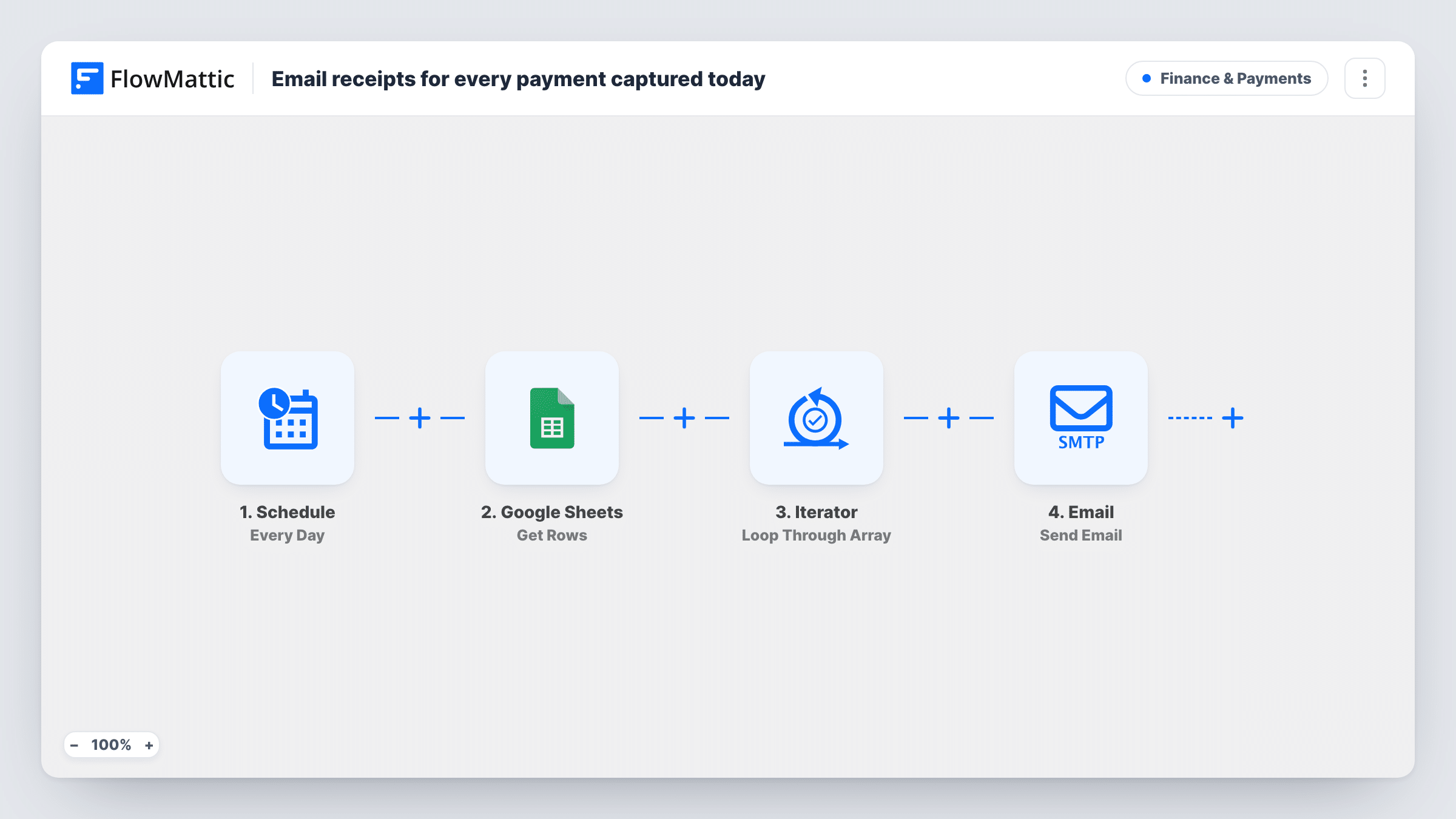
Each new payment row added to your Google Sheets ledger sends the payer a short receipt email from FlowMattic. You map the recipient address from the sheet after import.
 Google Sheets
 Email
Email2 steps Setup ~5 min Used on 2.9k sites Finance Free to import
What this workflow does
Plenty of small businesses track payments in a spreadsheet: bank transfers, cash, invoices paid outside a checkout. Customers still expect confirmation that their money arrived. This workflow emails a receipt whenever a payment row is added, so nobody has to remember to write one.
The Google Sheets trigger fires when a new row is added to the sheet you pick. The row's columns, for example the payer's email, name, amount and date, become values the email can use.
The Email step sends a message with the subject Your payment receipt and the text: Thanks for your payment. This email confirms we received it. The recipient is not set in the template. After import, map the column holding the payer's email address into the To field, or no receipt can go out. The text doesn't mention the amount yet, so add the amount, date and any reference number from the row.
Every added row sends one email, and editing a row that's already there doesn't send another. The message goes out through FlowMattic's Email module, which uses WordPress mail or the SMTP account you set.
Bank transfer confirmations
A consultant logs each incoming bank transfer in a sheet, and the client gets a receipt email as soon as the row is entered.
Cash payments at events
A yoga teacher adds cash payments from class to a Google Sheet on her phone, and each student is emailed a confirmation.
Payments recorded by a form tool
A club's payment form writes every entry to Google Sheets, which sends members a receipt without anyone opening the spreadsheet.
How this workflow runs
What happens at each step once the workflow is on, and what you need before you import it.
 Google Sheets New Spreadsheet Row
Starts a run when a new row appears in your payments sheet. Connect Google and choose the spreadsheet and sheet; the row's columns are then available to map into the receipt.
 Email Send Email
Emails a receipt titled Your payment receipt, thanking the payer and confirming the payment arrived. The recipient isn't set, so map the email column from the row before turning the workflow on.
What you need
- FlowMatticCore
- Google Sheets AccountAccount
After importing, map your own data. To keep the template universal, not every step is pre-filled. Open each step in the builder and connect your accounts and fields (channels, lists, sheets, recipients) before you switch the workflow on.
Make it yours
Changes worth making after you import it.
- Map the amount, payment date and a reference number into the email body, so the receipt shows what was actually paid.
- If your sheet also records unpaid or pending entries, put a Filter between the Google Sheets trigger and the Email step on your status column. The column and value are examples to set for your sheet.
- Fill in the email column at the moment the row is created. A row entered without it gives the Email step no address to send to.
- Configure an SMTP account in FlowMattic's Email settings so receipts come from your business address rather than the default WordPress sender.
Questions about this workflow
Who receives the payment receipt email?
The address you map into the recipient field. The template leaves it empty, so pick the payer's email column from the Google Sheets row after import.
Does the receipt include the payment amount?
Not as imported. The body only thanks the payer and confirms the payment arrived. Map the amount and other columns from your sheet into the text.
Will rows already in my payments sheet trigger receipts?
No. Only rows added after you turn the workflow on start a run, so earlier payments don't get emailed.
Is this a tax invoice?
No. It's a plain confirmation email with the text you write. If you need a formal invoice, add the details your accounting rules require or generate the invoice with a separate tool.
More Finance & Payments workflows
Other ready-to-import templates from the same category.




Import this workflow into your WordPress site
Download the JSON, import it from the Workflows screen and connect your accounts. Every run stays on your server, with no per-task fees.
30-day money-back guarantee Unlimited workflows and runs Self-hosted