

Re-engage inactive students every week
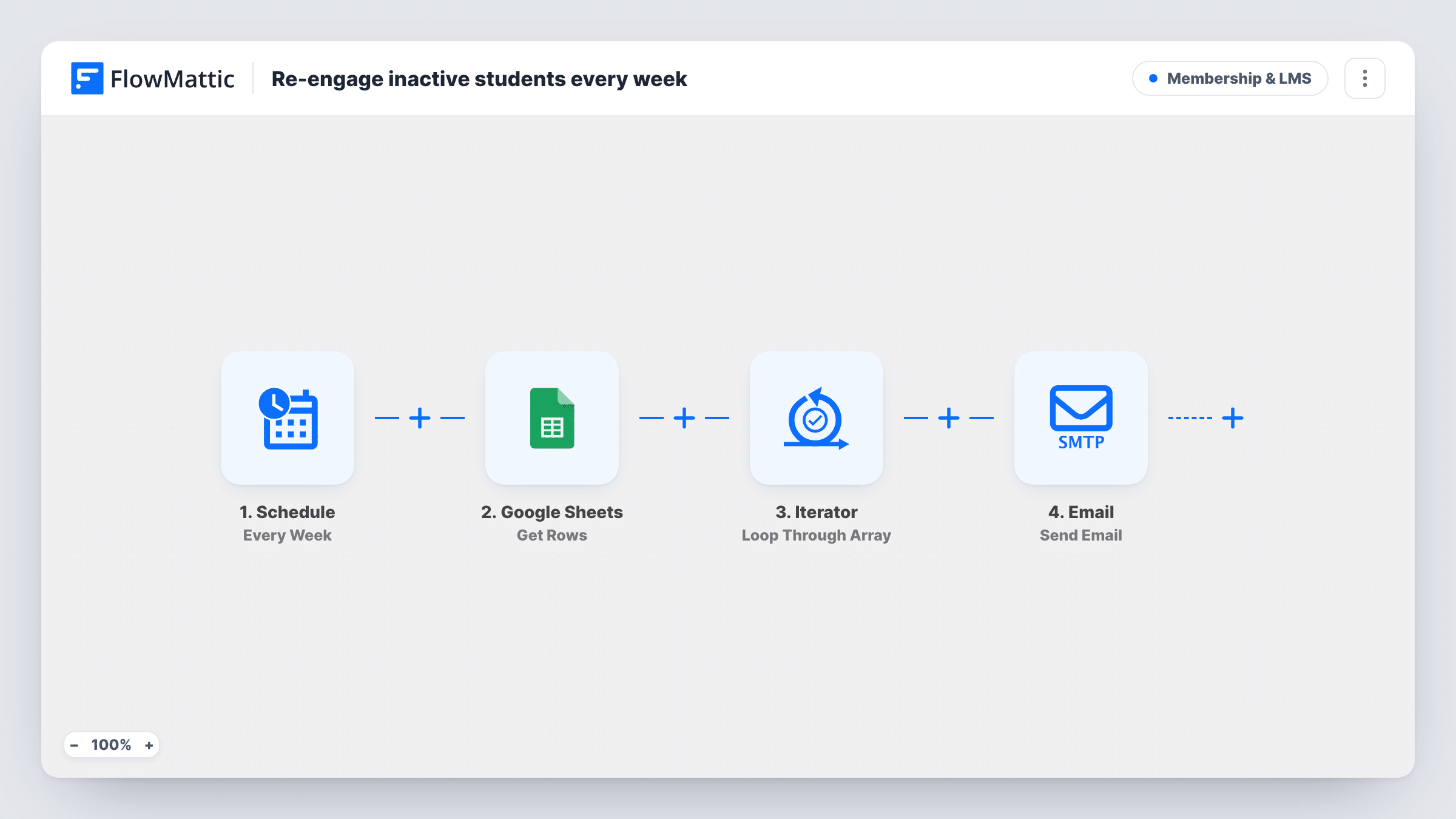
Each week, this workflow reads a Google Sheets list of students you want to win back, loops through it with an Iterator, and emails every student a nudge to return to their course by name.
 Schedule
 Google Sheets
 Iterator
 Email
Email4 steps Setup ~8 min Used on 2.7k sites Community Free to import
What this workflow does
Students who stop logging in rarely announce it. They just fade, and by the time you notice the course is half abandoned. A short personal email that names the course is often enough to bring them back, provided it goes out regularly and to the right people.
This workflow handles the sending. The Schedule trigger runs it weekly. The Google Sheets step gets rows from a spreadsheet you keep of students to re-engage. An Iterator loops through those rows, and for each one the Email step sends a message to the row's email address, with the first name in the subject and the course title in the body.
The workflow does not decide who is inactive. It emails whoever is in the sheet at run time, so the list is yours to maintain, by hand or from an export out of your LMS or membership plugin. Remove students who have come back, or they will get the same nudge again next week. Each run and each email appears in Task History.
Course creator with a monthly activity export
You export students with no recent logins from your LMS into the sheet. The following week, each of them gets a nudge that names the course they paused.
Cohort program falling behind
A facilitator lists learners who missed the last two sessions. The weekly email reminds them which course they are in and invites them back.
Membership site with several courses
One sheet can hold students from different courses, since each row carries its own course title and the email picks it up per student.
How this workflow runs
What happens at each step once the workflow is on, and what you need before you import it.
 Schedule Every Week
Starts a run every week on the schedule you set. Students added to the sheet after a run are emailed on the next one.
- Google Sheets Get Rows
Gets rows from the Google Sheets spreadsheet you connect after import, and passes them on as a list for the Iterator.
- Iterator Loop Through Array
Loops through the rows from Google Sheets, so the Email step after it runs once for each student in the list.
 Email Send Email
Emails the student at the row's email address. The subject includes their first name and the body invites them back to the course title from that row. Edit the wording to suit your school.
What you need
- FlowMatticCore
- Google Sheets AccountAccount
After importing, map your own data. To keep the template universal, not every step is pre-filled. Open each step in the builder and connect your accounts and fields (channels, lists, sheets, recipients) before you switch the workflow on.
Make it yours
Changes worth making after you import it.
- Add a Filter after the Iterator that skips rows with a value in a status column, so students marked as returned or unsubscribed are not emailed.
- Add a course link column and map it into the email body, so each student can jump straight back into the right lesson.
- Switch the Schedule trigger to a custom interval, such as every two weeks, if a weekly nudge feels too frequent for your students.
Questions about this workflow
How does the workflow know which students are inactive?
It doesn't. It emails every row the Google Sheets step returns. You decide who belongs on the list, for example by pasting an export of students with no recent activity.
Which columns does my student sheet need?
The template uses values named email, first_name and course_title from each row. Use those headers, or remap the Email step to your own after a test run.
Will a student get the nudge again every week?
It will, for every week the student is still listed. Remove rows for students who return, or add a Filter on a status column to skip them.
Do I need an LMS plugin installed for this?
No. Only a Google account and the Email step are needed. The sheet can come from any LMS or course platform, as long as it holds the email, first name and course title.
More Membership & LMS workflows
Other ready-to-import templates from the same category.




Import this workflow into your WordPress site
Download the JSON, import it from the Workflows screen and connect your accounts. Every run stays on your server, with no per-task fees.
30-day money-back guarantee Unlimited workflows and runs Self-hosted