

Compile a weekly links digest and email each subscriber
Once a week, FlowMattic reads your links sheet and your subscriber sheet in Google Sheets, then emails each subscriber a roundup that includes the rows from the links sheet.
 Schedule
 Google Sheets
 Iterator
 Email
Email5 steps Setup ~8 min Used on 2.2k sites Content Ops Free to import
What this workflow does
A weekly reading list is easy to collect in a spreadsheet and tedious to send by hand. This workflow keeps both halves in Google Sheets, one sheet for the links you've picked and one for the people who want them, and emails every subscriber on a weekly schedule.
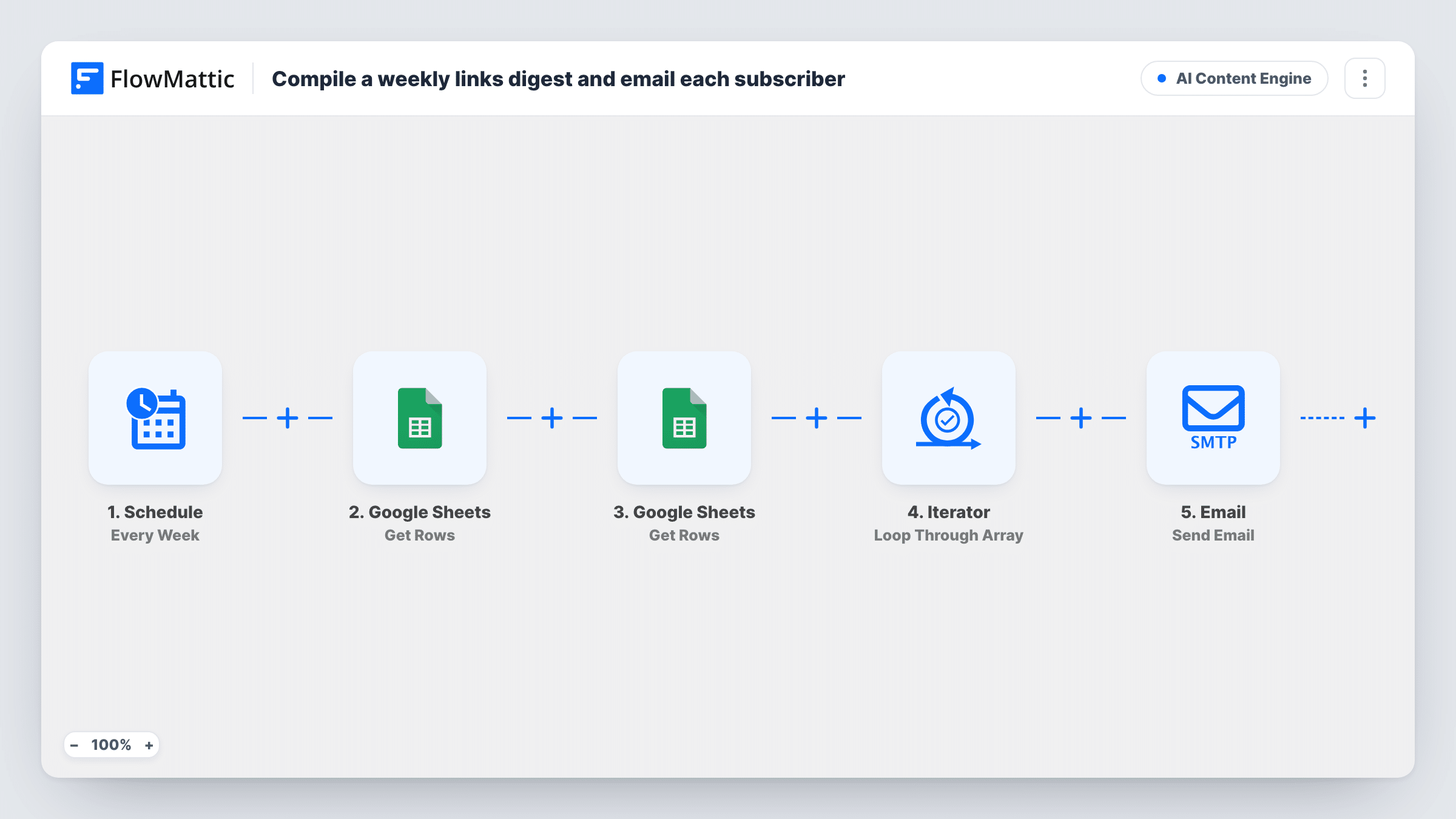
A weekly Schedule trigger begins each send. The first Google Sheets Get Rows step reads your links sheet, and the second reads your subscriber list. Both ship unmapped, so after import you connect Google and choose the right spreadsheet and sheet for each. The subscriber sheet needs email and first_name columns.
An Iterator then loops through the subscribers. For each one, the Email step sends "This week's roundup", greets them by first name, and adds the rows returned by the links step. Those rows go in as the step returned them, without extra layout, so send a test to yourself and check how they read before you go live.
Each run sends every link on the links sheet to every subscriber on the list. Clear or replace last week's links before the next run, or subscribers get them again. Remove people from the subscriber sheet as soon as they ask to stop receiving it.
A curated newsletter without a mailing tool
A consultant collects useful articles in a sheet during the week and sends the list to a few dozen clients every Friday.
Internal reading list for a team
A team lead keeps a sheet of industry news links and emails it to colleagues listed in a second sheet each Monday.
Community resource roundup
A meetup organiser shares the week's recommended talks and posts with members, adding new links to the sheet as they find them.
How this workflow runs
What happens at each step once the workflow is on, and what you need before you import it.
 Schedule Every Week
Kicks off the roundup on a weekly schedule. Check the Schedule trigger after import so the roundup goes out on the day you want.
- Google Sheets Get Rows
Reads the rows of your links sheet. The step ships unmapped: connect Google and pick the spreadsheet and sheet that hold this week's links.
- Google Sheets Get Rows
Reads the rows of your subscriber sheet, which the Iterator loops over. Pick that spreadsheet and sheet after import; it needs email and first_name columns.
- Iterator Loop Through Array
Goes through the subscriber rows one at a time and runs the Email step for each subscriber.
 Email Send Email
Emails the subscriber with the subject "This week's roundup", a greeting by first name, and the rows from the links sheet as the Get Rows step returned them.
What you need
- FlowMatticCore
- Google Sheets AccountAccount
After importing, map your own data. To keep the template universal, not every step is pre-filled. Open each step in the builder and connect your accounts and fields (channels, lists, sheets, recipients) before you switch the workflow on.
Make it yours
Changes worth making after you import it.
- Send the first run to a subscriber sheet that holds only your own address, and check how the links appear in the email before adding real subscribers.
- Clear the links sheet, or move old links to another tab, after each send so the next roundup only holds new ones.
- Put a Filter between the Iterator and the Email step that continues only when the email column is not empty, so blank rows in the subscriber sheet are skipped.
- Set your SMTP details in FlowMattic so the roundup comes from your own sending address.
Questions about this workflow
How do the links from Google Sheets look in the email?
The body includes the rows the links step returned, as they come, with no list layout added. Send a test to yourself to see the result and adjust the sheet or the email body if needed.
Will subscribers get the same links twice?
Yes, if the links stay on the sheet. Each weekly run sends every row on the links sheet, so clear it after each roundup.
Do I need a mailing service for the weekly roundup?
No. The Email step sends through WordPress mail or the SMTP account you set in FlowMattic, one email per subscriber.
How do people unsubscribe from the roundup?
The template has no unsubscribe link or step. Remove their row from the subscriber sheet, and add your own opt-out instructions to the email body.
More AI Content Engine workflows
Other ready-to-import templates from the same category.







Import this workflow into your WordPress site
Download the JSON, import it from the Workflows screen and connect your accounts. Every run stays on your server, with no per-task fees.
30-day money-back guarantee Unlimited workflows and runs Self-hosted