

Save Contact Form 7 entries to Google Sheets and notify your team by email
Each Contact Form 7 submission is added as a row in Google Sheets, then FlowMattic emails your team an enquiry summary with the sender’s name, email, phone number and message.
 Contact Form 7
 Google Sheets
 Email
3 steps Setup ~5 min Used on 3.3k sites Lead Capture Free to import
What this workflow does
Contact Form 7 emails the site owner and keeps no list of past enquiries. A spreadsheet gives you that history, and a separate team email lets several people see each enquiry without sharing one inbox. This workflow handles both.
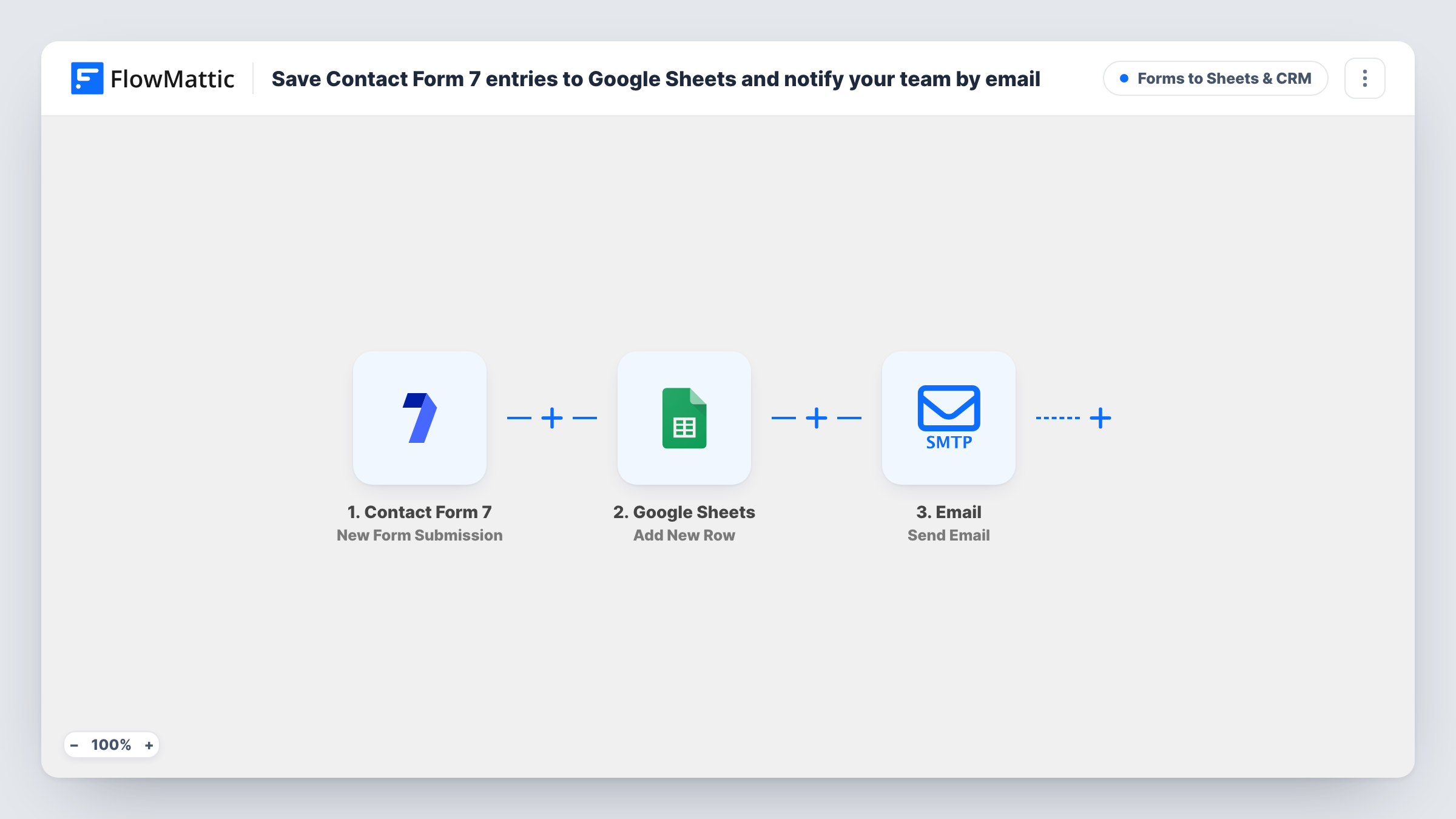
When a visitor submits a form, the Contact Form 7 trigger passes the answers on. The first action adds a new row in Google Sheets; it ships unmapped, so you pick the spreadsheet and match form fields to columns. The second action sends an email through FlowMattic's Email step. Its subject reads New enquiry from and the sender's name, and the body lists the name, email, phone and message.
Two things need changing after import. The recipient is set to [email protected], a placeholder you replace with your real address. And the email reads fields called name, email, phone and message, while Contact Form 7's default form uses names like your-name and your-email. Remap them to your form's fields so the email doesn't arrive with blanks.
Trades business taking call-back requests
A plumber's site asks for a name and phone number. Each request is logged in the sheet, and the office team gets an email with the number to call.
Small firm sharing enquiries
Enquiries go to a group address the partners all read, while the spreadsheet keeps a running record they can review at the end of the month.
Website handed over to a client
You built a client's site with Contact Form 7. The client's staff get the enquiry emails, and the sheet gives the client a full list they own.
How this workflow runs
What happens at each step once the workflow is on, and what you need before you import it.
 Contact Form 7 New Form Submission
Starts the workflow when a visitor submits a Contact Form 7 form. Every field in the form becomes available to the Google Sheets and Email steps.
- Google Sheets Add New Row
Adds a row to Google Sheets for the submission. Nothing is mapped yet, so connect your Google account, choose the spreadsheet and match each form field to a column.
 Email Send Email
Emails [email protected] with the subject New enquiry from and the sender's name, listing name, email, phone and message. Replace the placeholder address and remap the four fields to your form's own field names.
What you need
- FlowMatticCore
- Contact Form 7 PluginPlugin
- Google Sheets AccountAccount
After importing, map your own data. To keep the template universal, not every step is pre-filled. Open each step in the builder and connect your accounts and fields (channels, lists, sheets, recipients) before you switch the workflow on.
Make it yours
Changes worth making after you import it.
- Change the recipient in the Email step before anything else. As imported it points at [email protected], which is only a placeholder.
- Look at your form tags in Contact Form 7. If they are your-name, your-email and so on, remap the Email step's name, email, phone and message fields to match.
- Add a Filter after the trigger if one form should be logged but another should not, so each form's entries only reach the sheet and inbox meant for them.
Questions about this workflow
Does Contact Form 7 still send its own email to the site owner?
Yes. The workflow doesn't change the form's mail settings. The FlowMattic email is sent in addition to Contact Form 7's own.
Who receives the enquiry email after import?
Nobody useful yet. The To address is the placeholder [email protected], so replace it with your team's address before you switch the workflow on.
Why would the Contact Form 7 enquiry email show empty fields?
The Email step reads fields named name, email, phone and message. If your form tags use other names, those lines come through blank until you remap them.
What if my Contact Form 7 form has no phone field?
Delete the Phone line from the email body, or map a different field into it. The rest of the email is unaffected.
More Forms to Sheets & CRM workflows
Other ready-to-import templates from the same category.







Import this workflow into your WordPress site
Download the JSON, import it from the Workflows screen and connect your accounts. Every run stays on your server, with no per-task fees.
30-day money-back guarantee Unlimited workflows and runs Self-hosted