

Append every FlowMattic Forms submission to Google Sheets
Each submission to the FlowMattic form you select is added as a new row in the Google Sheets spreadsheet you choose, so every entry builds a running record you can sort, filter and share with your team.
 Form Builder
 Google Sheets
2 steps Setup ~5 min Used on 3.1k sites Lead Capture Free to import
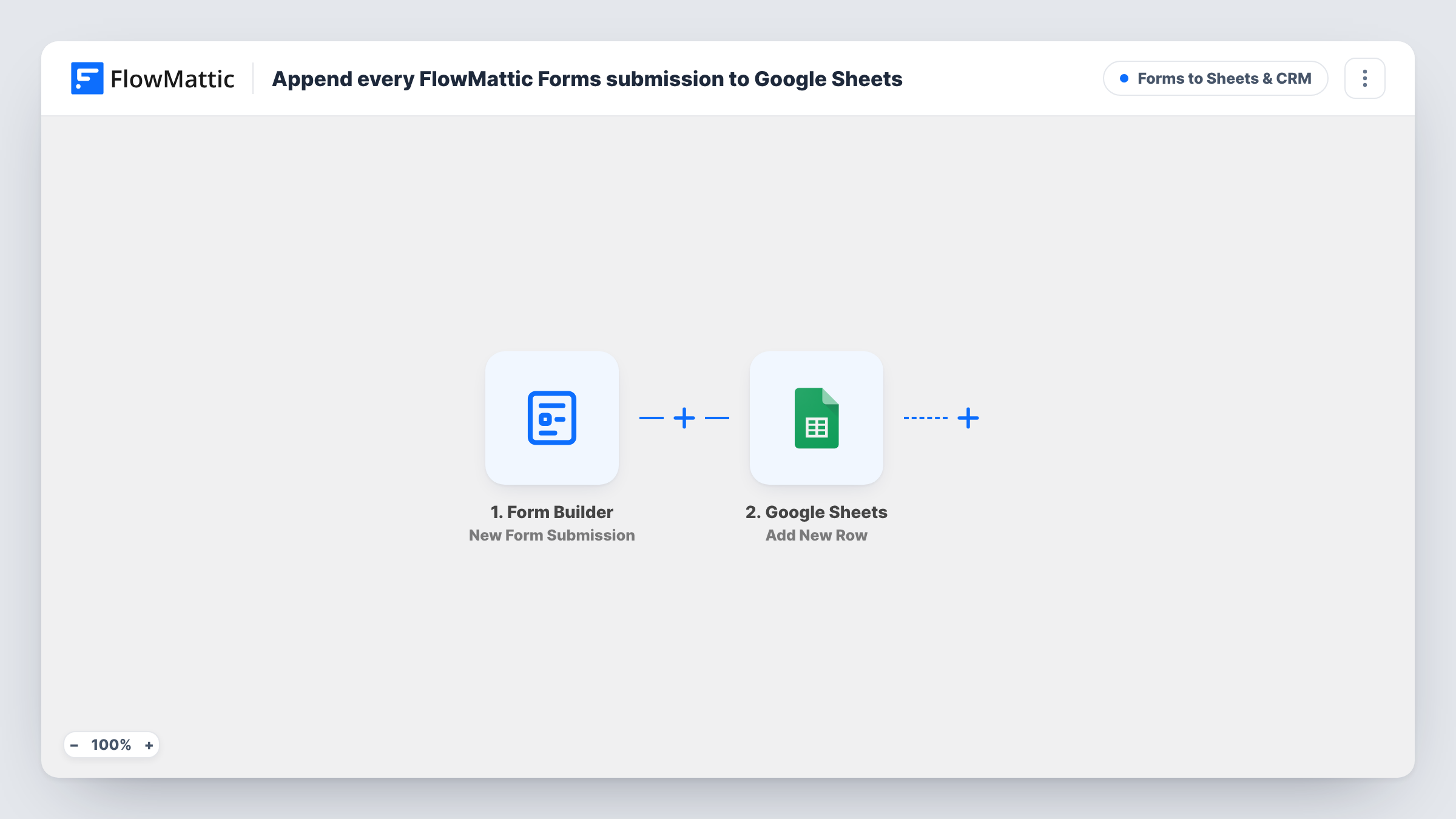
What this workflow does
FlowMattic's form builder makes it quick to put a form on your site. When the entries need to be read by someone outside WordPress, or worked through as a list, a spreadsheet is the easiest place for them. This workflow appends each submission to Google Sheets.
The Form Builder trigger fires whenever the selected FlowMattic form receives a new submission, and FlowMattic exposes every field value as a variable.
Then Google Sheets takes over with Add New Row. Nothing is mapped in the template, so after import you pick the spreadsheet and sheet, then place each form field in its column. Each submission becomes one new row. Rows are never edited or merged, so a person who submits twice appears twice. You can see every run, and the values sent to the sheet, in Task History.
Volunteer sign-up list
A charity's volunteer form, built with FlowMattic Forms, fills a shared sheet that coordinators sort by availability.
Feedback survey results
Answers from a short feedback form gather in Google Sheets, where you can chart responses without exporting entries.
Order or booking requests for a small business
A bakery takes custom-cake requests through a FlowMattic form, and staff work through each row of the sheet in order.
How this workflow runs
What happens at each step once the workflow is on, and what you need before you import it.
 Form Builder New Form Submission
Fires whenever the FlowMattic form you select receives a submission. Every field the visitor filled in is exposed as a variable you can map into the sheet.
- Google Sheets Add New Row
Appends one row to the Google Sheets spreadsheet and sheet you pick. Map each FlowMattic form field to a column after import, and connect your Google account.
What you need
- FlowMatticCore
- Google Sheets AccountAccount
After importing, map your own data. To keep the template universal, not every step is pre-filled. Open each step in the builder and connect your accounts and fields (channels, lists, sheets, recipients) before you switch the workflow on.
Make it yours
Changes worth making after you import it.
- Create the header row in your sheet before mapping, with one column per form field, so the Add New Row step shows clear column names to map to.
- Map the submission date or time into its own column, if the trigger provides one, so the sheet can be sorted by when each entry arrived.
- Add a Filter after the trigger if only some entries belong in the sheet, for example only those where a topic field equals Sales.
Questions about this workflow
Do I need to map the FlowMattic Forms fields to columns myself?
Yes. The Add New Row step ships without mappings. Submit a test entry so the fields are captured, then pick a field for each column in the sheet.
Does a resubmitted FlowMattic form update the earlier row?
No. Add New Row only adds rows, so every submission gets its own row, even from the same person.
Will entries made before I turned the workflow on be added?
No. Only submissions received after the workflow is active are sent to Google Sheets.
More Forms to Sheets & CRM workflows
Other ready-to-import templates from the same category.






Import this workflow into your WordPress site
Download the JSON, import it from the Workflows screen and connect your accounts. Every run stays on your server, with no per-task fees.
30-day money-back guarantee Unlimited workflows and runs Self-hosted