

Save form submissions to Airtable and notify your team in Slack
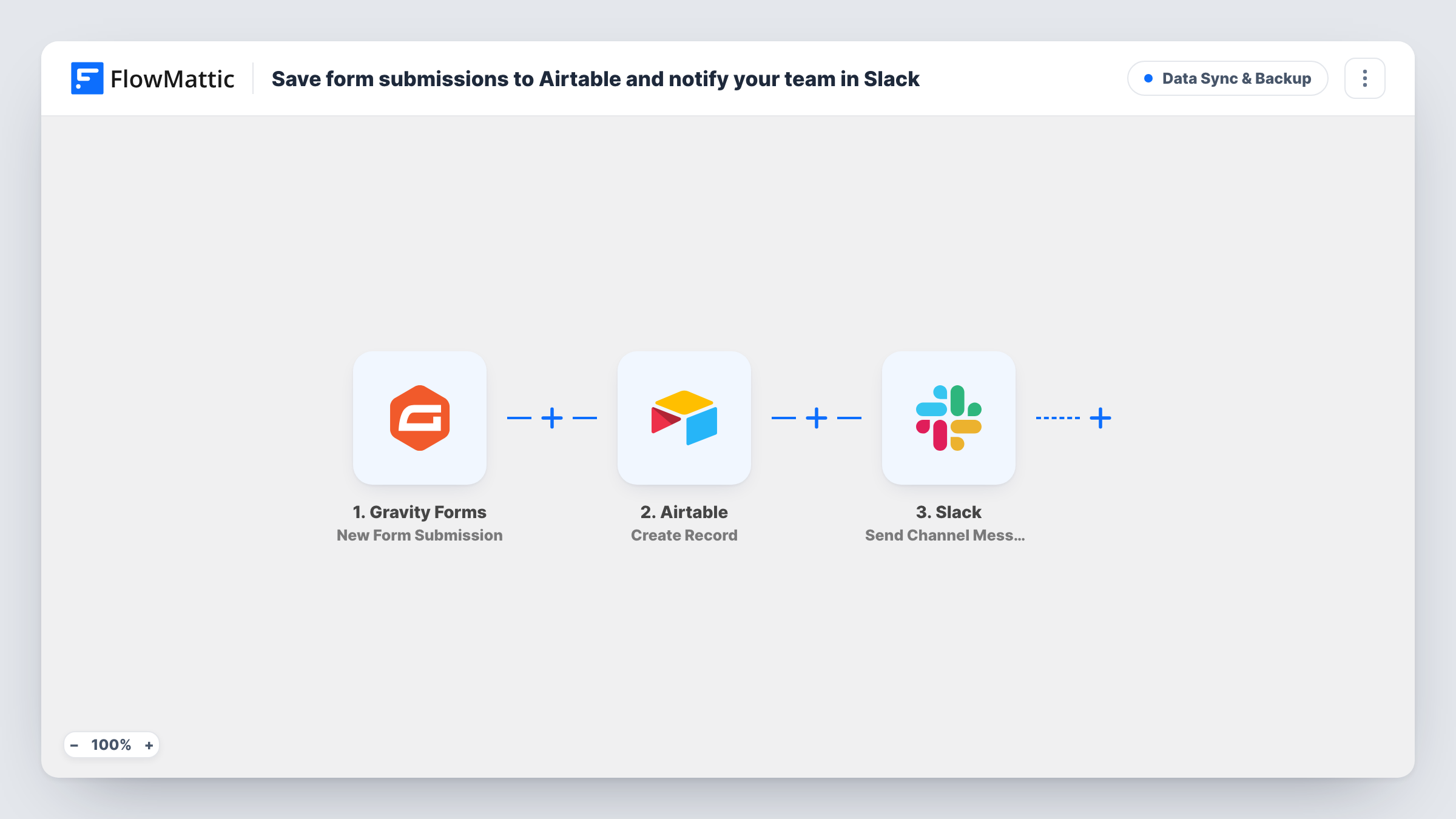
Every Gravity Forms submission is saved as a new Airtable record, then a Slack channel message tells your team who submitted it, with their name and email.
 Gravity Forms
 Airtable
 Slack
3 steps Setup ~5 min Used on 3.5k sites Data Ops Free to import
What this workflow does
Gravity Forms keeps entries inside WordPress, but many teams track enquiries, applications or requests in Airtable. And someone has to notice each new one. This workflow puts the entry where your team works and tells them it arrived.
The Gravity Forms trigger fires on each new submission. FlowMattic then creates a record in Airtable. The template leaves the Airtable step's fields for you to set after import, so you map form fields to your own table's columns. Finally, a Slack channel message announces the new submission with the person's name and email.
The Slack text in the template only reads the name and email fields, so make sure your form has fields with those names or remap them. You can add more of the submission to the message, or a note pointing the team to the Airtable view.
Gravity Forms still stores the entry as usual. The workflow copies the data out; it doesn't change or remove anything on your site.
Job applications tracked in Airtable
Applicants submit a Gravity Forms application. Each one becomes an Airtable record your hiring team reviews, and the Slack post tells them a new applicant came in.
Event vendor or speaker submissions
Organisers collect pitches through a form, sort and rate them in Airtable, and see each new pitch announced in their planning channel.
Client intake for a studio
New project enquiries land in an Airtable base you use as a simple pipeline, and the team channel hears about each one by name.
How this workflow runs
What happens at each step once the workflow is on, and what you need before you import it.
 Gravity Forms New Form Submission
Fires each time a visitor submits your Gravity Forms form. All submitted fields become available for mapping in the Airtable and Slack steps.
- Airtable Create Record
Creates a new record in Airtable from the submission. The template doesn't map any fields, so connect your Airtable account and map the form fields to your table, then confirm with a test entry.
- Slack Send Channel Message
Posts a Slack channel message announcing the new submission with the submitter's name and email from the form.
What you need
- FlowMatticCore
- Gravity Forms PluginPlugin
- Airtable AccountAccount
- Slack AccountAccount
After importing, map your own data. To keep the template universal, not every step is pre-filled. Open each step in the builder and connect your accounts and fields (channels, lists, sheets, recipients) before you switch the workflow on.
Make it yours
Changes worth making after you import it.
- Add a Filter after the trigger if only some entries belong in Airtable, for example when an enquiry type field equals a certain value.
- Map the submission's message or topic field into the Slack text so the team can see what the entry is about without opening Airtable.
- Submit a test entry after import so FlowMattic has real Gravity Forms data to map into the Airtable record.
Questions about this workflow
Where in Airtable does each Gravity Forms entry end up?
The template ships the Airtable step unconfigured, so you set its destination and field mapping after import. Send a test entry and confirm the record lands where you expect.
What if my Gravity Forms form has no field called name?
The Slack message will show an empty gap where the name should be. Remap the message to your form's own name fields, such as first and last name.
Does this update an existing Airtable record if the same person submits twice?
No. The step is Create Record, so every submission adds a new record, even from the same email.
Will the Slack message include the whole Gravity Forms entry?
Not as imported. It only shows the name and email. Add more fields to the message text if your team needs them.
More Data Sync & Backup workflows
Other ready-to-import templates from the same category.





Import this workflow into your WordPress site
Download the JSON, import it from the Workflows screen and connect your accounts. Every run stays on your server, with no per-task fees.
30-day money-back guarantee Unlimited workflows and runs Self-hosted