

Upload form files to Google Drive and log the submission to Sheets
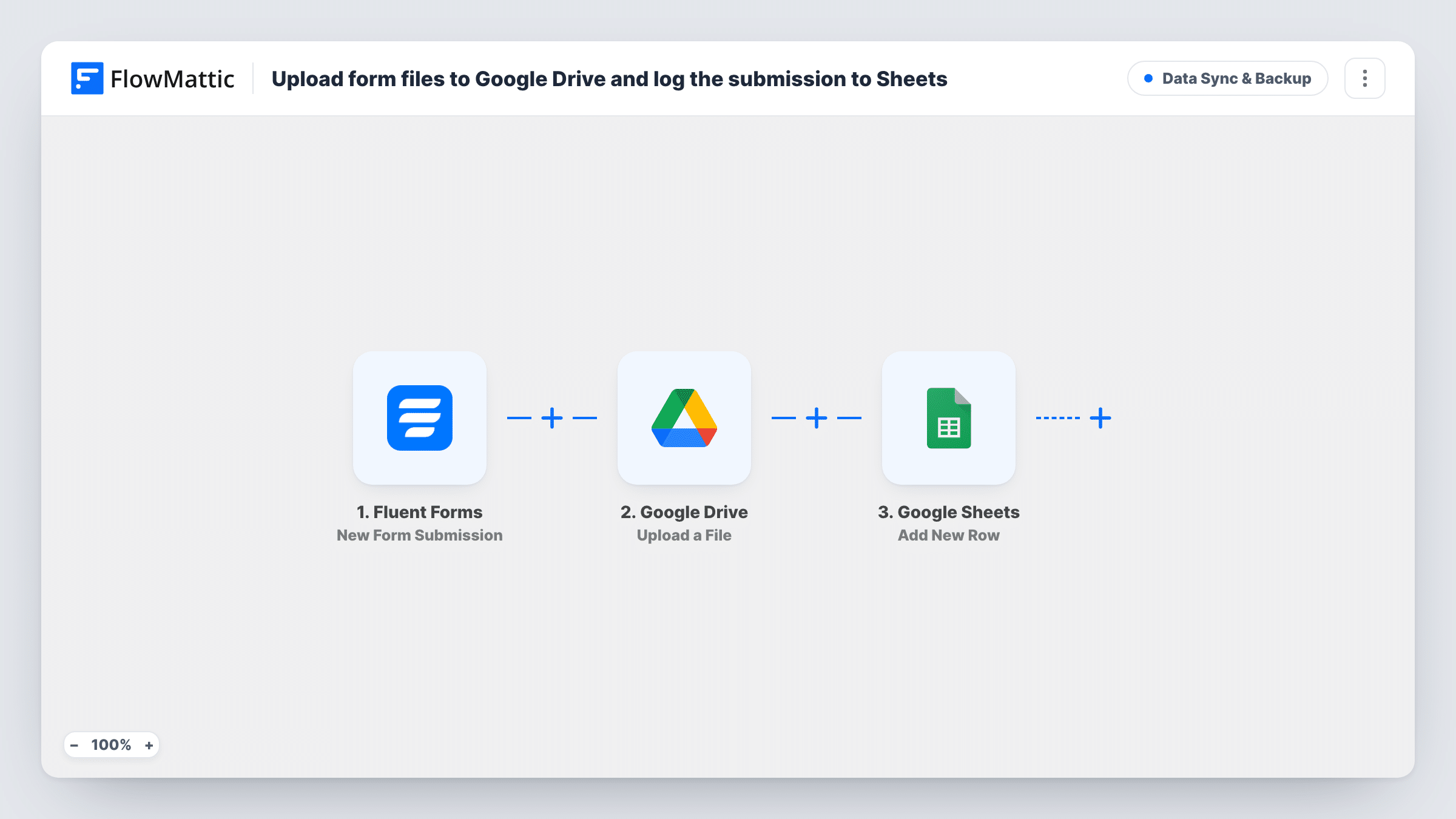
Each Fluent Forms submission has its uploaded file copied to Google Drive, named after the person who sent it, and the entry is then logged as a new row in Google Sheets.
 Fluent Forms
 Google Drive
 Google Sheets
3 steps Setup ~5 min Used on 2.6k sites Data Ops Free to import
What this workflow does
Files people send through a website form end up in your WordPress uploads folder, where nobody else on the team can see them. If your team works in Google Drive, someone ends up downloading and re-uploading each one. This workflow moves the file to Drive for you and keeps a record of the entry in a spreadsheet.
The Fluent Forms trigger fires when a form is submitted. FlowMattic takes the file URL from the submission and passes it to Google Drive, whose Upload a File action saves a copy under a name built from the submitter's name plus the word upload. Next, Google Sheets adds a row, and you map the form answers into it, along with anything from the Drive step's response you want to keep.
The template reads the file from a form field called file_url and the name from a field called name. If your form uses other field names, remap both in the Drive step after import. Every submission runs both steps, so a form where the file is optional will try an upload even when no file was attached.
Job applications with a CV upload
Applicants attach a CV to your careers form. Each CV lands in Drive under the applicant's name, and the sheet becomes the shortlist your hiring manager works from.
Client onboarding documents
New clients send a signed brief or brand pack through a Fluent Forms intake form. The file goes straight to Drive for the project team, and the sheet tracks who has sent what.
Photo or entry competitions
Entrants upload a photo with their details. Drive collects every entry for the judges, and the sheet lists entrants with their contact details for picking winners.
How this workflow runs
What happens at each step once the workflow is on, and what you need before you import it.
 Fluent Forms New Form Submission
Fires on each Fluent Forms submission. The uploaded file's URL, the sender's name and the other answers become available to the Drive and Sheets steps.
- Google Drive Upload a File
Copies the file from the submission's file_url field into Google Drive, naming it with the sender's name followed by upload. Connect your Google account and confirm the result with a test entry.
- Google Sheets Add New Row
Adds a new row to a Google Sheets spreadsheet for the same submission. Map the form answers into it, plus any detail from the Drive upload's response that your team needs.
What you need
- FlowMatticCore
- Fluent Forms PluginPlugin
- Google Drive AccountAccount
- Google Sheets AccountAccount
After importing, map your own data. To keep the template universal, not every step is pre-filled. Open each step in the builder and connect your accounts and fields (channels, lists, sheets, recipients) before you switch the workflow on.
Make it yours
Changes worth making after you import it.
- If the file is optional on your form, add a Filter before the Drive step that continues only when the file URL is not empty. Entries without a file then skip the upload and the sheet row.
- Make the Drive file name more useful by adding the submission date or the form name to it, so two uploads from people with the same name are easy to tell apart.
- Submit a test entry with a small file after import. The Drive step's response then shows up in the mapping list, so you can pick what to store in the sheet.
Questions about this workflow
Does the Fluent Forms file stay on my WordPress site after the upload?
Yes. The workflow copies the file to Google Drive from its URL. It doesn't delete the original, so it stays where Fluent Forms saved it.
What if my form allows more than one file in the upload field?
The template maps a single file URL into the Drive step. Check a test entry with several files in Task History to see what the field holds, and add an Iterator if you need each file uploaded separately.
What happens when someone submits the form without a file?
Both steps still run. The Drive step has no file to fetch, and the Sheets row is added after it. Add the Filter from the tips if the file field on your form is optional.
Do I need separate Google accounts for Drive and Sheets?
No. You can connect the same Google account to both steps, as long as it can write to the Drive and the spreadsheet you use.
More Data Sync & Backup workflows
Other ready-to-import templates from the same category.





Import this workflow into your WordPress site
Download the JSON, import it from the Workflows screen and connect your accounts. Every run stays on your server, with no per-task fees.
30-day money-back guarantee Unlimited workflows and runs Self-hosted