

Add a learner to a Mailchimp audience when they complete a Teachfloor course
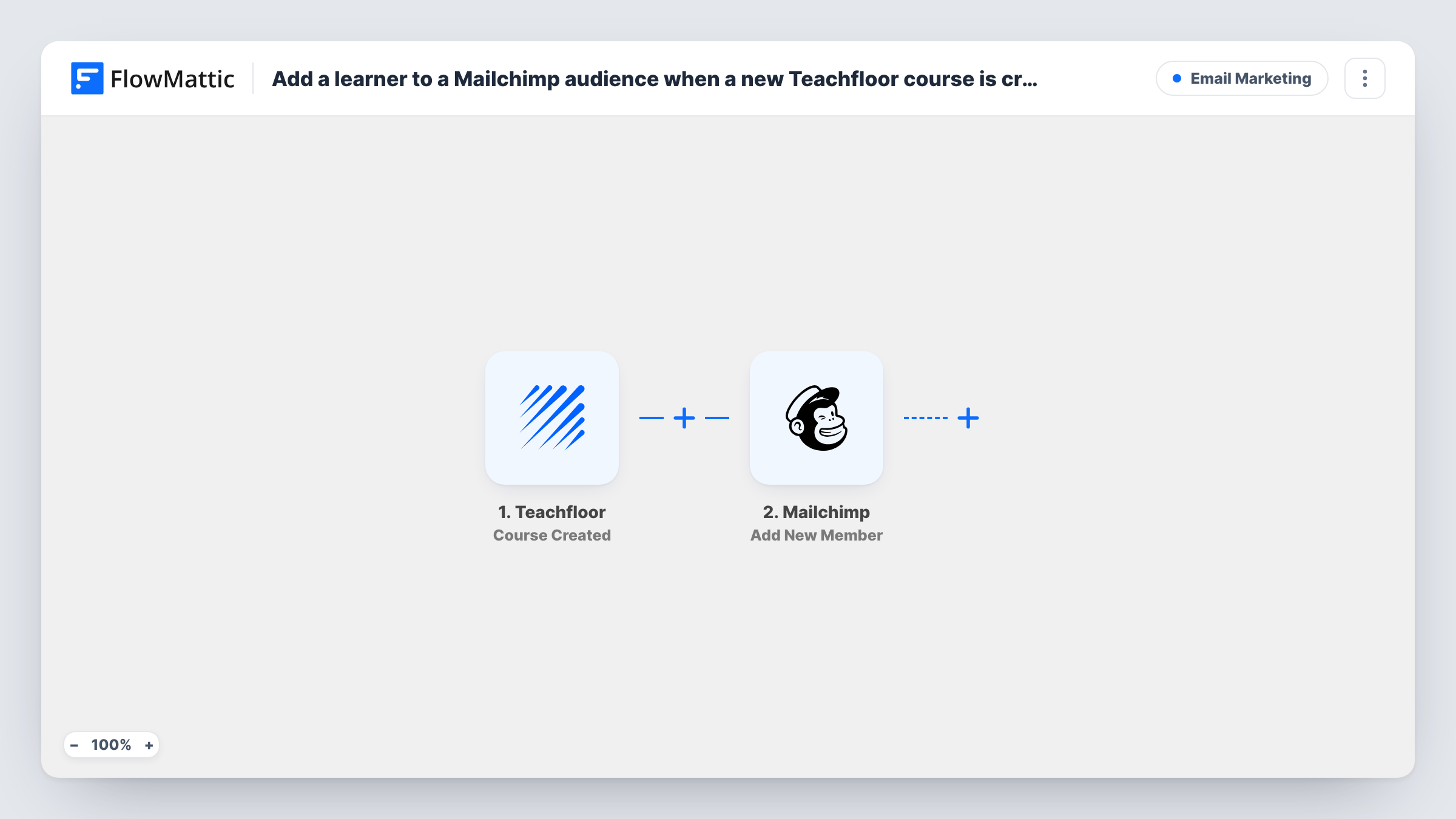
When a learner completes a Teachfloor course, FlowMattic adds them to your Mailchimp audience, or updates them if they’re already on it, so you can send graduates their next steps by email.
 Teachfloor
 Mailchimp
2 steps Setup ~5 min Used on 685 sites Free to import
What this workflow does
Finishing a course is a natural point to keep in touch: a certificate reminder, the next course, an invitation to a community. To email graduates from Mailchimp, they have to be in your audience. This workflow adds each one when Teachfloor reports the course as completed.
The Teachfloor trigger fires when a course is completed, and passes on the completion details. Complete a course with a test learner after import and check that the learner's email and name are in the data, along with the course.
The Mailchimp Add New Member step then adds that person to the audience you pick. If the email is already a member, Mailchimp updates them instead of adding a second copy. The step ships unmapped, so after import you connect Mailchimp, choose the audience and map the learner's email and name.
Every completion runs the step, so a learner who finishes three courses is sent to Mailchimp three times and simply updated after the first. If you want to know which course they finished, check whether the step lets you map the course into a merge field or tag when you set it up. Mailchimp's answer to every run is listed in Task History.
Next-course offers for graduates
A cohort-based school adds every Teachfloor graduate to a Mailchimp audience segment that receives announcements for the advanced programme.
Alumni newsletter
A professional training provider builds an alumni list from course completions and sends a monthly Mailchimp newsletter to it.
Certificate follow-up
A compliance course team uses a Mailchimp automation on the audience to remind graduates where to download their certificate.
How this workflow runs
What happens at each step once the workflow is on, and what you need before you import it.
 Teachfloor Course Completed
Starts a run each time Teachfloor reports a finished course. The completion details are passed on; check a test run for the learner's email, name and the course.
- Mailchimp Add New Member
Adds the learner to your Mailchimp audience, or updates them if the email is already there. The step ships unmapped: pick the audience and map the email and name.
What you need
- FlowMatticCore
- Teachfloor AccountAccount
- Mailchimp AccountAccount
After importing, map your own data. To keep the template universal, not every step is pre-filled. Open each step in the builder and connect your accounts and fields (channels, lists, sheets, recipients) before you switch the workflow on.
Make it yours
Changes worth making after you import it.
- Map the course name into a Mailchimp merge field or tag, if the step offers one, so you can tell graduates of different courses apart.
- Put a Filter between the Teachfloor trigger and the Mailchimp step that continues only for the courses whose graduates belong on this audience.
- Set up a Mailchimp automation that starts when someone joins the audience, so graduates get a follow-up email without another step here.
Questions about this workflow
What if the Teachfloor learner is already in my Mailchimp audience?
The Add New Member step adds new people and updates people who already exist, so an existing subscriber is updated rather than duplicated.
Does this need the learner's email from Teachfloor?
Yes. Mailchimp identifies members by email, so the completion event must carry it. Check a test run in Task History before you map the step.
Do learners need to agree to marketing emails?
That's your call under your own consent rules. If learners didn't opt in, consider an audience for course updates only, and check how the step sets the member's status.
More Email Marketing workflows
Other ready-to-import templates from the same category.





Import this workflow into your WordPress site
Download the JSON, import it from the Workflows screen and connect your accounts. Every run stays on your server, with no per-task fees.
30-day money-back guarantee Unlimited workflows and runs Self-hosted