

Add a new EmailDelivery.com contact to a Mailchimp audience
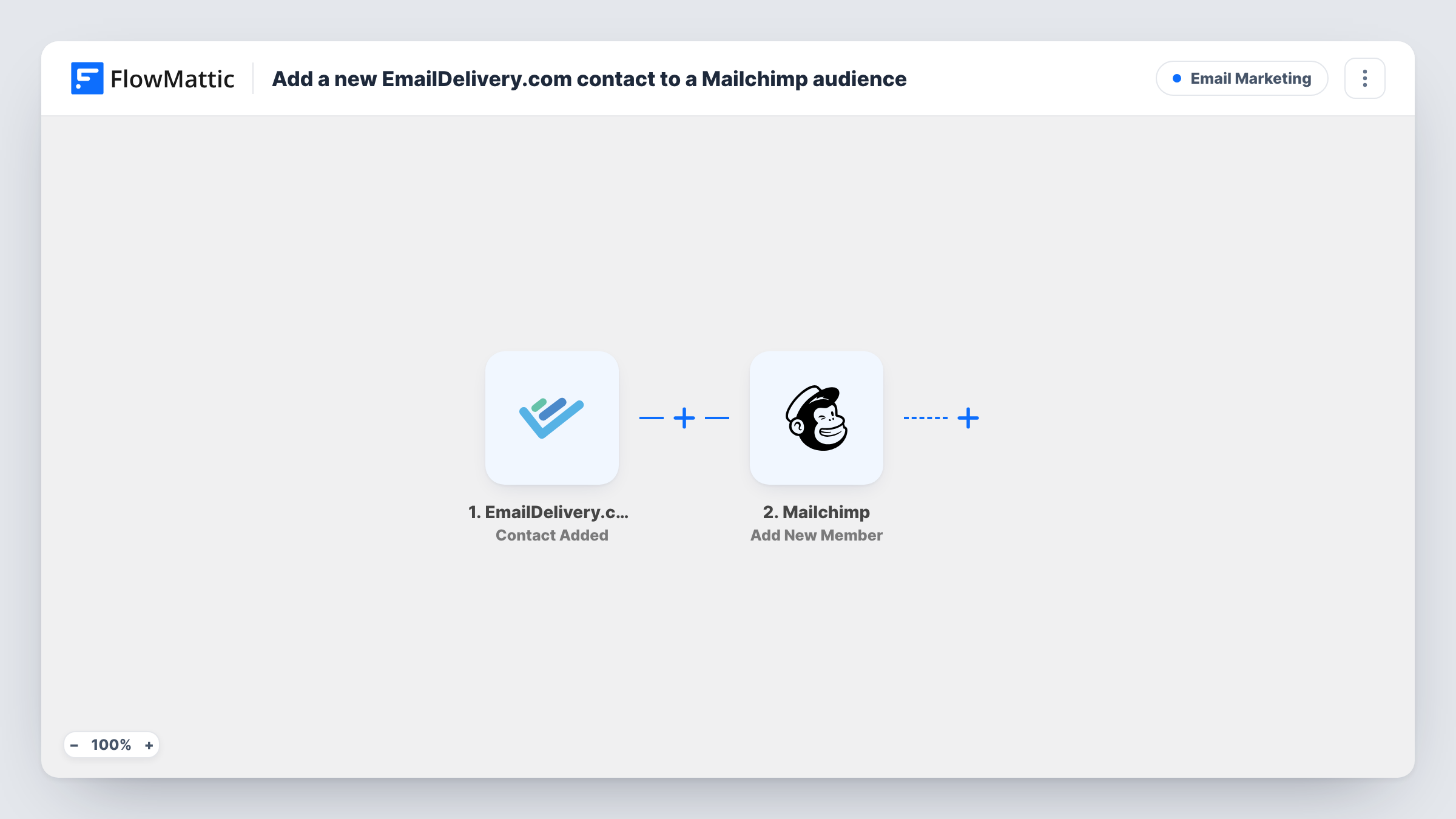
When a contact is added to a list in EmailDelivery.com, this workflow adds the same person to a Mailchimp audience, or updates them if they are already a member there.
 EmailDelivery.com
 Mailchimp
2 steps Setup ~5 min Used on 583 sites Free to import
What this workflow does
Teams that send some email through EmailDelivery.com and some through Mailchimp end up with two audiences that drift apart. New contacts arrive in one tool and never reach the other unless someone exports and imports them. This workflow copies each new EmailDelivery.com contact into Mailchimp as it arrives.
The EmailDelivery.com trigger is Contact Added, which fires when a contact is added to a list. FlowMattic passes the contact's details to Mailchimp, where Add New Member adds them to the audience you pick. A person whose email Mailchimp already holds keeps one membership, and their details are refreshed from EmailDelivery.com.
Each list addition in EmailDelivery.com starts a run, so a contact added to several lists is sent to Mailchimp each time. That doesn't create duplicates, but it does update the member again. Make sure people agreed to receive email from both senders.
Moving to Mailchimp gradually
You still collect contacts in EmailDelivery.com while you move campaigns to Mailchimp, and new contacts appear in both until the move is done.
Separate tools for separate teams
Marketing sends broadcasts from Mailchimp while another team uses EmailDelivery.com funnels. New contacts on a shared list reach both.
Backup audience
A Mailchimp audience keeps a second copy of your EmailDelivery.com contacts, so you can still email them from another tool.
How this workflow runs
What happens at each step once the workflow is on, and what you need before you import it.
 EmailDelivery.com Contact Added
Runs when a contact is added to a list in your EmailDelivery.com account. The contact's details become available to map into Mailchimp.
- Mailchimp Add New Member
Adds the contact to the Mailchimp audience you choose, or updates the member if the email is already there. Map the email address and any name fields you want to copy.
What you need
- FlowMatticCore
- EmailDelivery.com AccountAccount
- Mailchimp AccountAccount
After importing, map your own data. To keep the template universal, not every step is pre-filled. Open each step in the builder and connect your accounts and fields (channels, lists, sheets, recipients) before you switch the workflow on.
Make it yours
Changes worth making after you import it.
- Add a Filter after the trigger on the list the contact joined, if only one EmailDelivery.com list should feed Mailchimp. Look at a test run to find that field.
- Build a second workflow from EmailDelivery.com's Contact Unsubscribed trigger and Mailchimp's Archive Member or Update Member action, so people who leave one tool aren't still mailed from the other.
- Map name fields into Mailchimp merge fields so greetings in your Mailchimp campaigns use the contact's name.
Questions about this workflow
Will an existing Mailchimp member be duplicated?
No. Add New Member updates the member when the email address is already in the audience, so each person appears once.
Are older EmailDelivery.com contacts copied?
No. Only contacts added to a list after you turn the workflow on start a run. Import older contacts into Mailchimp directly.
Does a contact added to two EmailDelivery.com lists run twice?
Yes. Contact Added fires for each list addition, so the Mailchimp step runs each time and updates the same member.
More Email Marketing workflows
Other ready-to-import templates from the same category.




Import this workflow into your WordPress site
Download the JSON, import it from the Workflows screen and connect your accounts. Every run stays on your server, with no per-task fees.
30-day money-back guarantee Unlimited workflows and runs Self-hosted