

Add a Notion database entry when an organization user is activated in DailyBot
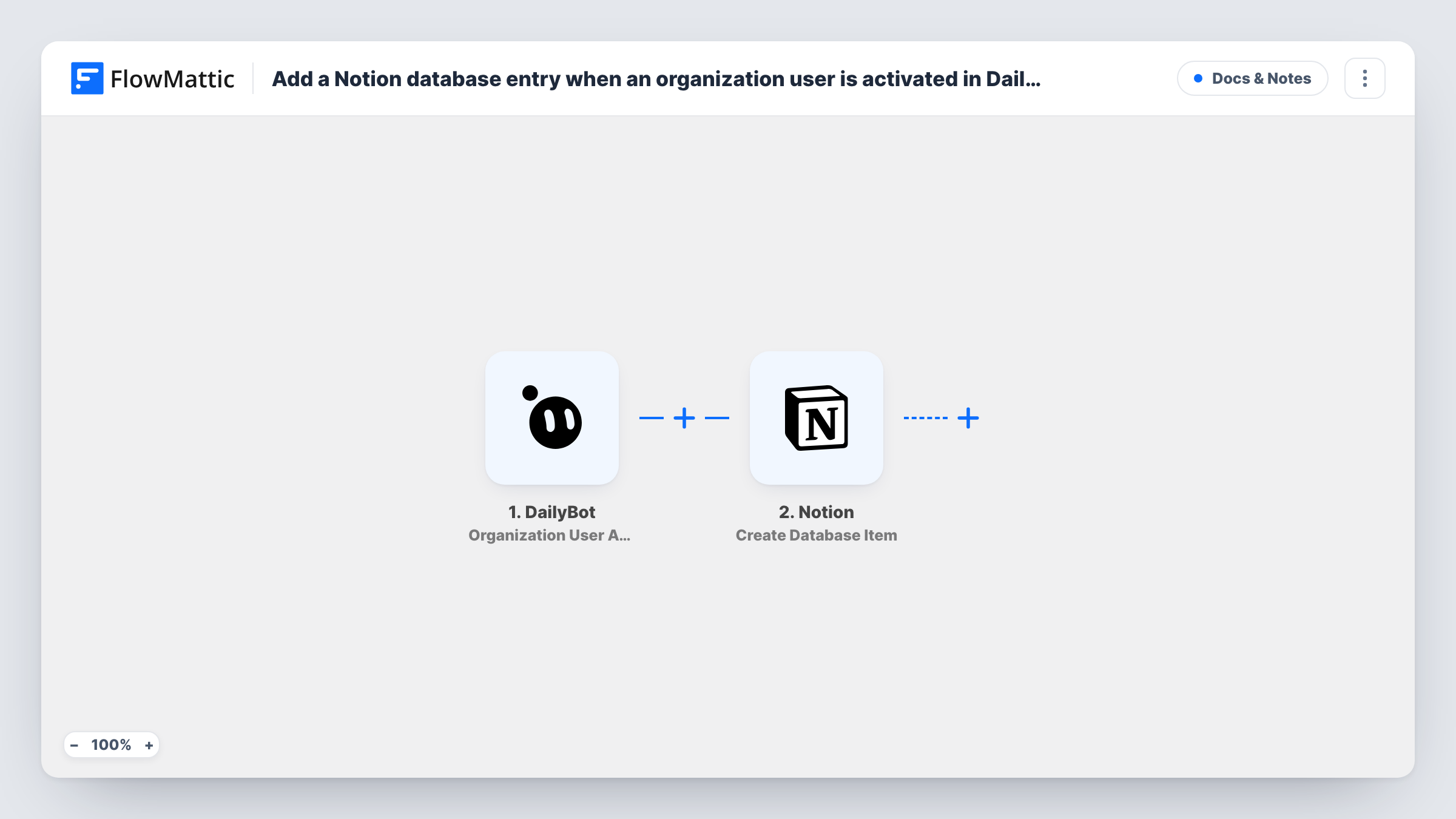
When a user’s status changes to active in your DailyBot organization, this workflow creates an item in a Notion database, giving you a running log of people activated in DailyBot.
 DailyBot
 Notion
2 steps Setup ~5 min Used on 1.9k sites Free to import
What this workflow does
Teams that keep their handbook and roster in Notion often find it lags behind who actually uses DailyBot. Someone gets activated for standups, and nobody adds them to the team page. This workflow writes that change into Notion for you.
The DailyBot trigger fires when a user is changed to active in your organization. That covers a newly activated person and also someone you deactivated earlier and switched back on, so a returning user gets a second entry.
FlowMattic passes the user's details to Notion, where Create Database Item adds an item to the database you choose. You map the DailyBot values to the database's properties after import. Nothing is mapped in the template, so activate a test user once and build the mapping from the data FlowMattic captures.
Every activation produces its own fresh item. The Notion step does not look for an existing one, so the database works as a log of activations rather than a deduplicated list.
Onboarding checklist in Notion
An operations lead keeps an onboarding database in Notion. Each DailyBot activation adds an item there, ready for the welcome tasks to be ticked off.
Audit trail of seat changes
A team admin wants a dated record of who was switched on in DailyBot and when. The Notion database fills with one item per activation.
Contractors returning for a project
Freelancers who are reactivated for a new project appear in Notion again, so the project manager sees who is back on the standup roster.
How this workflow runs
What happens at each step once the workflow is on, and what you need before you import it.
 DailyBot Organization User Activated
Fires when a user is changed to active in your DailyBot organization, including people reactivated after being deactivated. FlowMattic hands on what DailyBot sends about that person.
- Notion Create Database Item
Adds one Notion item per activation, in whichever database you point this step at. Map the DailyBot user details to its properties and connect your Notion account on import.
What you need
- FlowMatticCore
- DailyBot AccountAccount
- Notion AccountAccount
After importing, map your own data. To keep the template universal, not every step is pre-filled. Open each step in the builder and connect your accounts and fields (channels, lists, sheets, recipients) before you switch the workflow on.
Make it yours
Changes worth making after you import it.
- Want the opposite event too? Import a copy with DailyBot's Organization User Deactivated trigger and point it at the same Notion database, so the log shows people leaving as well.
- To avoid a second entry for returning users, add Notion's Find Database Item before the create step and a Filter that continues only when nothing was found.
- Activate a test user in DailyBot after import, then check Task History to see the captured fields before mapping the Notion properties.
Questions about this workflow
Does reactivating a DailyBot user add another Notion item?
Yes. The trigger fires whenever a user is changed to active, so someone switched off and back on gets a new item each time.
Which DailyBot user details reach the Notion database?
Whatever DailyBot sends with the activation. Activate a test user after import and look at the captured data in FlowMattic before you map the database properties.
Does the workflow update the Notion item when someone is deactivated?
No. It only runs on activation and only creates items. Use DailyBot's deactivation trigger in a second workflow if you want to record that change.
Does the Notion database need particular properties for DailyBot users?
Any property set works. Pick any database the connected Notion account can reach and map the DailyBot values to the properties you have.
More Docs & Notes workflows
Other ready-to-import templates from the same category.




Import this workflow into your WordPress site
Download the JSON, import it from the Workflows screen and connect your accounts. Every run stays on your server, with no per-task fees.
30-day money-back guarantee Unlimited workflows and runs Self-hosted