

Back up saved Cockpit content as a Google Docs document
Each time a content item is saved in Cockpit, FlowMattic creates a new Google Doc holding the content you map, giving editors a readable copy of every saved version in Google Drive.
 Cockpit
 Google Docs
2 steps Setup ~5 min Used on 2.1k sites Free to import
What this workflow does
Cockpit is a headless CMS, so your content lives as structured items rather than pages anyone can open and read. Editors, reviewers and clients often prefer a plain document. A copy in Google Docs also gives you a record of what each item said at a given time. This workflow writes that copy automatically.
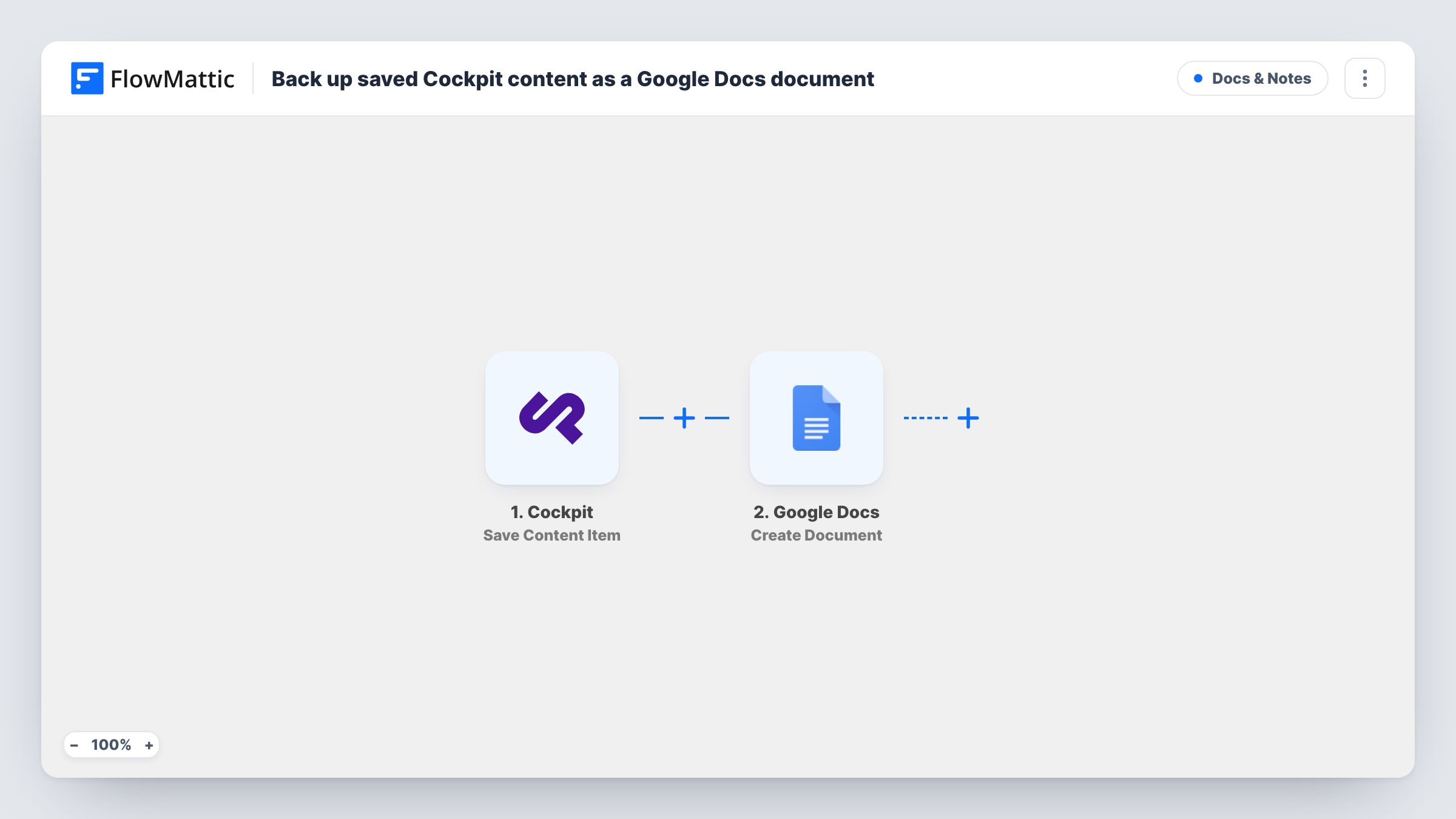
The Cockpit trigger Save Content Item fires when a content item is saved. FlowMattic receives the item's data and passes it to Google Docs, where Create Document makes a new Google Doc with optional content. You map the item's fields into the document title and body.
Every save creates a new document, including small edits. An item saved five times produces five Docs, which works as a version trail but can fill a folder quickly. Nothing is written back to Cockpit. Task History shows each save that was copied and any response from Google.
Client review copies
An agency saves blog drafts in Cockpit and shares the generated Google Docs with the client, who comments without needing a CMS login.
Version trail for regulated content
A team publishing product claims keeps a Google Doc for every saved version of each item, so they can show what text was live at a given time.
Offline archive of a content model
Editors who manage FAQs in Cockpit get a readable document per saved entry in Drive, useful when the CMS is being migrated.
How this workflow runs
What happens at each step once the workflow is on, and what you need before you import it.
 Cockpit Save Content Item
Fires when a content item is saved in your Cockpit instance. The item's fields are passed on so you can place them in the document.
- Google Docs Create Document
Creates a new Google Doc for each save. Map a Cockpit field, such as the item's title, into the document name and the content fields into the body.
What you need
- FlowMatticCore
- Cockpit AccountAccount
- Google Docs AccountAccount
After importing, map your own data. To keep the template universal, not every step is pre-filled. Open each step in the builder and connect your accounts and fields (channels, lists, sheets, recipients) before you switch the workflow on.
Make it yours
Changes worth making after you import it.
- Save a test item in Cockpit after import so FlowMattic captures the field structure. Then pick which fields belong in the document title and body.
- If the test data includes an item ID, put it at the start of the document name so the Docs for one Cockpit item sort together in Drive.
- To keep fewer files, swap Create Document for Google Docs Find or Create Document and then Append Text to Document, so each item collects its saves in one doc.
Questions about this workflow
Does every Cockpit save create a separate Google Doc?
Yes. Each save starts a run and Create Document makes a new file. Nothing checks for an earlier doc of the same item.
Does the Google Doc keep Cockpit's formatting?
It holds the values you map into it. Rich text or structured fields may arrive as raw text or markup, so check a test document before relying on the layout.
Are Cockpit pages saved too, or only content items?
Only content items. Cockpit has a separate Save Pages Page trigger, which you could use in a second workflow to copy pages.
Is anything changed in Cockpit when the Google Doc is created?
No. The workflow reads the saved item and creates a document in Google Docs. Your Cockpit content stays as it is.
More Docs & Notes workflows
Other ready-to-import templates from the same category.




Import this workflow into your WordPress site
Download the JSON, import it from the Workflows screen and connect your accounts. Every run stays on your server, with no per-task fees.
30-day money-back guarantee Unlimited workflows and runs Self-hosted