

Add new row to Notion database when a new feedback received in FeedLetter
Every feedback submission in FeedLetter is added as a new item in a Notion database, so your notes, roadmap and customer feedback can live in the same workspace.
 FeedLetter
 Notion
2 steps Setup ~5 min Used on 1.8k sites Free to import
What this workflow does
Many teams already plan in Notion: specs, roadmaps and meeting notes sit side by side there. Pulling FeedLetter feedback into a Notion database puts the voice of your users next to the documents where decisions get made, and lets you link, tag and comment on each entry with tools your team knows.
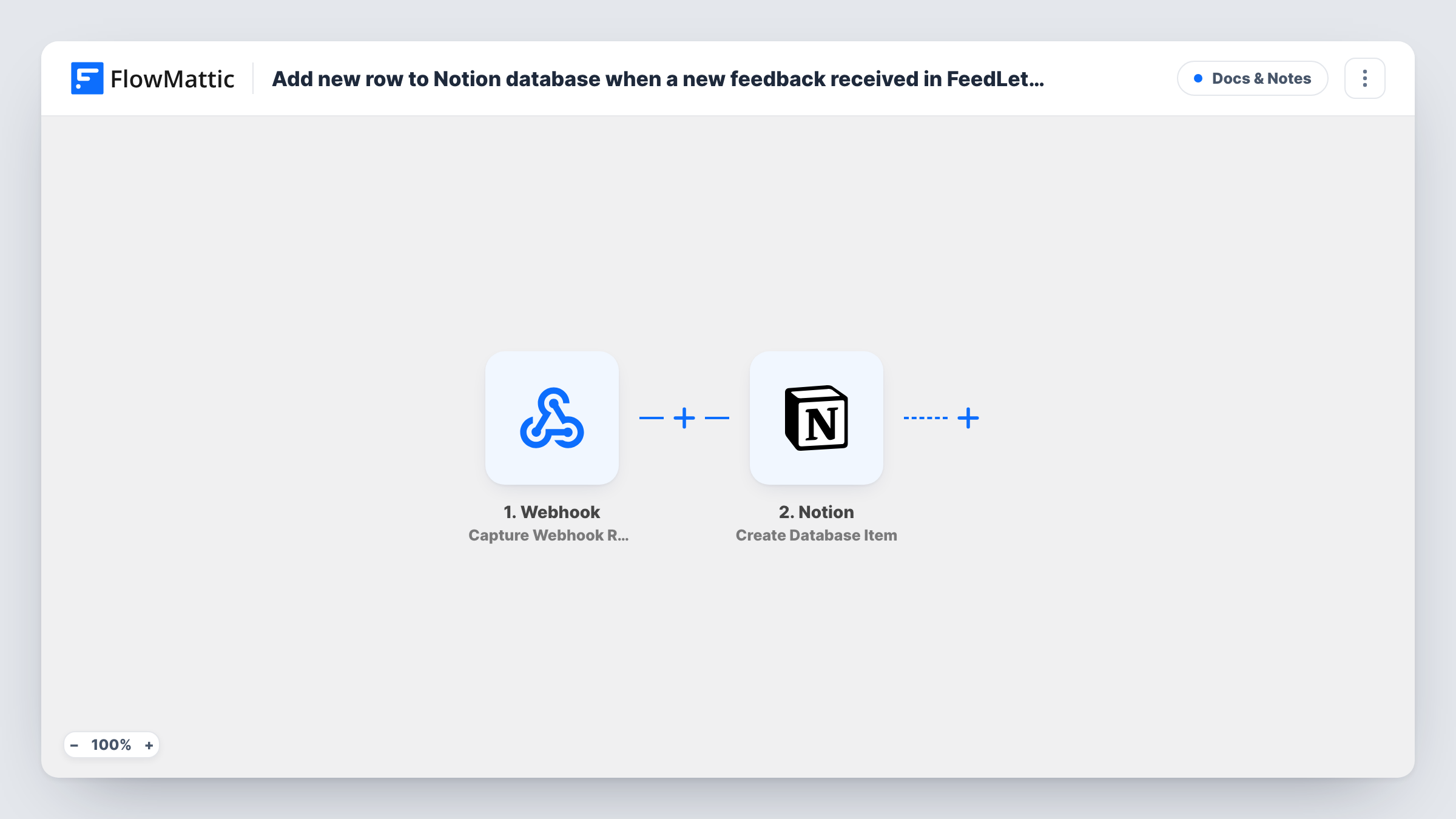
The flow has two steps. The FeedLetter trigger fires when new feedback is submitted. The Notion step then creates a database item holding that feedback.
You set up the Notion side after import. Connect your Notion account, give FlowMattic access to the database, select it in the Create Database Item step and map feedback fields into its properties. The template maps nothing, so the database's properties decide what you can store, such as a title, the message and a date.
One submission produces one Notion item, and earlier items are never touched. Send a test piece of feedback, then check Task History to confirm what Notion created.
Feedback inbox inside the team wiki
A startup keeps a Feedback database in its Notion workspace, and each new FeedLetter entry appears there for the team to read and comment on.
Linking requests to roadmap pages
A product lead relates each feedback item in Notion to the roadmap page it supports, so a feature page shows every request behind it.
Status tracking with a Notion property
A team adds a Select property such as New, Reviewed or Planned and updates it by hand as it works through the feedback database.
How this workflow runs
What happens at each step once the workflow is on, and what you need before you import it.
 FeedLetter New Feedback Received
Triggers when a new piece of feedback is submitted in FeedLetter. FlowMattic receives the submission and makes its fields available to the Notion step.
- Notion Create Database Item
Adds a new item to whichever Notion database you point it at. Nothing is mapped in the template, so choose the database and map FeedLetter fields into its title and other properties.
What you need
- FlowMatticCore
- FeedLetter AccountAccount
- Notion AccountAccount
After importing, map your own data. To keep the template universal, not every step is pre-filled. Open each step in the builder and connect your accounts and fields (channels, lists, sheets, recipients) before you switch the workflow on.
Make it yours
Changes worth making after you import it.
- Share the Notion database with the connection FlowMattic uses before you set up the step, otherwise the database won't appear in the list.
- Add a Date property to the database and map the submission time into it, so you can sort and group feedback by when it arrived.
- Put a Filter between the FeedLetter trigger and the Notion step if some submissions shouldn't reach Notion, such as ones with no text. Treat the field you check as an example and pick yours from a test run.
Questions about this workflow
Must the Notion database exist before FeedLetter feedback can arrive?
Yes. The Create Database Item step adds items to an existing database, so create it in Notion with the properties you want, then select it in the step after import.
Which FeedLetter details end up in Notion?
Only the fields you map into the database's properties. Submit a test piece of feedback so the trigger shows its fields, then match them to the title and other properties.
Will the same feedback be added twice to my Notion database?
Each submission runs the workflow once and creates one item. The step doesn't search for existing items, so two separate submissions with the same text become two items.
More Docs & Notes workflows
Other ready-to-import templates from the same category.



Import this workflow into your WordPress site
Download the JSON, import it from the Workflows screen and connect your accounts. Every run stays on your server, with no per-task fees.
30-day money-back guarantee Unlimited workflows and runs Self-hosted