

Add a paying Myfundbox customer to a Zoho CRM contact list
When a payment is made through Myfundbox, this workflow creates a contact in Zoho CRM from the payer’s details, so the people who pay you are on record where your team manages relationships.
 Myfundbox
 Zoho CRM
2 steps Setup ~5 min Used on 1.9k sites Free to import
What this workflow does
Payments tell you who your customers are, but a payment tool is not where you plan follow-ups or track relationships. If Zoho CRM is that place, paying customers need to end up there. This workflow creates the contact when the payment goes through.
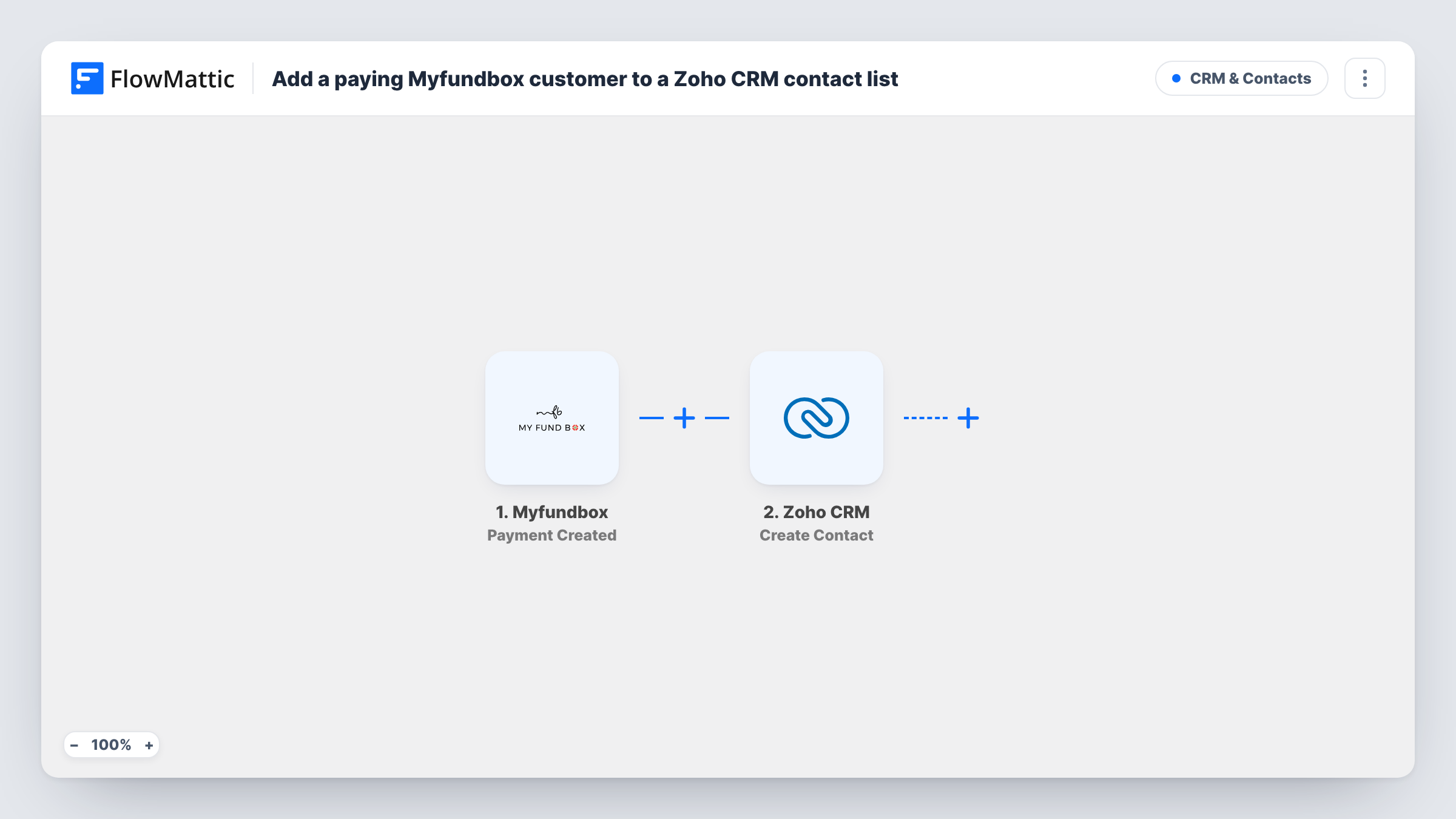
The Myfundbox Payment Created trigger fires when a payment is done, and passes the payment details to FlowMattic. The Zoho CRM Create Contact action then adds a new contact built from the values you map, such as the payer's name and email.
The trigger fires on every payment, not only a customer's first one. Because the step creates rather than updates, a customer who pays twice runs it twice and may end up with two contacts, depending on how your Zoho CRM handles duplicates. Task History shows each run and Zoho's response.
Consultants taking deposits
Clients pay a deposit through Myfundbox before work starts. Each payer becomes a Zoho CRM contact, ready for the project and invoicing that follow.
Service businesses with one-off payments
Customers pay for a single job. Their details reach Zoho CRM, so you can contact them later about repeat work or reviews.
Keeping finance and sales aligned
Sales works from Zoho CRM while payments run through Myfundbox. New payers show up as contacts without anyone re-typing them.
How this workflow runs
What happens at each step once the workflow is on, and what you need before you import it.
 Myfundbox Payment Created
Fires when a payment is done through your Myfundbox account. The payment details, including whatever it holds about the payer, are passed on for mapping.
- Zoho CRM Create Contact
Creates a contact in Zoho CRM from the payment data. Connect your Zoho CRM account and map the payer's name and email; a test payment shows which values Myfundbox sends.
What you need
- FlowMatticCore
- Myfundbox AccountAccount
- Zoho CRM AccountAccount
After importing, map your own data. To keep the template universal, not every step is pre-filled. Open each step in the builder and connect your accounts and fields (channels, lists, sheets, recipients) before you switch the workflow on.
Make it yours
Changes worth making after you import it.
- Make a small test payment after import to see what payer data Myfundbox sends, then map it into the Zoho CRM contact.
- If customers pay you more than once, swap Create Contact for Zoho CRM's Find or Create Contact action, so a repeat payer is matched instead of added again.
- Add a Filter that continues only when the payer's email is not empty, so Zoho CRM never gets a contact you can't reach.
Questions about this workflow
What if the Myfundbox payer is already a Zoho CRM contact?
The step creates a contact every time and does not look for an existing one. Depending on your Zoho CRM duplicate settings, you may get a second contact or a refusal in Task History.
Does every Myfundbox payment run this workflow?
Yes. Payment Created fires for each completed payment, so repeat customers trigger it again. Swap in Find or Create Contact if that matters for your CRM.
Is the payment amount saved in Zoho CRM?
Only if you map it into a contact field that can hold it. The Zoho CRM step saves just the values you choose from the payment data.
Will Myfundbox payments made before import be added?
No. Only payments completed after you turn the workflow on reach Zoho CRM.
More CRM & Contacts workflows
Other ready-to-import templates from the same category.





Import this workflow into your WordPress site
Download the JSON, import it from the Workflows screen and connect your accounts. Every run stays on your server, with no per-task fees.
30-day money-back guarantee Unlimited workflows and runs Self-hosted