

Add completed Todoist tasks to Google Sheets
Every time you complete a task in Todoist, this workflow adds it as a new row in Google Sheets, building a record of finished work you can review, count or share.
 Todoist
 Google Sheets
2 steps Setup ~5 min Used on 2.2k sites Productivity Free to import
What this workflow does
Todoist is built for what you still have to do. Once a task is ticked off, it drops out of view, which makes it hard to look back at a week or month of finished work. This workflow keeps a copy of each completed task in a Google Sheets spreadsheet.
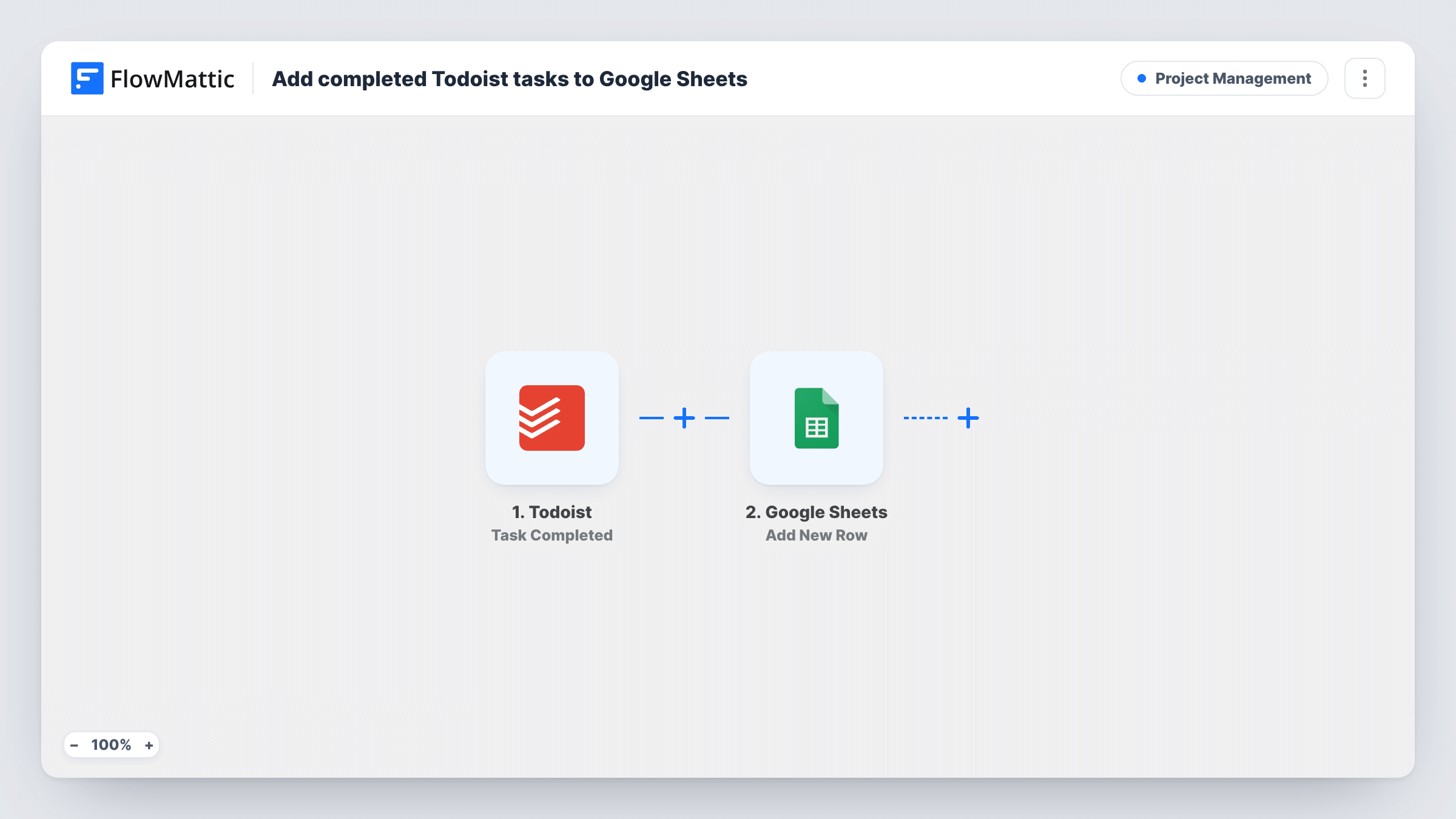
The Todoist trigger is Task Completed, which fires when a task is completed. FlowMattic receives the task's details and passes them to the Google Sheets step. That step adds a new row, with columns you map from the task, such as its content and the project it belonged to.
Each completed task adds one row, and rows are never edited or removed by the workflow. The sheet becomes a log you can filter by date or project, or use as the source for a weekly review.
Weekly review for a freelancer
At the end of the week, a freelancer opens the sheet of completed Todoist tasks to see what got done for each client before sending updates.
Timesheet support
A consultant compares the completed-task log with hours worked, using the rows as a reminder of what each day went on.
Team progress reporting
When a team shares Todoist projects, a manager reads finished tasks in the sheet instead of asking for status updates.
How this workflow runs
What happens at each step once the workflow is on, and what you need before you import it.
 Todoist Task Completed
Fires when a task is completed in your Todoist account. The task's details are passed on so you can log them in the sheet.
- Google Sheets Add New Row
Records the finished task as one new row in the spreadsheet you connect. Map the Todoist values you want, such as task content and project, to columns.
What you need
- FlowMatticCore
- Todoist AccountAccount
- Google Sheets AccountAccount
After importing, map your own data. To keep the template universal, not every step is pre-filled. Open each step in the builder and connect your accounts and fields (channels, lists, sheets, recipients) before you switch the workflow on.
Make it yours
Changes worth making after you import it.
- Add a date column and map the completion time if the trigger provides it, so you can filter the log by week or month.
- Add a Filter after the trigger if only one Todoist project should be logged, for example continue only when the project matches your client work.
- Tick off a test task after import, then map the values FlowMattic captured to your sheet columns before switching the workflow on.
Questions about this workflow
Are tasks I completed in Todoist before importing added to the sheet?
No. Only tasks completed after the workflow is switched on start a run. Earlier completions stay in Todoist.
If I delete a completed Todoist task later, does its row disappear?
No. The workflow only adds rows when tasks are completed. Deleting or editing a task in Todoist afterwards leaves the sheet as it is.
Which Todoist task details can go in the Google Sheets row?
Whatever the Task Completed trigger delivers. Complete a test task to see the values, then map the ones you want to columns.
More Project Management workflows
Other ready-to-import templates from the same category.




Import this workflow into your WordPress site
Download the JSON, import it from the Workflows screen and connect your accounts. Every run stays on your server, with no per-task fees.
30-day money-back guarantee Unlimited workflows and runs Self-hosted