

When a task's status changes in ClickUp, insert text into a slide in Google Slides
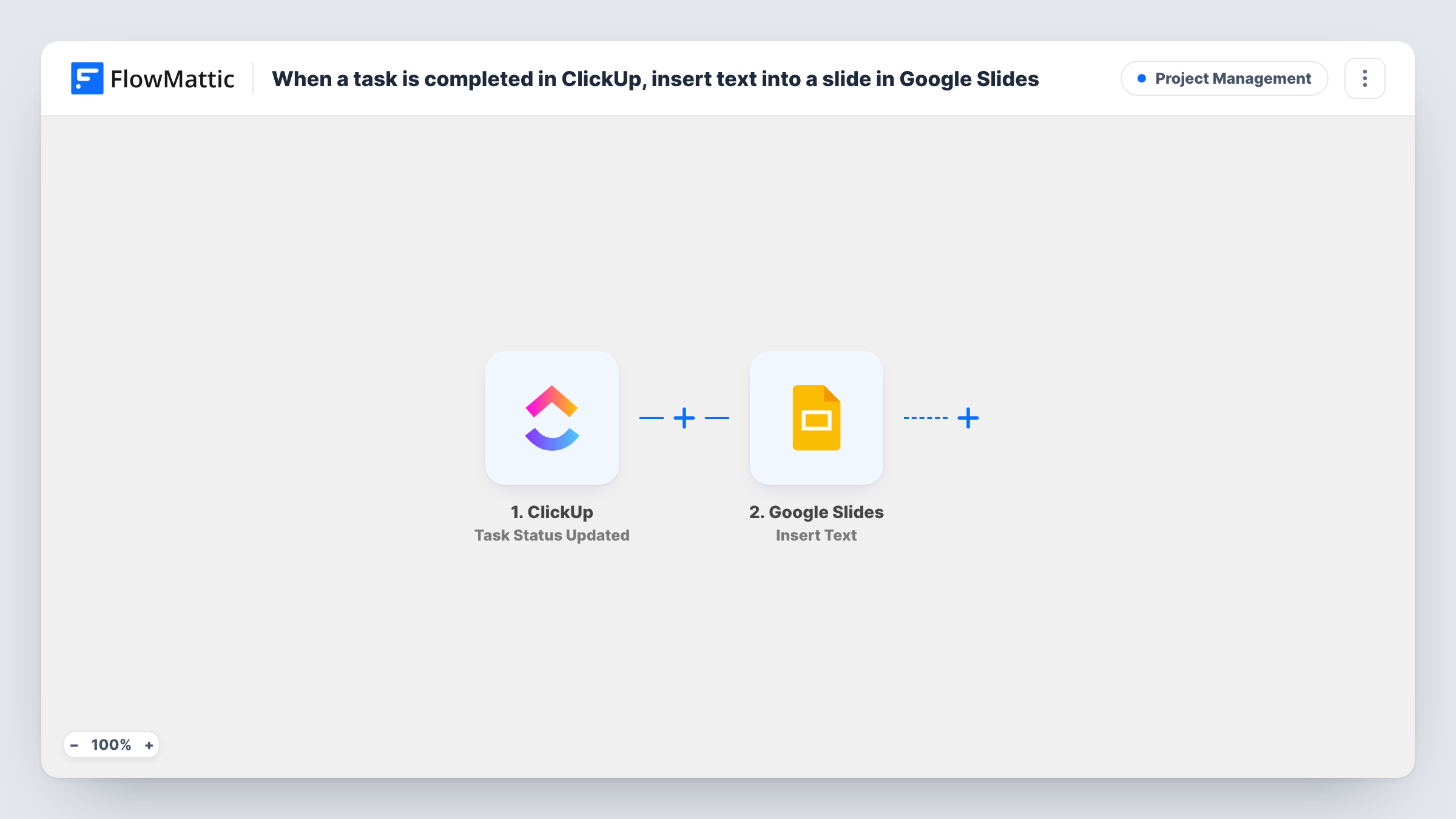
Each time a ClickUp task’s status changes, FlowMattic inserts text into a text box or shape on a Google Slides presentation, such as the task name and its new status for a status deck.
 ClickUp
 Google Slides
2 steps Setup ~5 min Used on 433 sites Productivity Free to import
What this workflow does
Teams that report progress in a slide deck often update it by hand before each meeting. This workflow writes ClickUp status changes into a slide as they happen, so the deck you present is closer to what the board shows.
The ClickUp Task Status Updated trigger fires when the status of a task changes, in either direction: to in progress, to review, to complete or back. It passes the task details to the next step. Every status change on every task ClickUp reports to the trigger starts a run.
The Google Slides Insert Text step inserts text into a text box or shape. It ships unmapped: after import, connect Google, pick the presentation and the text box, and write the text with ClickUp fields mapped in, such as the task name and new status.
The step inserts into one fixed text box, so each status change adds text to that same box. Check after a few test changes how the inserted lines build up, and keep a fresh copy of the deck for each meeting. Task History shows each insert and Google's response.
Status deck for a weekly stand-up
A project lead keeps a Google Slides deck for the Monday meeting, and each ClickUp status change adds a line with the task and its new stage.
Client progress slides
An agency shares a Slides deck with a client, and moving a deliverable in ClickUp writes the update into the slide the client reviews.
Launch checklist on a big screen
A product team shows a slide in the office during launch week, with status changes from the ClickUp launch list filling a text box.
How this workflow runs
What happens at each step once the workflow is on, and what you need before you import it.
 ClickUp Task Status Updated
Fires whenever a ClickUp task's status changes, whichever status it moves to. The task details ClickUp sends with the change are passed to Google Slides.
- Google Slides Insert Text
Inserts text into the text box or shape you pick in Google Slides. The template leaves it unmapped, so choose the presentation and box, then write the text with ClickUp task fields in it.
What you need
- FlowMatticCore
- ClickUp AccountAccount
- Google Slides AccountAccount
After importing, map your own data. To keep the template universal, not every step is pre-filled. Open each step in the builder and connect your accounts and fields (channels, lists, sheets, recipients) before you switch the workflow on.
Make it yours
Changes worth making after you import it.
- Put a Filter between the ClickUp trigger and the Slides step that continues only for the status you report on, such as complete, so the slide lists finished work only.
- Start each inserted line with the date, using a Date/Time Formatter step before the Slides step, so the slide reads as a timeline.
- If a test run shows the task's URL in the ClickUp data, add it to the inserted text so people viewing the deck can find the task.
Questions about this workflow
Does every ClickUp status change add text to the slide?
Yes, as imported. The trigger fires on every status change, including moves back to an earlier status. A Filter on the new status, placed between the ClickUp trigger and the Insert Text step, keeps only the changes you want.
Does the inserted text replace what is already on the slide?
The step inserts text into the box you choose rather than replacing the slide. Make a few test status changes and check how the box looks before using the deck in a meeting.
Which ClickUp details can I put on the slide?
Any that the Task Status Updated trigger sends. Change a test task's status, then pick fields like the task name and status when you write the text.
More Project Management workflows
Other ready-to-import templates from the same category.



Import this workflow into your WordPress site
Download the JSON, import it from the Workflows screen and connect your accounts. Every run stays on your server, with no per-task fees.
30-day money-back guarantee Unlimited workflows and runs Self-hosted