

Create a ClickUp task when an airfocus date field is updated
When a date field on an airfocus item is updated, this workflow creates a ClickUp task with the item details you map, so a shifted roadmap date shows up as work for the team that plans in ClickUp.
 airfocus
 ClickUp
2 steps Setup ~5 min Used on 3.4k sites Productivity Free to import
What this workflow does
Product teams often plan in airfocus while delivery teams track work in ClickUp. When a target date moves on the roadmap, the people doing the work may not hear about it until later. This workflow turns each date change into a ClickUp task so the change is visible where they work.
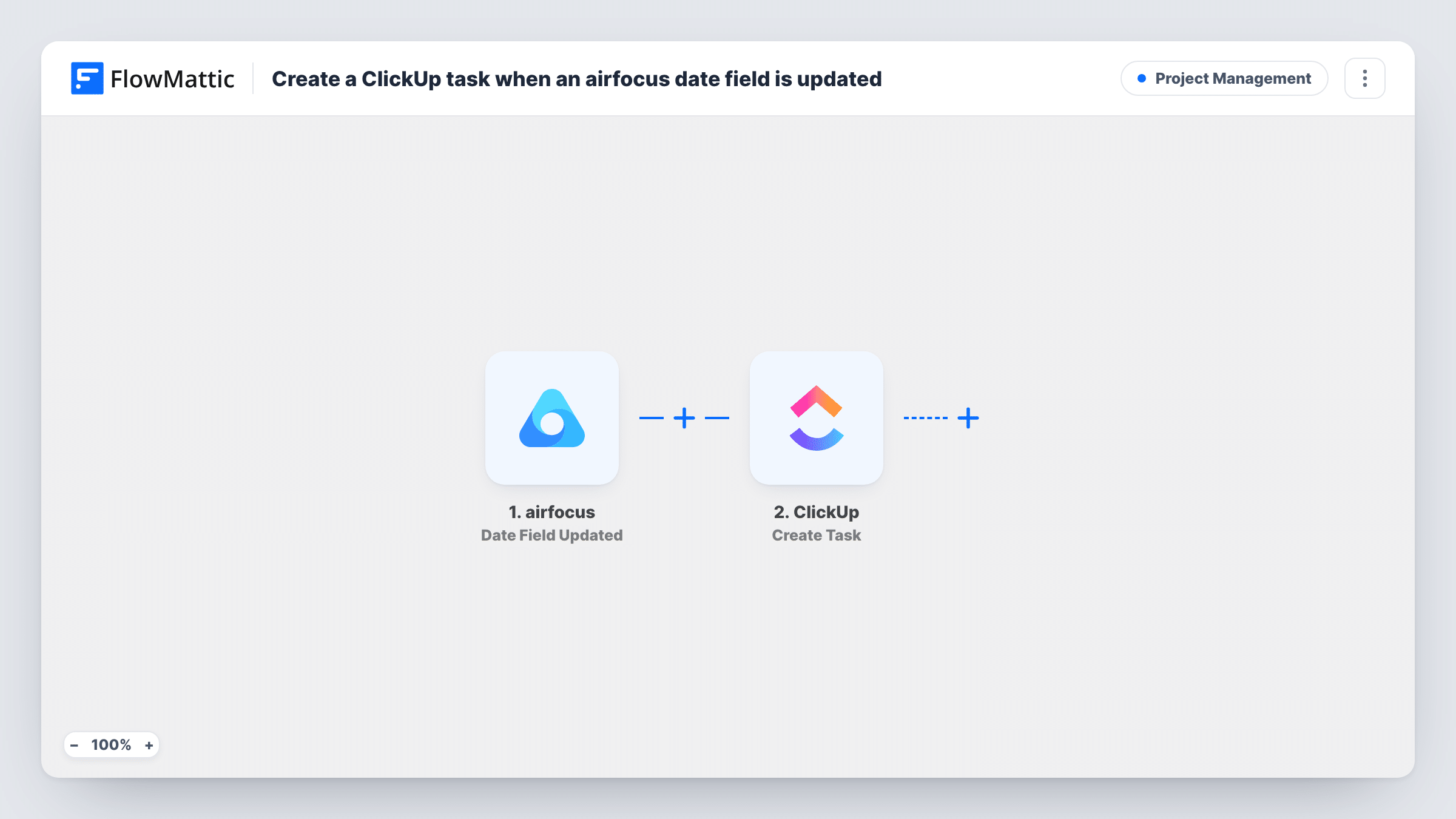
The airfocus trigger is Date Field Updated, which fires when a date field is updated. FlowMattic receives the data airfocus sends about the item and the change. The second step runs Create Task in ClickUp, and you map the airfocus details into the task so it names the item and the new date.
Every date update creates a new task. If the same item's date moves three times, you get three tasks, because the template does not look for an earlier one or filter changes. Update a date on a test item after import to see which values airfocus passes, then finish the mapping. Task History shows each run and ClickUp's response.
Release date moved on the roadmap
A product manager pushes a feature's release date in airfocus. A ClickUp task appears so the engineering lead can review the sprint plan against the new date.
Marketing launch prep
When a launch date changes in airfocus, the marketing team gets a ClickUp task to adjust announcement and campaign timing.
Customer commitments
Account managers track promised delivery dates for customer requests in airfocus. A date change creates a ClickUp task to let the customer know.
How this workflow runs
What happens at each step once the workflow is on, and what you need before you import it.
 airfocus Date Field Updated
Fires when a date field on an item in your airfocus workspace is updated. The details airfocus sends about the item and the change can be mapped into ClickUp.
- ClickUp Create Task
Creates a new ClickUp task for each date change. Connect ClickUp and map airfocus details, such as the item name and new date, into the task. Run one date change as a test to see which task details you can set.
What you need
- FlowMatticCore
- airfocus AccountAccount
- ClickUp AccountAccount
After importing, map your own data. To keep the template universal, not every step is pre-filled. Open each step in the builder and connect your accounts and fields (channels, lists, sheets, recipients) before you switch the workflow on.
Make it yours
Changes worth making after you import it.
- Add a Filter after the trigger if only some items should create tasks, for example items with a certain status. Look in the airfocus trigger data for a value you can match on.
- Include a link or ID for the airfocus item in the task, if the trigger passes one, so whoever picks up the task can open the item directly.
- Map the new date from airfocus into the ClickUp task's due date if the step offers one, so the task sorts by the roadmap date in ClickUp views.
Questions about this workflow
Will every airfocus date change create a new ClickUp task?
Yes. Each update fires the trigger and the Create Task step runs every time. The template does not update an earlier task for the same item.
Does changing a date back in airfocus remove the ClickUp task?
No. The workflow only creates tasks and never edits or deletes them. Reverting a date counts as another update, so it creates one more task.
Which airfocus date fields does this react to?
FlowMattic describes the trigger as firing when the date field is updated. Change a date on a test item after import and check the trigger data to see which field and values arrive.
Do I need accounts on both airfocus and ClickUp?
Yes. You connect airfocus for the trigger and ClickUp for the task step when you set up the imported workflow.
More Project Management workflows
Other ready-to-import templates from the same category.




Import this workflow into your WordPress site
Download the JSON, import it from the Workflows screen and connect your accounts. Every run stays on your server, with no per-task fees.
30-day money-back guarantee Unlimited workflows and runs Self-hosted