

Create a Todoist task for each message received in Flock
Every message that reaches the Flock trigger becomes a new Todoist task, with the message text as the task, so requests made in chat end up on a to-do list you can check off.
 Flock
Flock
 Todoist
2 steps Setup ~5 min Used on 2.4k sites Productivity Free to import
What this workflow does
Requests in team chat are easy to agree to and easy to forget. Someone asks for a report in Flock, you reply that you'll do it, and the message is gone from view by the afternoon. This workflow turns Flock messages into Todoist tasks, so each one waits on your list until you complete it.
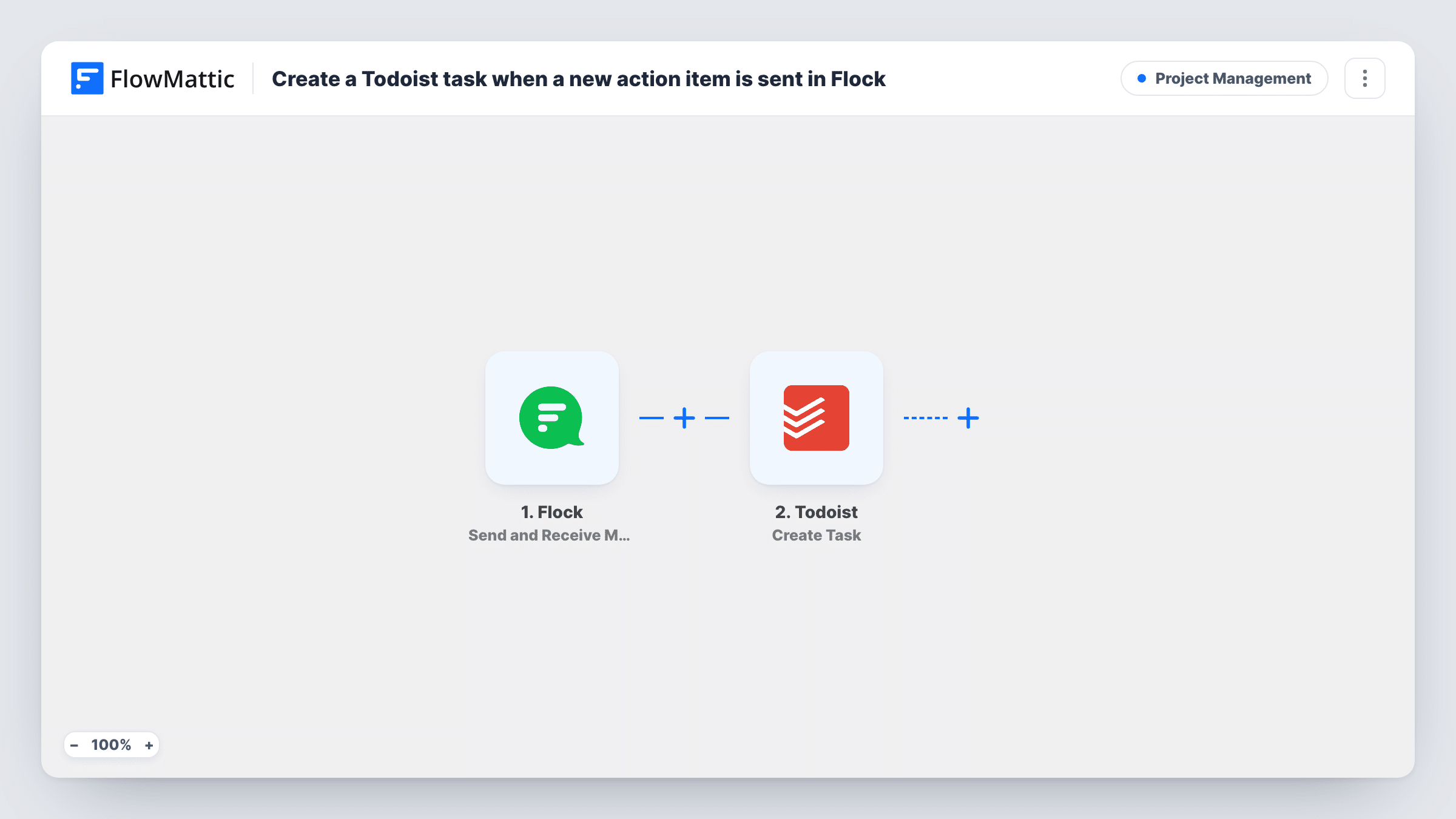
The Flock trigger, Send and Receive Messages, receives message data from Flock as JSON. FlowMattic describes it as firing when messages are sent and received from external services. Which conversations reach it is decided when you connect Flock, so after import send a test message and look at the run to see the text, sender and other values.
The Todoist step then creates a new task. The step ships unmapped: connect your Todoist account and map the Flock message text into the task content. You can also put the sender's name into the task so you know who asked. Task History shows Todoist's response for each run.
There is no condition in the template, so every message the trigger receives makes exactly one task. That works well when the trigger is connected to a channel or bot used only for requests. In a general chat it would also turn greetings and replies into tasks, so connect a dedicated conversation or add a keyword check before the Todoist step.
A requests channel that feeds your to-do list
A marketing lead asks colleagues to post requests in one Flock conversation connected to the trigger. Each request appears in Todoist, where it gets a due date and is ticked off when done.
Notes to self from your phone
A freelancer sends quick reminders into a Flock conversation while away from the desk, and finds each one as a Todoist task when back at work.
Support handoffs
A support agent posts follow-ups for the account manager in Flock. Each message turns into a Todoist task so nothing waits on someone remembering to scroll back.
How this workflow runs
What happens at each step once the workflow is on, and what you need before you import it.
 Flock Send and Receive Messages
Starts a run each time a message reaches the Flock Send and Receive Messages trigger, passing the message data on. A test message after import shows the values, such as the text and sender, you can use.
- Todoist Create Task
Adds one Todoist task per message. The step ships unmapped: connect Todoist and map the Flock message text into the task, plus the sender's name if you want to know who asked.
What you need
- FlowMatticCore
- Flock AccountAccount
- Todoist AccountAccount
After importing, map your own data. To keep the template universal, not every step is pre-filled. Open each step in the builder and connect your accounts and fields (channels, lists, sheets, recipients) before you switch the workflow on.
Make it yours
Changes worth making after you import it.
- To make tasks from only some messages, put a Filter between the Flock trigger and the Todoist step that continues when the text contains a word such as todo. The check ignores upper and lower case, so TODO and Todo match too.
- Connect the Flock trigger to a conversation used only for requests, so everyday chat doesn't fill your Todoist inbox.
- Use a Todoist project set aside for chat requests, so you can review and sort them in one place before moving them to the right project.
Questions about this workflow
Does every Flock message create a Todoist task?
Yes, every message that the trigger receives. Nothing in the template checks the text, so narrow it by connecting a dedicated conversation or by adding a keyword Filter between the two steps.
Where in Todoist do the new tasks appear?
Where you set them up to go when you configure the Create Task step. Run a test after import and check Todoist to confirm the task lands where you expect.
Is the Flock message marked as done when I finish the Todoist task?
No. The workflow only goes from Flock to Todoist. Completing the task doesn't change or reply to anything in Flock.
Can the Todoist task include who sent the Flock message?
Yes, if Flock passes the sender in its data. Check a test run for the sender's name and map it into the task text.
More Project Management workflows
Other ready-to-import templates from the same category.





Import this workflow into your WordPress site
Download the JSON, import it from the Workflows screen and connect your accounts. Every run stays on your server, with no per-task fees.
30-day money-back guarantee Unlimited workflows and runs Self-hosted