

Add contacts in Campaign Monitor for new leads from Google Ads
People who fill in your Google Ads lead form are added as subscribers to a Campaign Monitor list, so you can email them without downloading leads from Google Ads by hand.
 Google Lead Form
 Campaign Monitor
2 steps Setup ~5 min Used on 734 sites Free to import
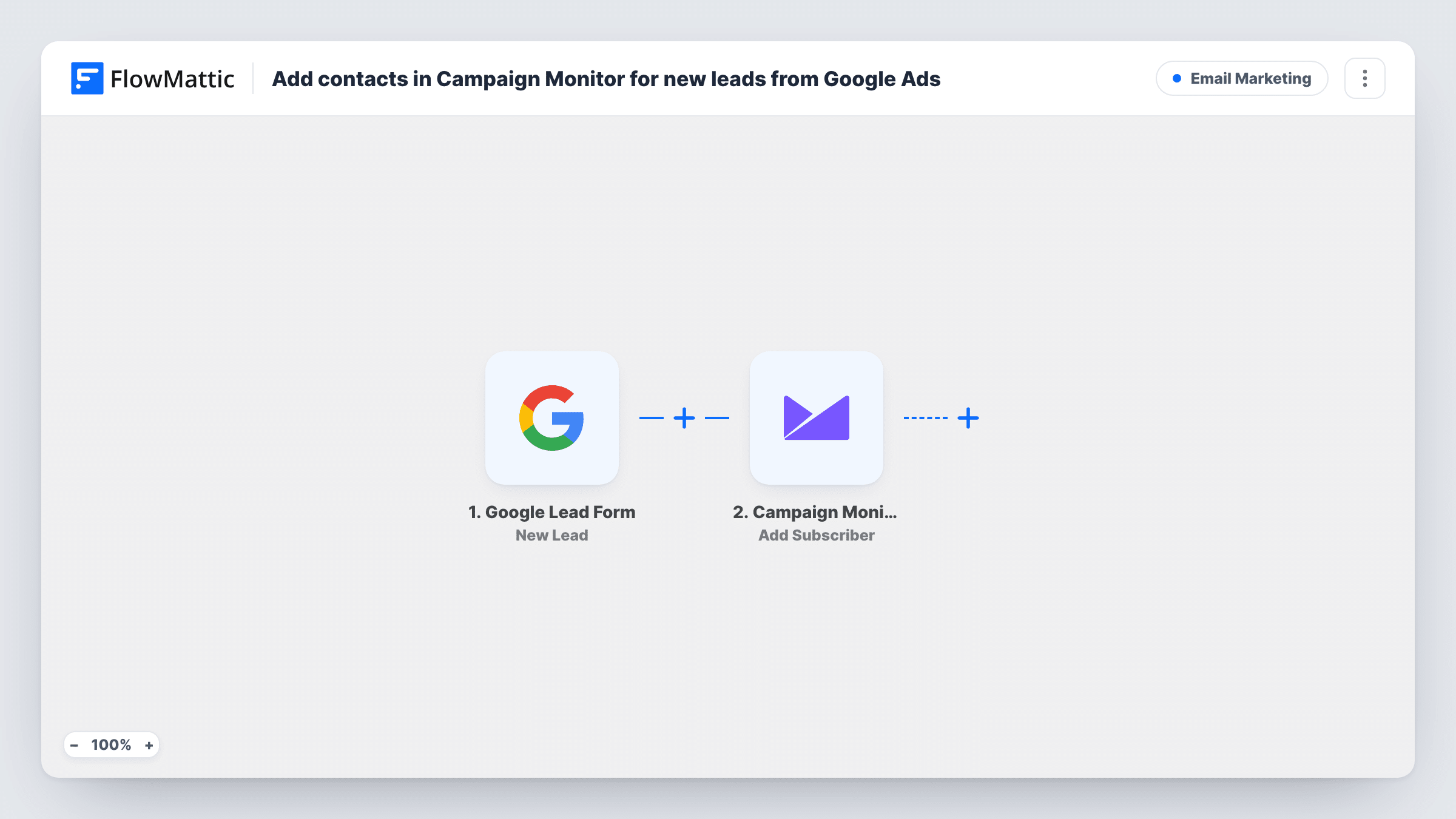
What this workflow does
Lead form ads collect names and email addresses inside the ad itself. Unless you move those leads somewhere, they wait in Google Ads until someone exports them. If your follow-up happens by email in Campaign Monitor, this workflow puts each lead on your list as it comes in.
The Google Lead Form trigger picks up each lead that your ad form collects. FlowMattic passes the lead's answers to Campaign Monitor, whose Add Subscriber action adds a new subscriber to the list you pick. You map the lead's email and name to the subscriber fields.
Every lead runs the step once. There is no consent check in the template, so make sure your lead form wording covers email marketing before you send campaigns to these subscribers. Task History lists each run and the response from Campaign Monitor.
Webinar sign-ups from search ads
People register through a lead form ad and join a Campaign Monitor list that receives the joining details and reminders you schedule.
Guide downloads for a B2B service
Lead form submissions become subscribers on a nurture list, where your welcome journey in Campaign Monitor takes over.
Local business promotions
A restaurant's offer ad collects emails, and each lead joins the newsletter list for future offers.
How this workflow runs
What happens at each step once the workflow is on, and what you need before you import it.
 Google Lead Form New Lead
Runs for each person who submits your Google Ads lead form. The lead's answers, such as name and email, become available to map.
- Campaign Monitor Add Subscriber
Subscribes the ad lead to the Campaign Monitor list you choose. Connect Campaign Monitor, pick the list, and map the lead's email and name to the subscriber details.
What you need
- FlowMatticCore
- Google Lead Form AccountAccount
- Campaign Monitor AccountAccount
After importing, map your own data. To keep the template universal, not every step is pre-filled. Open each step in the builder and connect your accounts and fields (channels, lists, sheets, recipients) before you switch the workflow on.
Make it yours
Changes worth making after you import it.
- Submit a test lead from the Google Ads lead form preview after import, so FlowMattic captures the field names before you map them.
- Run a separate copy of the workflow for each ad campaign if leads should go to different Campaign Monitor lists.
- Add a Filter after the trigger that continues only when the email field is not empty, so leads without an address don't leave errors in Task History.
Questions about this workflow
Does this work with any Google Ads lead form?
The trigger receives leads that Google Ads delivers to FlowMattic, so each lead form you use has to be connected to it. Follow the setup shown in the trigger step after import.
What happens if the Google Ads lead is already a Campaign Monitor subscriber?
The step uses Add Subscriber. Check Task History for the response on a known address, since how Campaign Monitor treats an existing address decides the result.
Are Google Ads leads from before import added?
No. Only leads that arrive after the workflow is on are sent to Campaign Monitor. Export older leads from Google Ads if you need them.
More Email Marketing workflows
Other ready-to-import templates from the same category.







Import this workflow into your WordPress site
Download the JSON, import it from the Workflows screen and connect your accounts. Every run stays on your server, with no per-task fees.
30-day money-back guarantee Unlimited workflows and runs Self-hosted