

When a new form submission is received in HeyForm, create a subscriber in Sendinblue
Every new HeyForm submission is sent to Brevo (formerly Sendinblue) as a new contact, so people who fill in your form are ready to receive your email campaigns without anyone exporting or re-entering their details.
 HeyForm
 Brevo ( Sendinblue )
2 steps Setup ~5 min Used on 705 sites Free to import
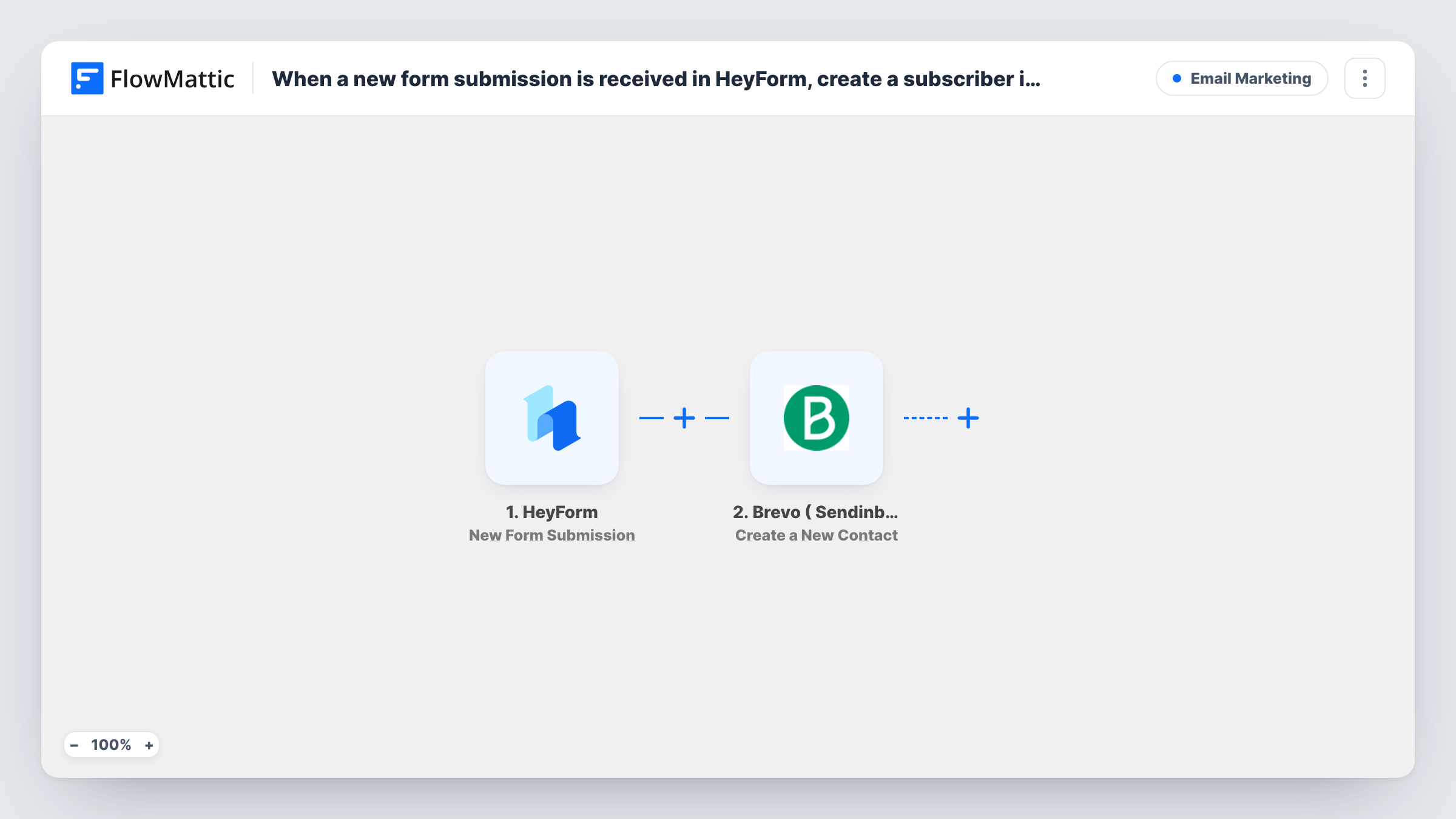
What this workflow does
A HeyForm form is a friendly way to collect sign-ups, survey answers or event registrations. The trouble starts when you want to email those people: you export responses, clean up the file and import it into your email tool, and anyone who signed up since then waits for the next round. This workflow adds each respondent to Brevo as they submit.
The HeyForm trigger starts a run each time someone completes and sends your form. FlowMattic takes the respondent's answers and passes them to Brevo (Sendinblue), where the Create a New Contact action adds them to your account. Map the email answer to the contact's email, and add any other answers you want stored on the contact.
Nothing filters the responses, so each submission produces one request to Brevo. If the same address already exists in Brevo, the response it returns appears in Task History for that run, which is where you check whether the contact was added. Send a test entry after import and look at the contact in Brevo before you rely on it.
Newsletter sign-up form
A HeyForm sign-up embedded on your site adds each subscriber to Brevo, ready for your next newsletter send.
Webinar registrations
People who register through HeyForm become Brevo contacts, so you can email reminders and the recording link from Brevo.
Customer survey follow-up
Respondents to a HeyForm satisfaction survey are added to Brevo, letting you send a thank-you or a follow-up campaign to them.
How this workflow runs
What happens at each step once the workflow is on, and what you need before you import it.
 HeyForm New Form Submission
Starts a run for every response sent through your chosen HeyForm form. Each answer, including the email field, becomes data for the Brevo step.
- Brevo ( Sendinblue ) Create a New Contact
Creates a new contact in Brevo (Sendinblue) from the HeyForm answers. Connect your Brevo account and map the email answer plus any other details you want saved. A test run shows the options the step offers.
What you need
- FlowMatticCore
- HeyForm AccountAccount
- Brevo ( Sendinblue ) AccountAccount
After importing, map your own data. To keep the template universal, not every step is pre-filled. Open each step in the builder and connect your accounts and fields (channels, lists, sheets, recipients) before you switch the workflow on.
Make it yours
Changes worth making after you import it.
- Make the email question required in HeyForm, so every submission reaches Brevo with an address to create the contact from.
- Add a Filter before the Brevo step that continues only when a consent question is answered yes, so only people who agreed to emails are added.
- Send a test entry right after import so FlowMattic captures the HeyForm answers, then finish mapping the Brevo step before you activate the workflow.
Questions about this workflow
Is Brevo the same as Sendinblue?
Yes. Sendinblue renamed itself Brevo, and FlowMattic lists the app as Brevo (Sendinblue). This workflow uses that integration.
What if the HeyForm respondent is already a contact in Brevo?
The step creates a contact, so Brevo may not accept a second contact with the same email. Task History shows Brevo's response for that run, so check it with a test entry that uses an address already in your account.
Will existing HeyForm responses be added to Brevo?
No. Only submissions made after the workflow is turned on start a run. Import older responses into Brevo yourself if you need them.
Does adding a HeyForm respondent to Brevo send them an email?
Not from this workflow, whose single action adds the person to Brevo. Any welcome email depends on what you have set up inside Brevo.
More Email Marketing workflows
Other ready-to-import templates from the same category.







Import this workflow into your WordPress site
Download the JSON, import it from the Workflows screen and connect your accounts. Every run stays on your server, with no per-task fees.
30-day money-back guarantee Unlimited workflows and runs Self-hosted