

Add content to NewOaks AI chatbot when new blog post is published on WordPress
When you publish a new post on your WordPress site, this workflow sends its content to your NewOaks AI chatbot as custom content, so the bot can draw on your latest articles when visitors ask questions.
 WordPress
 NewOaks AI
2 steps Setup ~5 min Used on 914 sites Free to import
What this workflow does
A support or sales chatbot is only as current as the material behind it. If you publish a new guide, announcement or product post and forget to feed it to the bot, visitors get answers based on older content. This workflow adds each new post to NewOaks AI the moment it goes live, so keeping the bot up to date is no longer a separate chore.
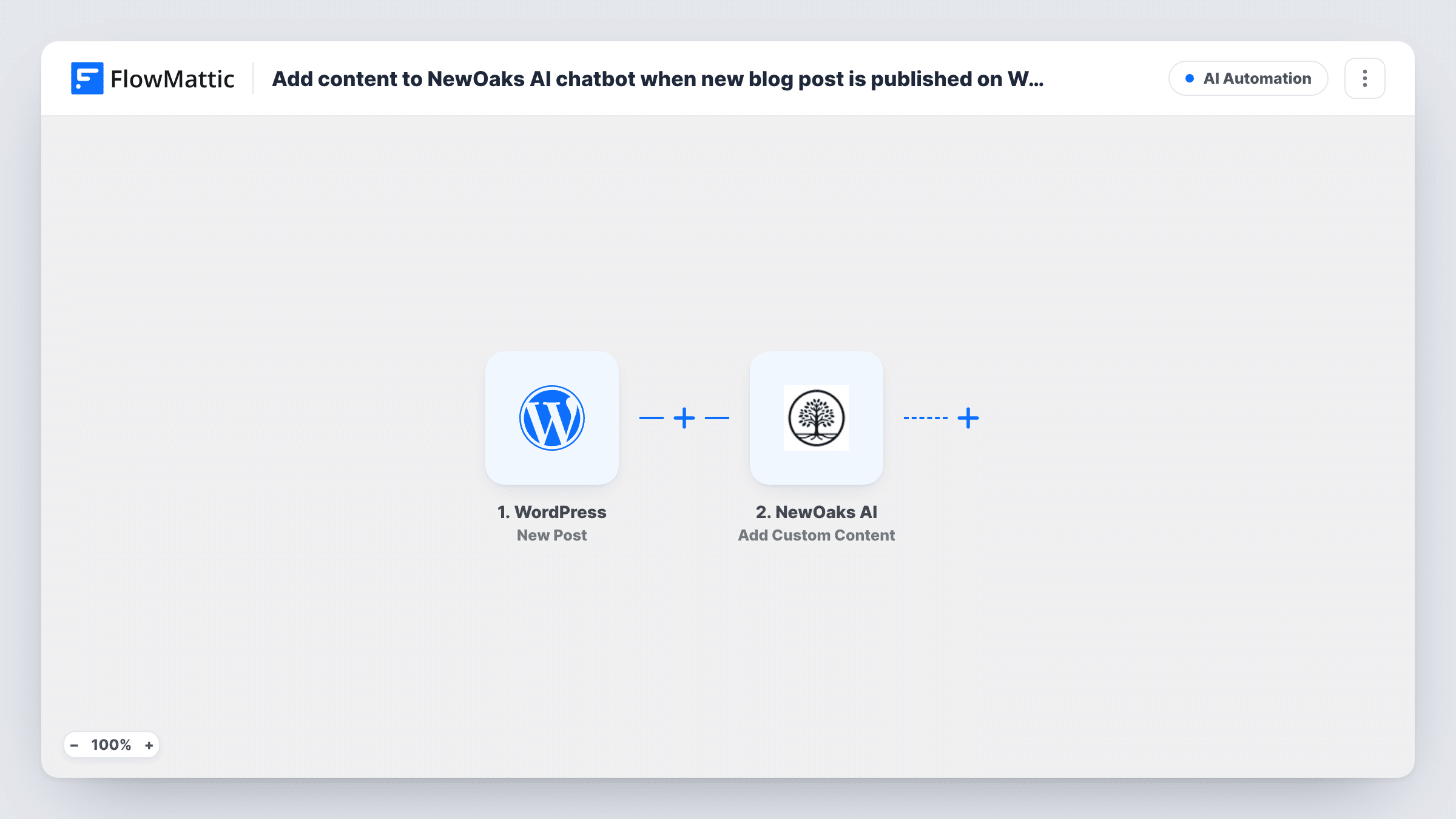
A run starts from the WordPress New Post trigger, a single time per post, at the moment it switches to published. Custom post types fire it too, unless you set the trigger's post type option to a single type. Pages never fire it. FlowMattic then passes the post data to NewOaks AI, whose Add Custom Content action adds what you map, such as the title and body, to your chatbot.
Editing a post that is already live does not start another run, so later changes stay out of the bot unless you add them yourself. Deleting a post does not remove it from NewOaks AI either. Task History shows each run and the response NewOaks AI sent back.
Product announcements answered by the bot
You publish a post about a new feature. When visitors ask the NewOaks AI chatbot about that feature, the bot has the post's text to draw on.
Help articles written as blog posts
A support team that writes how-to guides as WordPress posts keeps the chatbot's knowledge in step with each new guide, without copying text into NewOaks AI.
Event or policy updates
A post announcing new opening hours or a changed returns policy goes to the bot as soon as it is published, giving it the new details to work from.
How this workflow runs
What happens at each step once the workflow is on, and what you need before you import it.
 WordPress New Post
Fires once when a post on your WordPress site is first published. Edits to live posts do not fire it, and pages never do. The post's data becomes available to map in the next step.
- NewOaks AI Add Custom Content
Adds custom content to your NewOaks AI chatbot from the published post. Map the post fields you want the bot to learn from, then connect your NewOaks AI account. Run a test post to confirm what NewOaks AI stores.
What you need
- FlowMatticCore
- NewOaks AI AccountAccount
After importing, map your own data. To keep the template universal, not every step is pre-filled. Open each step in the builder and connect your accounts and fields (channels, lists, sheets, recipients) before you switch the workflow on.
Make it yours
Changes worth making after you import it.
- Only want certain posts in the bot? Add a Filter after the trigger that continues when the post's category or another post field matches the value you choose.
- Restrict the trigger's post type setting to Posts if your site also publishes custom post types, such as products or events, that the chatbot should not learn from.
- Publish one test post after import so FlowMattic captures the WordPress fields, then map the title and content in the NewOaks AI step before you turn the workflow on.
Questions about this workflow
Does updating a published WordPress post update the NewOaks AI chatbot?
No. The New Post trigger fires once, when a post first goes live. Changes made after that are not sent, so add revised content to NewOaks AI yourself if the update matters.
Are my older blog posts sent to NewOaks AI?
No. Anything you publish once the workflow is active gets added; earlier posts do not. Older material needs to be added in NewOaks AI directly.
Do WordPress pages reach the chatbot?
No. WordPress pages are ignored by this trigger. Regular posts and custom post types both start a run unless the trigger's post type option names just one.
What happens in NewOaks AI if I delete the post later?
Nothing. The workflow only adds content on publish and has no step that removes it, so remove outdated content from your NewOaks AI chatbot by hand.
More AI Automation workflows
Other ready-to-import templates from the same category.





Import this workflow into your WordPress site
Download the JSON, import it from the Workflows screen and connect your accounts. Every run stays on your server, with no per-task fees.
30-day money-back guarantee Unlimited workflows and runs Self-hosted