

Add each new Calldrip lead to a Google Sheets spreadsheet
Every lead Calldrip generates from a call is written to a new row in a Google Sheets spreadsheet, so your sales team has a shared list of call leads they can sort and work through.
 Calldrip
 Google Sheets
2 steps Setup ~5 min Used on 3.0k sites Free to import
What this workflow does
Calldrip turns calls into leads, but the team member who reports on them, or the client who pays for them, may never log in to Calldrip. A spreadsheet is something anyone can open. This workflow adds each new Calldrip lead to Google Sheets as it is created, so the list keeps itself up to date.
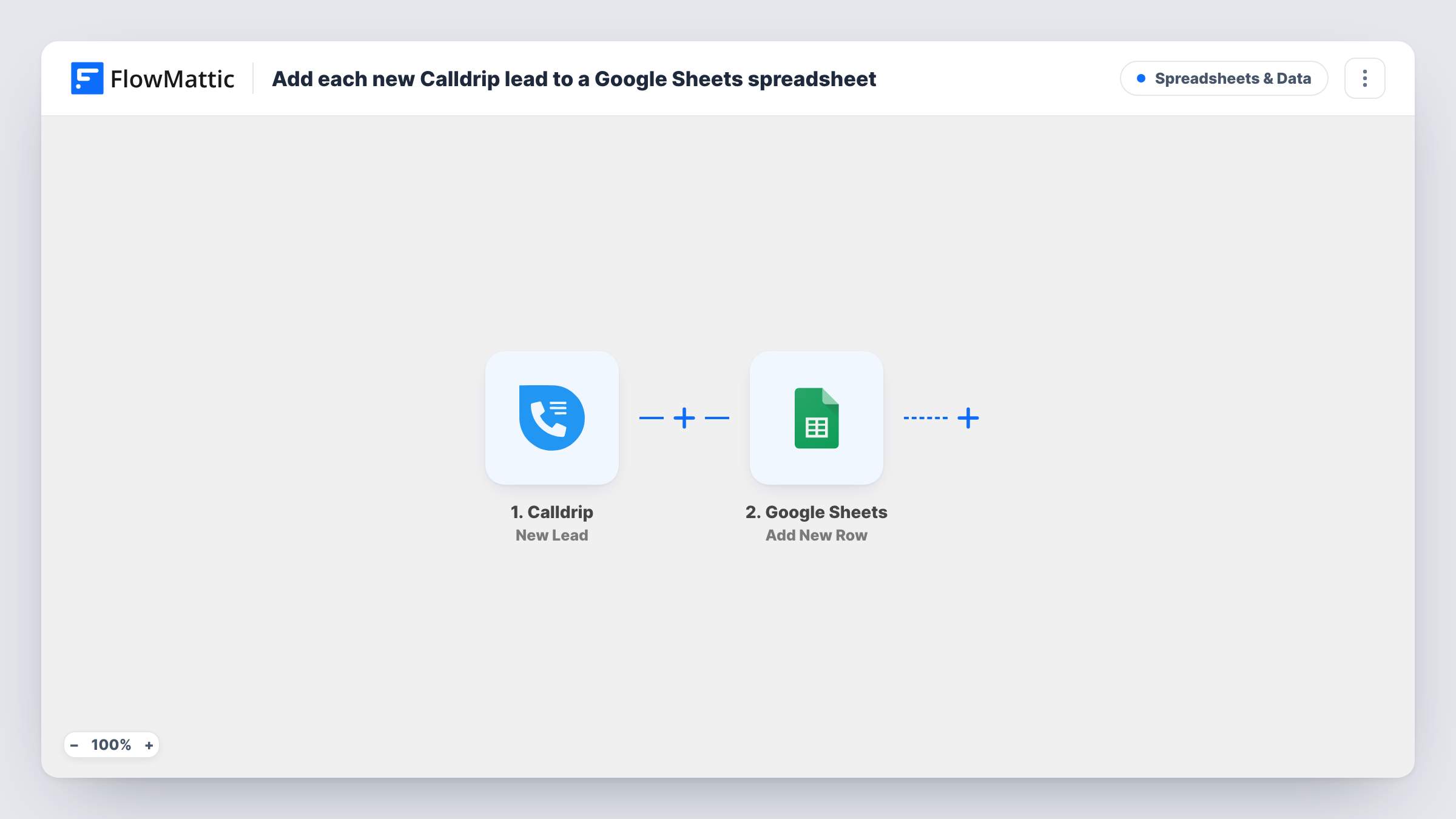
The Calldrip trigger is New Lead, which fires when a new lead is generated from a call. Whatever Calldrip sends about that lead is then ready for mapping. The Google Sheets step then runs Add New Row and writes those values into the spreadsheet you pick, one per column.
The sheet only receives data; nothing goes back to Calldrip, and each lead adds exactly one row. Rows are never edited after they are written, so if you change the lead in Calldrip later, the sheet keeps the original details. Task History lists every run with the lead data and the reply from Google.
Weekly lead report for a manager
A sales manager sorts the Calldrip lead sheet by date each Monday to see how many call leads came in and who handled them.
Agency showing results to a client
An agency running call campaigns shares a view-only Google Sheet, so the client sees each Calldrip lead without a Calldrip login.
Simple follow-up tracker
Add a status column of your own next to the mapped lead details, and reps mark each Calldrip lead as called back, booked or lost.
How this workflow runs
What happens at each step once the workflow is on, and what you need before you import it.
 Calldrip New Lead
Starts a run for each lead Calldrip creates from a phone call. Connect your Calldrip account; the lead's details are passed to the spreadsheet step.
- Google Sheets Add New Row
Adds one Calldrip lead per row to the spreadsheet you choose. Connect Google, pick the sheet and map each column to a lead value from the trigger.
What you need
- FlowMatticCore
- Calldrip AccountAccount
- Google Sheets AccountAccount
After importing, map your own data. To keep the template universal, not every step is pre-filled. Open each step in the builder and connect your accounts and fields (channels, lists, sheets, recipients) before you switch the workflow on.
Make it yours
Changes worth making after you import it.
- Create the header row before mapping so the Google Sheets step lists your column names, then leave a few spare columns at the right for notes your team adds by hand.
- Want the team told too? Add a Slack or email step after the row is added, using the same Calldrip lead values.
- If only some leads matter, such as those from one campaign, add a Filter after the trigger on a value you see in a test lead.
Questions about this workflow
Which Calldrip lead details end up in the sheet?
The ones you map. Calldrip sends the lead data with each event, and you match values to columns. Generate a test lead after import to see what arrives.
Are old Calldrip leads added?
No. The trigger picks up Calldrip leads from the moment you switch the workflow on. Export older leads from Calldrip if you want them in the same sheet.
Does the sheet update if the Calldrip lead changes?
No. Add New Row writes the details once, when the lead is created. Later changes in Calldrip don't reach the row.
More Spreadsheets & Data workflows
Other ready-to-import templates from the same category.




Import this workflow into your WordPress site
Download the JSON, import it from the Workflows screen and connect your accounts. Every run stays on your server, with no per-task fees.
30-day money-back guarantee Unlimited workflows and runs Self-hosted