

Add files to Dropbox from new Formidable entries
Each time someone submits a Formidable Forms entry, this workflow uploads a file from that entry to your Dropbox, so attachments people send through your site end up in cloud storage you already use.
 Formidable Forms
 Dropbox
2 steps Setup ~5 min Used on 3.2k sites Free to import
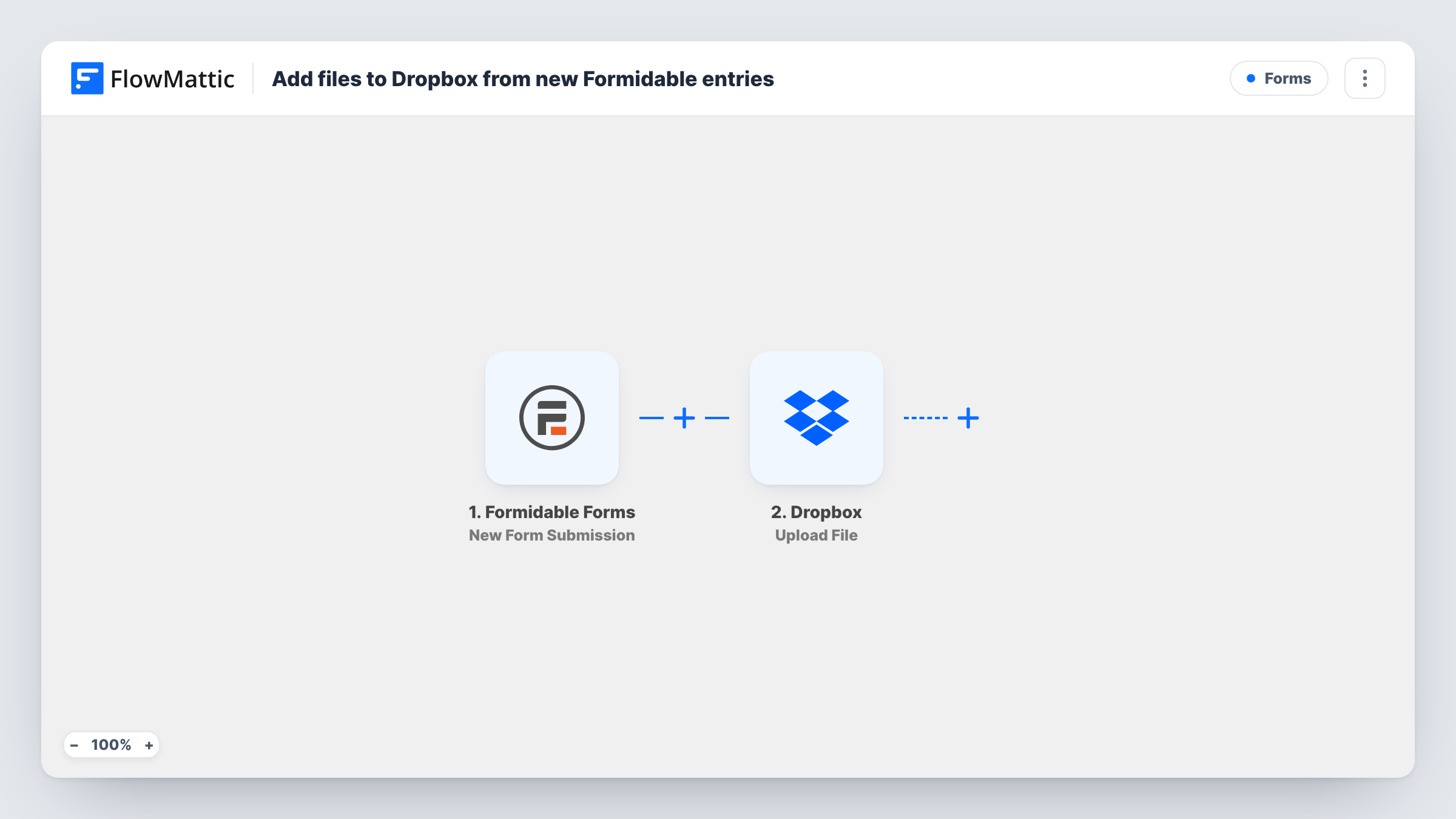
What this workflow does
Files people attach to a Formidable form sit in your WordPress uploads folder. To share them with a colleague or keep them with the rest of your documents, you download each one and upload it again. This workflow moves that job to FlowMattic, one entry at a time.
The Formidable Forms trigger runs whenever a form on your site is submitted, and every answer in the entry becomes data you can map. The second step uses the Upload File action in Dropbox. You point it at the file from the entry, usually the value of your form's file upload field, and FlowMattic sends that file to your connected Dropbox account.
The template has no conditions, so every submission runs the Dropbox step, including entries where nobody attached a file. Run a test submission with a real attachment after import and check Task History to see what the Dropbox step received and returned before you rely on it.
Résumés from a careers page
Applicants attach a CV to your Formidable application form, and each file is uploaded to the Dropbox account your hiring team already shares.
Client documents for an accountant
Clients send receipts or statements through an upload form on your site, and the files are copied to Dropbox where you do the actual work.
Photo submissions for a contest
Entrants upload a photo with their entry. Every image is pushed to Dropbox, so judges can browse them without a WordPress login.
How this workflow runs
What happens at each step once the workflow is on, and what you need before you import it.
 Formidable Forms New Form Submission
Starts the workflow as soon as a new Formidable entry is saved from your site. The entry's answers, including any file upload field, are passed to the Dropbox step for mapping.
- Dropbox Upload File
Uploads a file to your connected Dropbox account. Map the file from the Formidable entry into this step, then send a test entry to confirm the file arrives where you expect.
What you need
- FlowMatticCore
- Formidable Forms PluginPlugin
- Dropbox AccountAccount
After importing, map your own data. To keep the template universal, not every step is pre-filled. Open each step in the builder and connect your accounts and fields (channels, lists, sheets, recipients) before you switch the workflow on.
Make it yours
Changes worth making after you import it.
- Add a Filter after the trigger that continues only when the file upload field is not empty, so entries without an attachment don't run the Dropbox step.
- If your form has more than one file field, add a second Dropbox Upload File step and map the other field into it.
- Add the Dropbox Create Shared Link action after the upload if you want a link to the stored file that you can pass to a later step, such as an email to your team.
Questions about this workflow
Does every Formidable form on my site trigger this upload?
The trigger listens for Formidable Forms submissions. Check the trigger after import to see whether it is tied to one form, and test with the form you care about.
Is the file removed from WordPress after it goes to Dropbox?
No. The workflow only uploads a copy. Formidable keeps the entry and its file on your site as usual.
What happens when a Formidable entry has no attachment?
The Dropbox step still runs, because the template has no Filter. It has no file to send, and Task History shows the response. Add a Filter on the file field to avoid that.
Do I need a Dropbox account to import this?
Yes. You connect your Dropbox account to the Upload File step when you import the workflow, and files are stored in that account.
More Forms workflows
Other ready-to-import templates from the same category.






Import this workflow into your WordPress site
Download the JSON, import it from the Workflows screen and connect your accounts. Every run stays on your server, with no per-task fees.
30-day money-back guarantee Unlimited workflows and runs Self-hosted