

Create a new Airtable record from every Fillout form submission
Every submission to a Fillout form becomes a new record in Airtable, so the answers you collect sit in a base where your team can sort, link and work through them.
 Fillout
 Airtable
2 steps Setup ~5 min Used on 1.3k sites Free to import
What this workflow does
Fillout makes good-looking forms, but many teams run the work that follows from an Airtable base: reviewing applications, tracking requests, or planning orders. Downloading responses and pasting them in is a chore that falls behind. This workflow writes each submission to Airtable as it arrives.
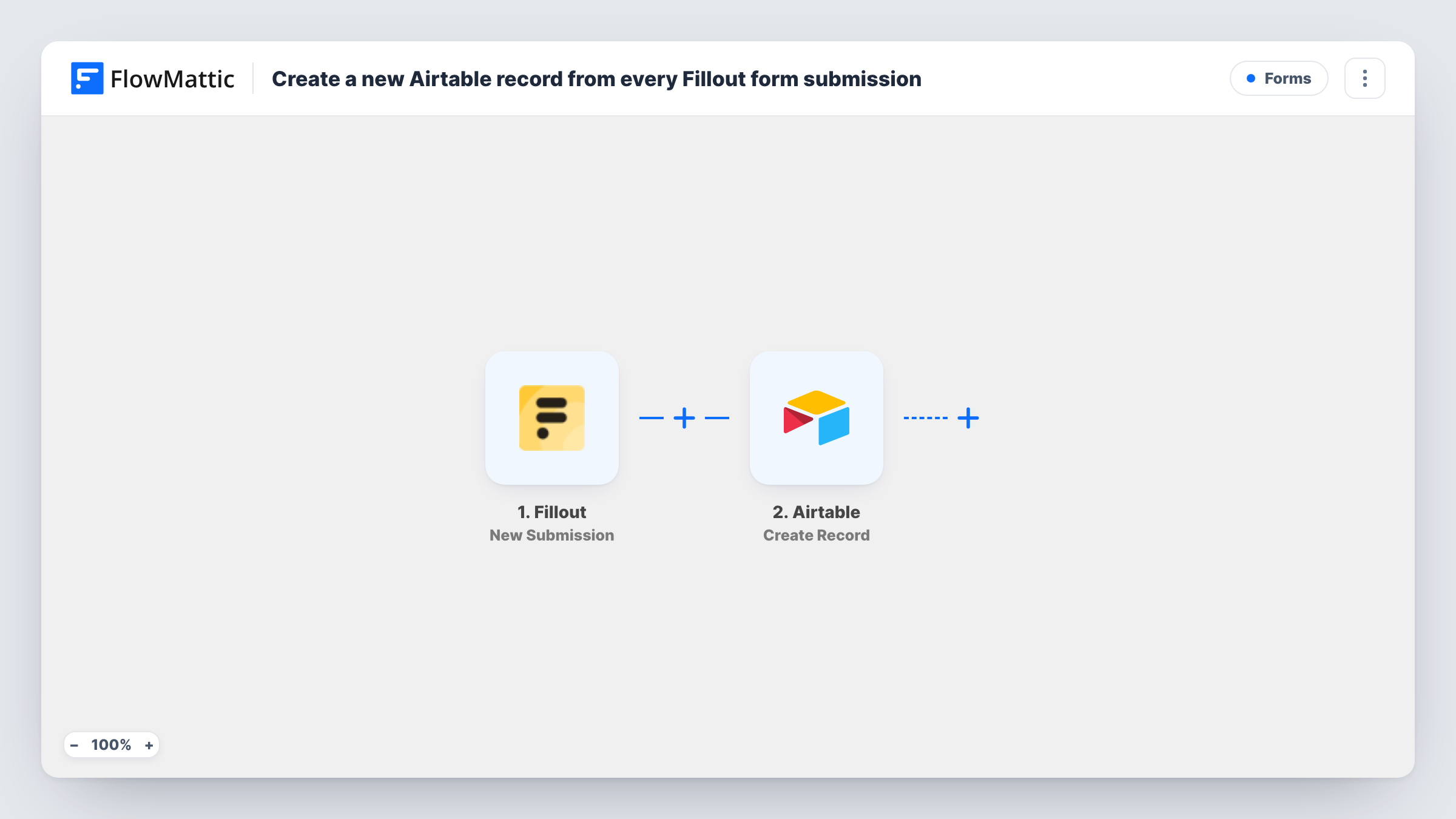
The Fillout trigger is New Submission, which fires when a form receives a new submission. FlowMattic passes the answers to Airtable, where Create Record adds one record. You map each Fillout question to the matching field in your table.
Each submission makes one new record, and the workflow never edits records already in the base. Answers sent before you turn it on aren't copied. If Airtable rejects a value, for example text in a number field, Task History shows the error for that run.
Job applications into a hiring base
Candidates apply through a Fillout form, and each application becomes an Airtable record your team can move through review stages.
Content requests from other teams
Colleagues ask for blog posts or designs with a Fillout request form, and the requests line up in an Airtable base for planning.
Event registrations with extra details
Fillout collects dietary needs and session choices, and Airtable keeps a record per attendee that you can group by session.
How this workflow runs
What happens at each step once the workflow is on, and what you need before you import it.
 Fillout New Submission
Fires when one of your Fillout forms receives a new submission. Each answer becomes data you can map into the Airtable record.
- Airtable Create Record
Creates one record in Airtable per submission. Connect your Airtable account, choose where the record goes, and map each Fillout answer to a field. A test submission shows the data you can map.
What you need
- FlowMatticCore
- Fillout AccountAccount
- Airtable AccountAccount
After importing, map your own data. To keep the template universal, not every step is pre-filled. Open each step in the builder and connect your accounts and fields (channels, lists, sheets, recipients) before you switch the workflow on.
Make it yours
Changes worth making after you import it.
- Match Airtable field types to your Fillout questions, such as a date field for a date question, so Airtable accepts every value you map.
- Use one copy of this workflow per Fillout form if each form belongs in a different Airtable table, and map each copy to its own table.
- Submit one complete test entry after import, with every question answered, so FlowMattic captures all the fields before you map them.
Questions about this workflow
Do I need the Airtable table set up first?
Yes. Create Record adds a record to an existing table, so create the base and fields before mapping. Field names don't have to match the Fillout questions.
What happens when a Fillout question is left blank?
The mapped Airtable field is left empty for that record. Make a question required in Fillout if the field must always be filled.
Will older Fillout responses be added to Airtable?
No. Only submissions received after you turn the workflow on create records. Export older responses from Fillout if you need them in the base.
Can Fillout file uploads reach Airtable?
That depends on what Fillout sends for an upload. Check a test submission: if it includes a file link, you can map that link into an Airtable field.
More Forms workflows
Other ready-to-import templates from the same category.







Import this workflow into your WordPress site
Download the JSON, import it from the Workflows screen and connect your accounts. Every run stays on your server, with no per-task fees.
30-day money-back guarantee Unlimited workflows and runs Self-hosted