

When New Form Submission in Elementor, Format Currency in Number Formatter
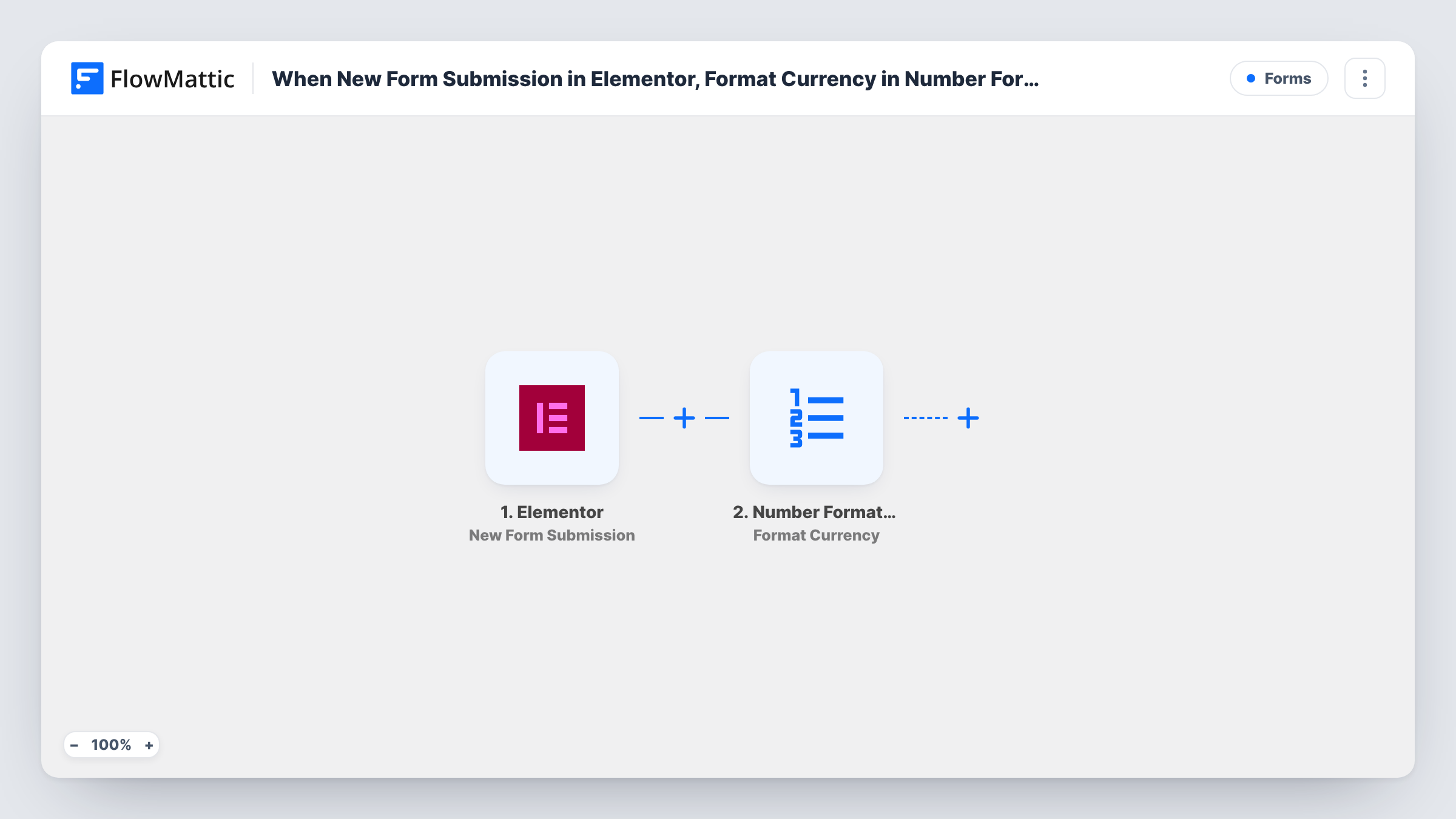
When an Elementor Pro form is submitted, this workflow passes a number from the entry to Number Formatter’s Format Currency action, giving you a formatted currency value to use in steps you add next.
 Elementor
 Number Formatter
2 steps Setup ~5 min Used on 2.1k sites Free to import
What this workflow does
Numbers typed into a form arrive however the visitor entered them, such as 1500, 1500.5 or 1,500. If you plan to send that value to an invoice, email or spreadsheet, you usually want it in one tidy currency style. This workflow is a starting point for that: it formats the amount and leaves the next step to you.
A run begins with each entry sent through an Elementor Pro form widget. FlowMattic passes the submitted fields to the Number Formatter step, where the Format Currency action takes the value you map and returns it in a new currency style.
As imported, the formatted value is not sent anywhere. The workflow ends after Number Formatter, so nothing uses the result until you add a step that does, such as Google Sheets, Gmail or a CRM. Task History shows the formatted output for each run, which is useful while you test.
Quote requests with a budget field
A quote form asks for a budget. After you add a Google Sheets step, the sheet shows each budget in the same currency style.
Donation pledge forms
Pledge amounts are formatted before you add an email step that thanks the donor and repeats the amount back to them.
Order forms for custom products
A price field from an Elementor order form is cleaned up before you add a step that creates an invoice or a CRM deal.
How this workflow runs
What happens at each step once the workflow is on, and what you need before you import it.
 Elementor New Form Submission
Starts a run for every Elementor Pro form entry on your site. Each field is passed on, so you can map the amount field into Number Formatter.
- Number Formatter Format Currency
Formats the value you map from the form as currency in a new style. The result is available to later steps, but nothing uses it until you add one. Check the output with a test entry.
What you need
- FlowMatticCore
- Elementor PluginPlugin
After importing, map your own data. To keep the template universal, not every step is pre-filled. Open each step in the builder and connect your accounts and fields (channels, lists, sheets, recipients) before you switch the workflow on.
Make it yours
Changes worth making after you import it.
- Add a Google Sheets, Gmail or CRM step after Number Formatter and map its formatted output, so the clean value actually goes somewhere.
- Add a Filter before Number Formatter that continues only when the amount field is not empty, so blank entries don't produce empty results.
- Submit a test entry with a typical amount after import, then open Task History to see exactly what Number Formatter returned.
Questions about this workflow
Does this Elementor workflow send the formatted amount anywhere?
No. It ends after the Number Formatter step. Add an action that uses the formatted value, such as a Google Sheets row or an email.
Can I format currency from a form built with free Elementor?
No. The form widget this trigger listens to is part of Elementor Pro, which must be active on the same site as FlowMattic.
Which Elementor form field should go into Number Formatter?
The field that holds the amount you want formatted. Map it in the Number Formatter step after a test submission has captured your form's fields.
What if a visitor types text into the Elementor amount field?
Number Formatter expects a number, so the result may be empty or wrong. Use a number field in Elementor and check Task History while testing.
More Forms workflows
Other ready-to-import templates from the same category.






Import this workflow into your WordPress site
Download the JSON, import it from the Workflows screen and connect your accounts. Every run stays on your server, with no per-task fees.
30-day money-back guarantee Unlimited workflows and runs Self-hosted