

Send emails via Gmail when there are new Unbounce form submissions
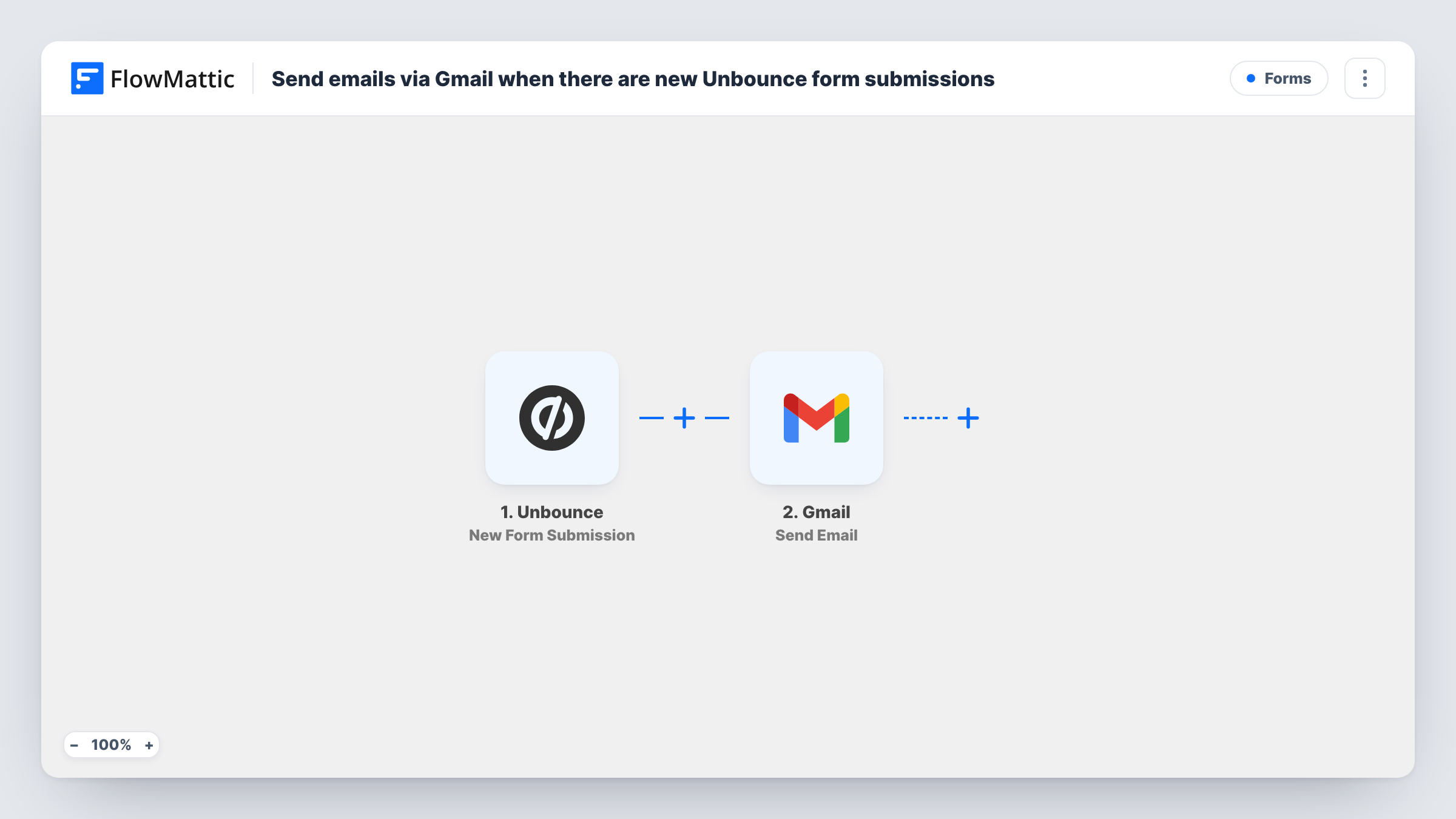
When a visitor submits a form on one of your Unbounce landing pages, this workflow sends an email through your Gmail account, written from the submission’s details, to the address you choose.
 Unbounce
 Gmail
2 steps Setup ~5 min Used on 1.7k sites Free to import
What this workflow does
Landing pages built in Unbounce collect leads, but those leads sit in the Unbounce dashboard until someone checks it. Sending each submission by email puts it where you already work. This workflow uses your own Gmail account to send that email.
The Unbounce trigger fires on each new form submission. FlowMattic receives the submitted fields and passes them to the Gmail step, which sends an email to the recipient you set. You write the subject and body yourself and drop in submitted values, such as the visitor's name or the page they converted on.
The recipient can be fixed, like a sales inbox, or mapped from the form, such as the visitor's own email address if you want to send them a reply. As shipped, each Unbounce submission produces exactly one Gmail message, with no condition in between. Task History lists each run so you can see what Gmail was given.
Lead alerts for a sales inbox
Each Unbounce lead form submission arrives in a shared sales inbox as a Gmail message, with the lead's details laid out in the body.
Personal follow-up to the visitor
Map the visitor's email field as the recipient so each person who converts gets a note sent from your own Gmail address.
Client campaign reporting for an agency
An agency running Unbounce pages for a client sends each conversion to the client's contact by email, so they see leads without an Unbounce login.
How this workflow runs
What happens at each step once the workflow is on, and what you need before you import it.
 Unbounce New Form Submission
Runs when a visitor submits a form on an Unbounce landing page. The submitted fields are passed on for mapping into the email.
- Gmail Send Email
Sends one email through the Google account you link here. Set the recipient, subject and body, and insert values from the Unbounce submission where you want them.
What you need
- FlowMatticCore
- Unbounce AccountAccount
- Gmail AccountAccount
After importing, map your own data. To keep the template universal, not every step is pre-filled. Open each step in the builder and connect your accounts and fields (channels, lists, sheets, recipients) before you switch the workflow on.
Make it yours
Changes worth making after you import it.
- Add a Filter after the trigger to send email only for some submissions, for example when a budget or interest field has a value you care about.
- To email both your team and the visitor, add a second Gmail step: one with a fixed team address and one with the submitted email mapped as recipient.
- Submit one test form on your Unbounce page after import so FlowMattic captures the field names, then map them in the Gmail step.
Questions about this workflow
Who receives the Gmail message for each Unbounce submission?
The address in the Gmail step's recipient setting. It can be a fixed address, such as your sales inbox, or the email field from the Unbounce form.
Will Unbounce leads be emailed from my personal Gmail address?
Yes. The Gmail step sends through the Google account you connect when you import the workflow, so the message comes from that address.
Does every Unbounce form submission send an email?
Yes, as imported. Each submission the trigger receives runs the Gmail step once. Add a Filter after the trigger to limit which ones send.
Does this change how Unbounce stores my leads?
No. The workflow only receives each submission. Unbounce keeps its own record of leads as before.
More Forms workflows
Other ready-to-import templates from the same category.







Import this workflow into your WordPress site
Download the JSON, import it from the Workflows screen and connect your accounts. Every run stays on your server, with no per-task fees.
30-day money-back guarantee Unlimited workflows and runs Self-hosted