

Add new Aloware contacts to a HubSpot CRM as fresh leads
When a contact is created in Aloware, this workflow creates a matching contact in HubSpot CRM from the details you map, so people your team calls and texts also show up in your CRM.
 Aloware
 HubSpot CRM
2 steps Setup ~5 min Used on 403 sites Free to import
What this workflow does
Aloware is where your team calls and texts people, while HubSpot is often where sales tracks them. When new people only exist in the phone system, the CRM misses them. This workflow copies each new Aloware contact into HubSpot as it is created.
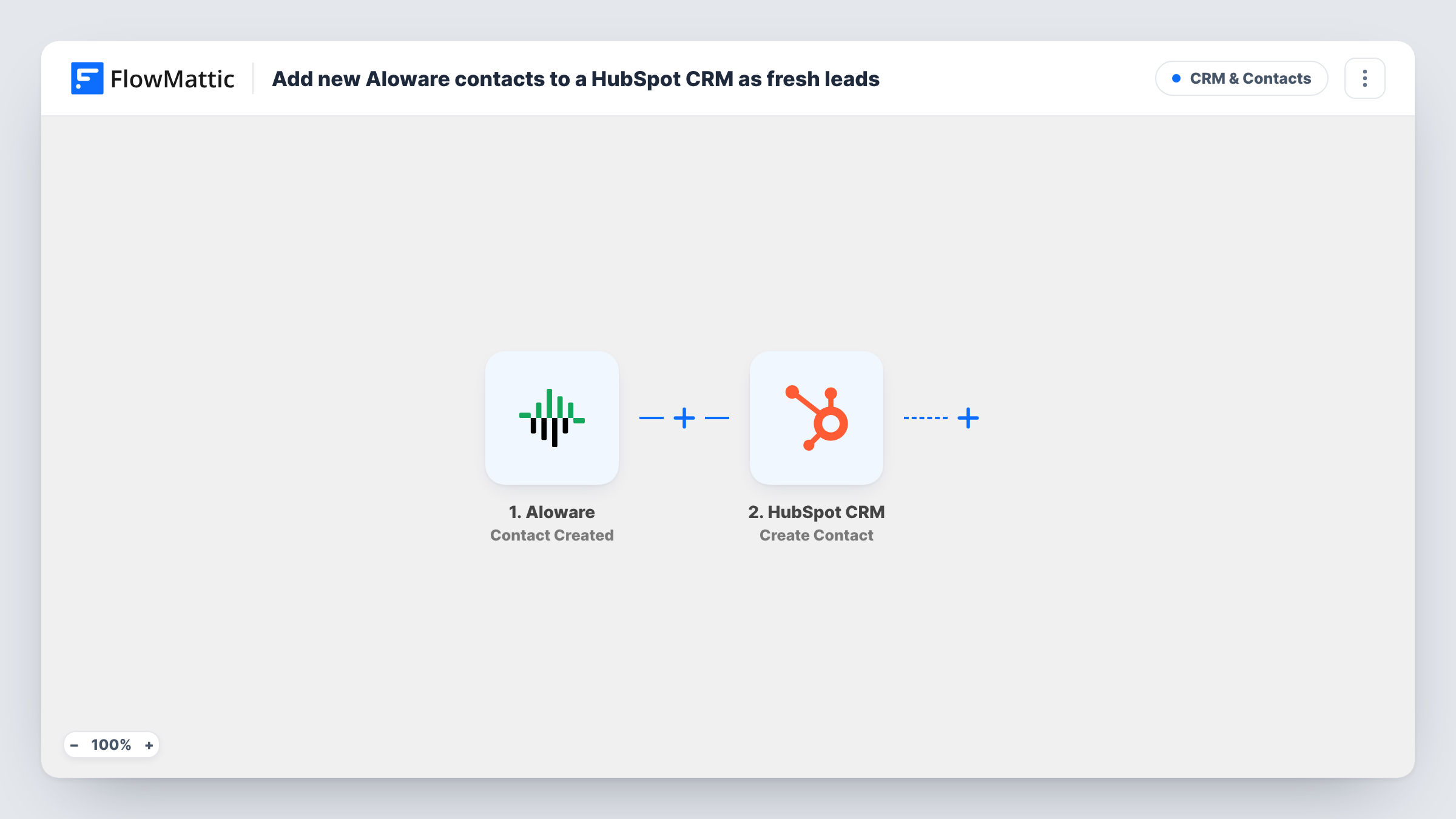
The Aloware Contact Created trigger fires when a contact is added to your Aloware account and sends its details to FlowMattic. The HubSpot CRM Create Contact action then creates a contact from the values you map, such as the name, phone number and email.
The HubSpot step makes new records and nothing else. It does not look for an existing HubSpot contact first, so HubSpot may refuse a contact whose email is already in your CRM, and Task History shows that response. Whether the new contact counts as a lead in HubSpot depends on your own HubSpot settings and what you map, so check the first test contact before relying on it.
New callers on a sales line
When a new caller is saved as a contact in Aloware, whether by an agent or by your Aloware setup, the caller also appears in HubSpot for your sales process.
Contacts added by agents during calls
Agents add people by hand in Aloware while on the phone. Each one is copied to HubSpot, so the CRM matches what the team works with.
Text message campaigns
People added to Aloware for an SMS campaign also get a HubSpot record, so marketing can see them alongside other contacts.
How this workflow runs
What happens at each step once the workflow is on, and what you need before you import it.
 Aloware Contact Created
Fires when a contact is created in your Aloware account. The contact's details are sent to FlowMattic for mapping into HubSpot.
- HubSpot CRM Create Contact
Creates a new HubSpot contact from the Aloware details you map. Connect your HubSpot account and map at least the email or phone number so the record can be identified later.
What you need
- FlowMatticCore
- Aloware AccountAccount
- HubSpot CRM AccountAccount
After importing, map your own data. To keep the template universal, not every step is pre-filled. Open each step in the builder and connect your accounts and fields (channels, lists, sheets, recipients) before you switch the workflow on.
Make it yours
Changes worth making after you import it.
- Create a test contact in Aloware after import. FlowMattic captures its fields, and you can confirm how the new contact looks in HubSpot before you rely on it.
- Add a Filter that continues only when the Aloware contact has an email, if your HubSpot process depends on email for matching and follow-up.
- If you also want a HubSpot deal for each new Aloware contact, add a HubSpot Create Deal step after Create Contact and map the contact details into it.
Questions about this workflow
Will an Aloware contact that is already in HubSpot be duplicated?
Create Contact does not check first. HubSpot may refuse a duplicate email, and the refusal shows in Task History. Contacts with no email can still be created twice.
Are Aloware contact edits sent to HubSpot?
No. The trigger fires when a contact is created, so changes made later in Aloware don't reach HubSpot through this workflow.
Will the HubSpot contact be marked as a lead?
The template doesn't set a stage on its own. Check a test contact in HubSpot, and if the Create Contact step offers the property you use for stages, map a value there.
Do Aloware contacts created before import reach HubSpot?
No. Only contacts created after you switch the workflow on are copied. Bring older ones across with a HubSpot import.
More CRM & Contacts workflows
Other ready-to-import templates from the same category.




Import this workflow into your WordPress site
Download the JSON, import it from the Workflows screen and connect your accounts. Every run stays on your server, with no per-task fees.
30-day money-back guarantee Unlimited workflows and runs Self-hosted