

Create a HubSpot CRM contact from each new Marketo lead
When Marketo sends a new-lead event to FlowMattic, this workflow creates a matching contact in HubSpot CRM, so leads captured in your marketing platform reach the CRM your sales team works in.
 Marketo
 HubSpot CRM
2 steps Setup ~5 min Used on 1.0k sites Free to import
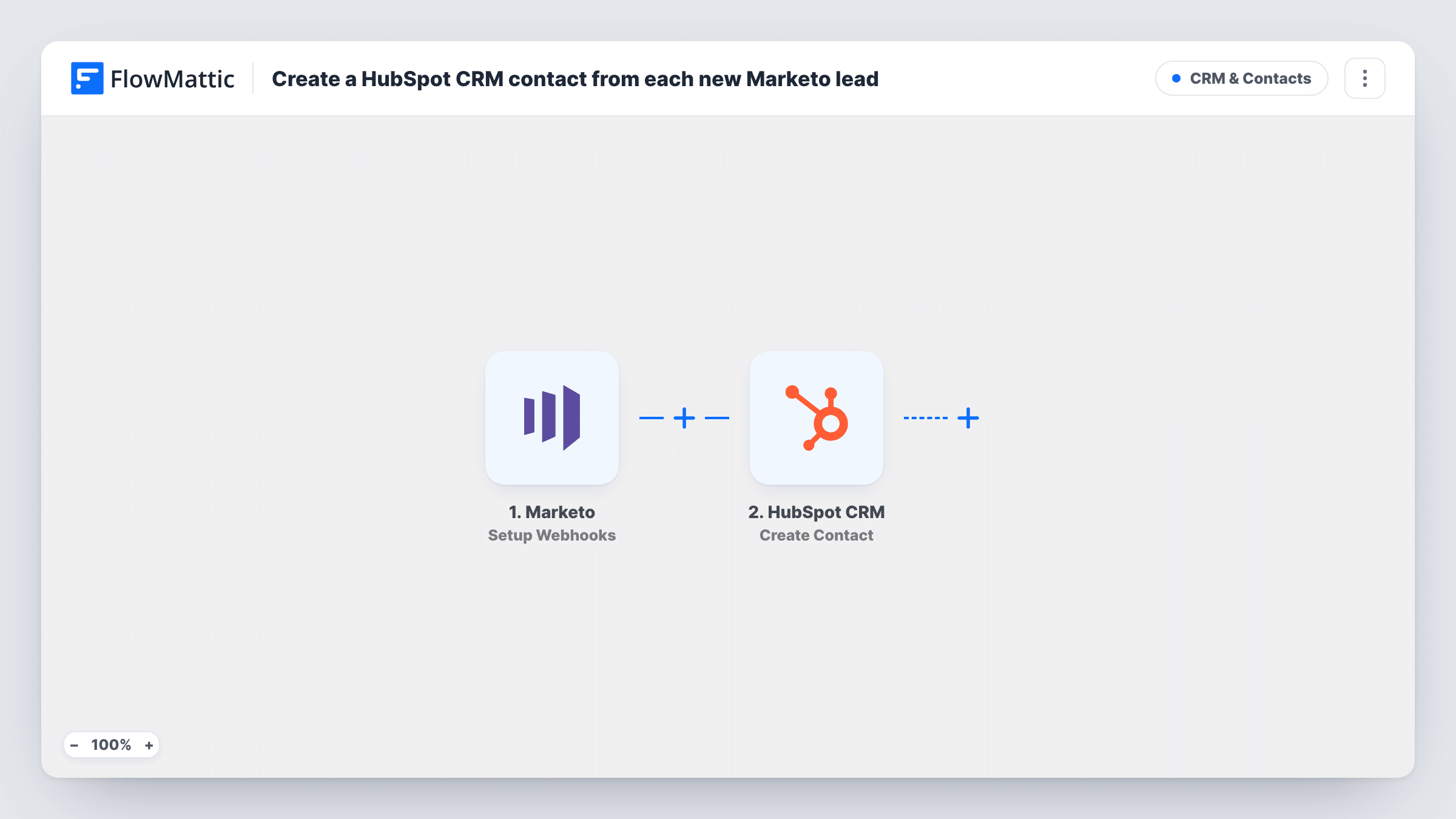
What this workflow does
Some teams run campaigns in Marketo while sales works from HubSpot. New leads then sit in one system until someone exports them, and follow-up waits for the next import. This workflow creates the HubSpot contact as Marketo reports each new lead.
The Marketo trigger is Setup Webhooks, which fires for the events you specify in Marketo. For this template, have Marketo send only the new-lead event, so other activity doesn't create contacts. FlowMattic then passes the lead's details to HubSpot CRM, where Create Contact adds a contact from the values you map.
Create Contact never edits an existing HubSpot record. If a lead's email already belongs to a HubSpot contact, HubSpot may reject the new one, and Task History shows its reply on that step. Leads Marketo held before you turned the workflow on aren't sent.
Webinar registrants to sales
Marketo captures webinar sign-ups as new leads. Each one becomes a HubSpot contact so reps can reach out before or after the session.
Marketing and sales on different platforms
Marketing keeps its programs in Marketo, sales keeps its pipeline in HubSpot, and new leads cross over without anyone exporting a list.
Trade show lead capture
Badge scans uploaded to Marketo arrive as new leads, and the ones sent to FlowMattic land in HubSpot for the sales follow-up.
How this workflow runs
What happens at each step once the workflow is on, and what you need before you import it.
 Marketo Setup Webhooks
Receives the events you set Marketo to send. Send only the new-lead event for this template, so the HubSpot step runs once per new lead.
- HubSpot CRM Create Contact
Creates a HubSpot CRM contact from the Marketo lead. Map the lead's email, first name and last name, then check a test lead to see the contact HubSpot creates.
What you need
- FlowMatticCore
- Marketo AccountAccount
- HubSpot CRM AccountAccount
After importing, map your own data. To keep the template universal, not every step is pre-filled. Open each step in the builder and connect your accounts and fields (channels, lists, sheets, recipients) before you switch the workflow on.
Make it yours
Changes worth making after you import it.
- Include the lead's email, name and company in what Marketo sends, so the HubSpot step has the values it needs to map.
- Map the lead source or program name into a HubSpot contact property, if you have one, so sales can see which Marketo campaign brought each lead in.
- Send a test lead with an address already in HubSpot after import, then read the HubSpot step in Task History to see how a duplicate is handled.
Questions about this workflow
Which Marketo events should I send to FlowMattic?
Only the new-lead event. The trigger fires for whatever events you specify, so sending updates or activity too would run the HubSpot step for those as well.
What if the Marketo lead is already a HubSpot contact?
Create Contact doesn't update records. HubSpot may refuse a contact whose email it already holds, and the response appears in Task History. Nothing in HubSpot is changed in that case.
Do changes to a Marketo lead update the HubSpot contact?
No. This template only creates contacts. Keeping fields in step later would need a separate workflow with an update step.
More CRM & Contacts workflows
Other ready-to-import templates from the same category.




Import this workflow into your WordPress site
Download the JSON, import it from the Workflows screen and connect your accounts. Every run stays on your server, with no per-task fees.
30-day money-back guarantee Unlimited workflows and runs Self-hosted