

When a new lead is captured in OpenRead.io, create new subscriber user in WordPress
When OpenRead.io captures a new lead, this workflow creates a WordPress user account for that person, so leads from your lead magnet get a login on your site.
 OpenRead.io
 WordPress
2 steps Setup ~5 min Used on 1.6k sites Free to import
What this workflow does
A lead magnet built in OpenRead.io collects people who are interested in what you offer. If your WordPress site has members-only content or a resource area, those people need an account before they can see it. This workflow creates one for each new lead.
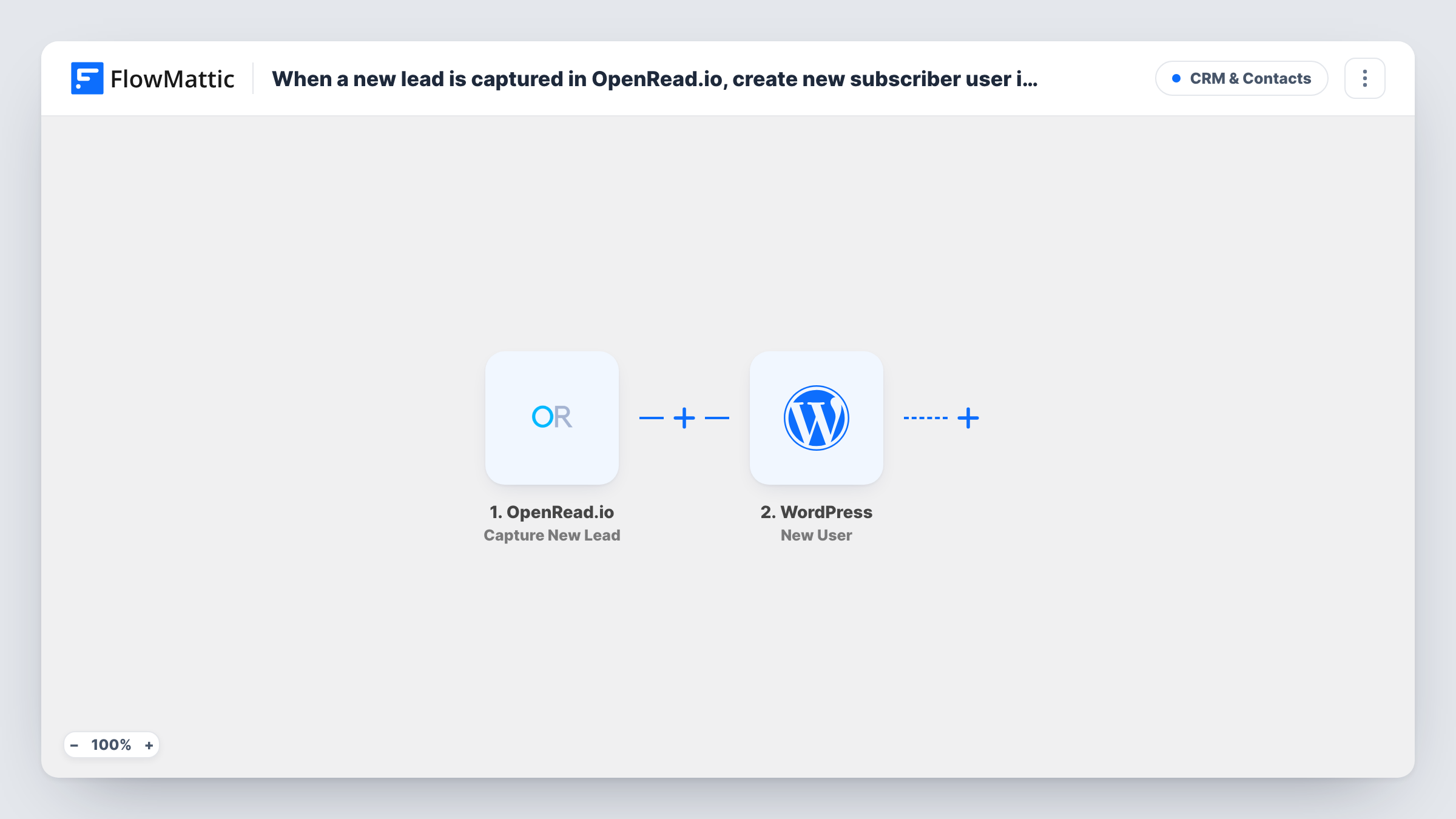
The OpenRead.io trigger fires when a new lead is captured. FlowMattic passes the lead's details to the WordPress New User action, which creates a user on your site. You map the email and name from the lead, and set the role to Subscriber if the step asks for one.
WordPress requires each user to have a unique email address and username. If a lead's email already has an account, the step creates nothing new and returns that account's ID; a username already used by someone else may be refused, and the run in Task History shows what WordPress sent back. Run a test lead after import to see which fields OpenRead.io sends and how the new user looks in WordPress.
Gated resource library
Visitors download a guide through OpenRead.io. Each one gets a WordPress subscriber account that opens your library of templates and checklists.
Free course access
A coach offers a free mini-course as the lead magnet. Creating the WordPress user lets the lead log in to the lessons hosted on the site.
Community or forum sign-up
Leads from an OpenRead.io funnel become WordPress users, so they can join the discussion area on your site without registering again.
How this workflow runs
What happens at each step once the workflow is on, and what you need before you import it.
 OpenRead.io Capture New Lead
Fires when OpenRead.io captures a new lead. The lead's details, such as email and name if they are collected, become available to map.
- WordPress New User
Creates a new WordPress user from the lead. Map the email as the user's email and username, add the name, and choose the Subscriber role if the step offers a role.
What you need
- FlowMatticCore
- OpenRead.io AccountAccount
After importing, map your own data. To keep the template universal, not every step is pre-filled. Open each step in the builder and connect your accounts and fields (channels, lists, sheets, recipients) before you switch the workflow on.
Make it yours
Changes worth making after you import it.
- Add WordPress's Get User by Email step before New User, then a Filter that continues only when no user is found, so leads who already have an account are skipped.
- Follow the New User step with WordPress's Send Password Reset action, so each lead gets an email to set their own password.
- Add a Filter between the OpenRead.io trigger and the WordPress step that continues only when the lead's email is not empty, since WordPress can't create a user without one.
Questions about this workflow
What happens if the OpenRead.io lead already has a WordPress account?
The lead keeps one account: the step returns their existing user ID instead of creating a new one. If the role is set to Subscriber, that role is added to their account. A username another account already uses may be refused, and Task History shows the reply.
How does the new user log in?
It depends on how you set up the step. If you don't map a password, add WordPress's Send Password Reset step after it so the lead can set one.
Will the new users trigger other workflows on my site?
They can. Any FlowMattic workflow using the WordPress New User trigger fires for these accounts too, so check what else runs on new sign-ups.
Do OpenRead.io leads captured earlier get accounts?
No. Only leads captured after the workflow is on are sent to WordPress. Older leads would need to be added another way.
More CRM & Contacts workflows
Other ready-to-import templates from the same category.







Import this workflow into your WordPress site
Download the JSON, import it from the Workflows screen and connect your accounts. Every run stays on your server, with no per-task fees.
30-day money-back guarantee Unlimited workflows and runs Self-hosted