

When a Bloomreach event arrives, update the contact in HubSpot CRM and log it in Google Sheets
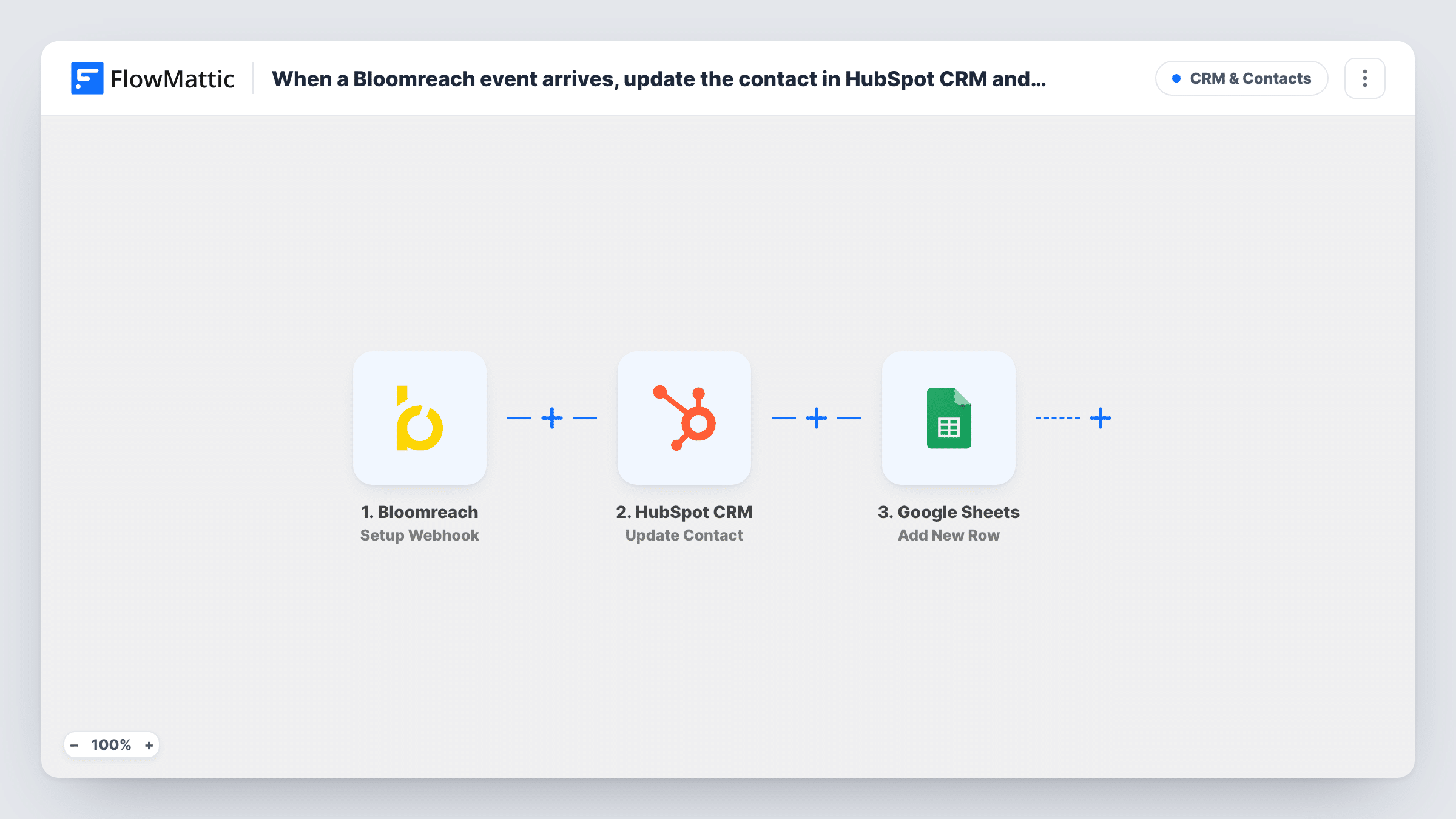
When Bloomreach sends a customer event to FlowMattic, the matching HubSpot contact is updated with the values you map, and the event is logged as a new row in Google Sheets.
 Bloomreach
 HubSpot CRM
 Google Sheets
3 steps Setup ~5 min Used on 1.0k sites Free to import
What this workflow does
Bloomreach knows what your customers do: purchases, sign-ups, campaign responses. Your sales team works in HubSpot and doesn't see those events. This workflow carries chosen Bloomreach event data onto the HubSpot contact and keeps a spreadsheet record of each event it processed.
The Bloomreach trigger gives you a webhook URL that Bloomreach posts events to, and it fires for each one. FlowMattic then runs the HubSpot CRM Update Contact step, which updates an existing contact with the values you map from the event. Last, Add New Row writes the event to Google Sheets.
Update Contact only changes contacts that already exist in HubSpot; nothing creates one. Include the customer's email in the payload Bloomreach sends, and test with a person you know is in HubSpot. The sheet records Bloomreach events as they arrive, not confirmed updates, so open Task History to read HubSpot's reply to each one.
Purchase data on the sales record
Bloomreach sends an event when an existing lead buys online, and the HubSpot contact gets a property such as last purchase date that reps see before a call.
Engagement scoring visible to sales
Push a Bloomreach engagement value onto a HubSpot property, so sales can sort known contacts by how active they are.
Audit trail for a new integration
While you test the Bloomreach to HubSpot link, the sheet shows every event that arrived, which helps you compare what was sent with what HubSpot shows.
How this workflow runs
What happens at each step once the workflow is on, and what you need before you import it.
 Bloomreach Setup Webhook
Fires for each event Bloomreach posts to the FlowMattic webhook URL. Set up the webhook in Bloomreach with the identifier the HubSpot step needs, such as the customer's email or HubSpot contact ID, in the payload, then send a test event.
- HubSpot CRM Update Contact
Updates an existing HubSpot contact with the values you map from the Bloomreach event. It doesn't create contacts, so test it with someone already in HubSpot.
- Google Sheets Add New Row
Adds a row to your Google Sheets spreadsheet for every event that reaches the workflow. Map the event type, the customer and the time into your columns.
What you need
- FlowMatticCore
- Bloomreach AccountAccount
- HubSpot CRM AccountAccount
- Google Sheets AccountAccount
After importing, map your own data. To keep the template universal, not every step is pre-filled. Open each step in the builder and connect your accounts and fields (channels, lists, sheets, recipients) before you switch the workflow on.
Make it yours
Changes worth making after you import it.
- Map a value from the HubSpot step's response into a sheet column, so each row shows what HubSpot returned for that event. Send a test event first to see which values HubSpot sends back.
- If only some Bloomreach events should change HubSpot, such as purchases and not page views, add a Filter on the event type between the Bloomreach trigger and the HubSpot step. Other events then skip the sheet too, since a Filter stops every later step.
- If Bloomreach customers may be missing from HubSpot, add a second workflow or step that uses HubSpot's Create Contact action for them, and test how it treats an email that already exists.
Questions about this workflow
What happens when the Bloomreach customer isn't in HubSpot?
Update Contact changes a contact that's already in HubSpot; it doesn't create one. Test with people you know are in HubSpot, and check Task History for HubSpot's reply on each run.
How does HubSpot know which contact to update from a Bloomreach event?
You map an identifier from the event into the step. Include the customer's email or HubSpot ID in the Bloomreach payload and check with a test run that the right contact changes.
Which Bloomreach events start this workflow?
The ones you configure Bloomreach to send to the FlowMattic URL. Every event that arrives runs both the HubSpot and the Google Sheets steps.
More CRM & Contacts workflows
Other ready-to-import templates from the same category.





Import this workflow into your WordPress site
Download the JSON, import it from the Workflows screen and connect your accounts. Every run stays on your server, with no per-task fees.
30-day money-back guarantee Unlimited workflows and runs Self-hosted