

Add new Aloware contacts to a Mailchimp audience for follow-up
When a contact is created in Aloware, this workflow adds them to a Mailchimp audience, or updates them if they are already there, so people your team calls and texts can also get your emails.
 Aloware
 Mailchimp
2 steps Setup ~5 min Used on 2.9k sites Free to import
What this workflow does
Aloware holds the people your team phones and texts. Email follow-up runs from Mailchimp, and the two lists drift apart unless someone exports and imports regularly. This workflow adds each new Aloware contact to your audience as it is created.
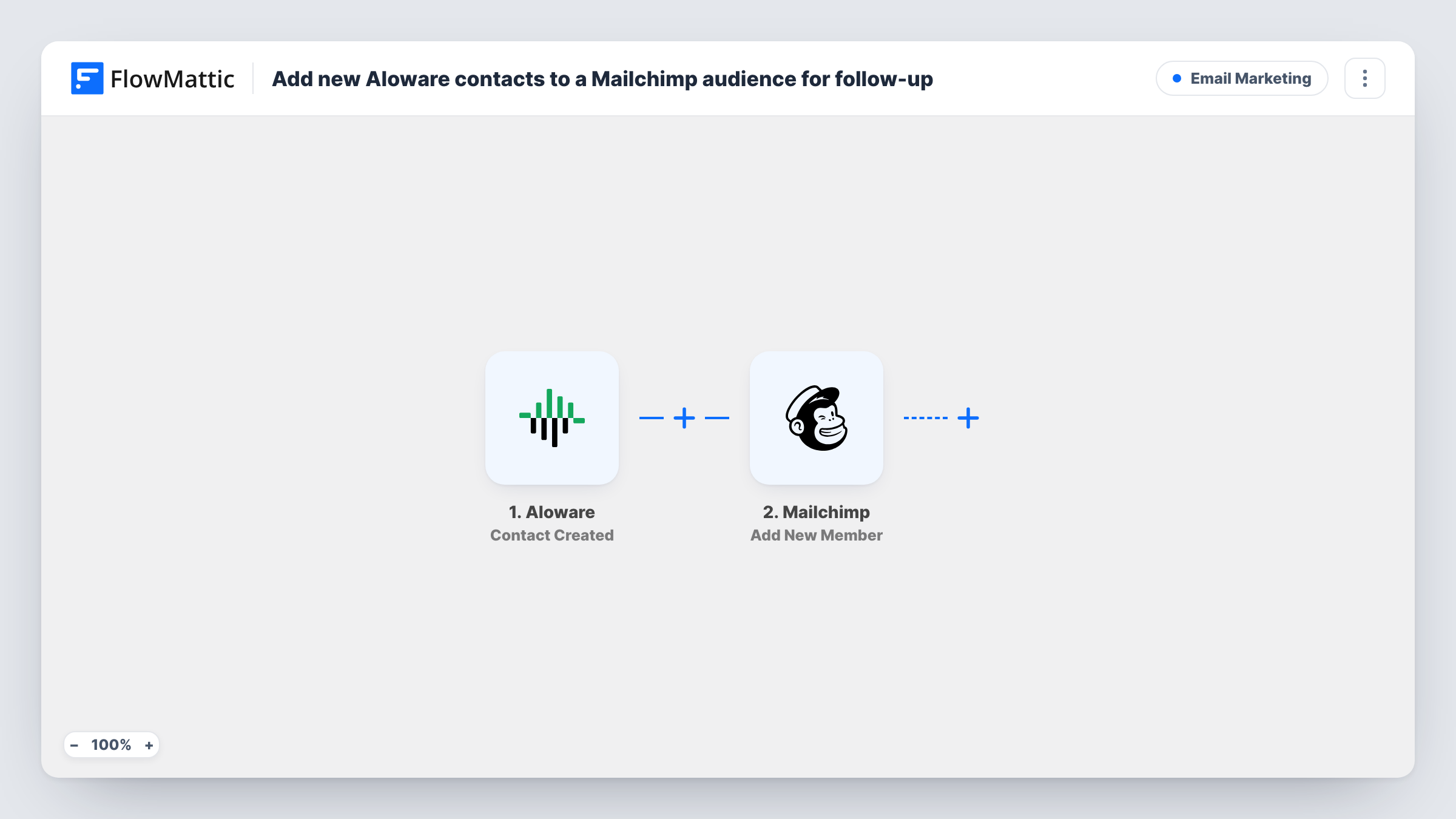
The Aloware Contact Created trigger fires when a contact is created and passes its details to FlowMattic. The Mailchimp Add New Member action then adds that person to the audience you select. If the email is already in that audience, Mailchimp updates the existing member instead.
Mailchimp files members by email address, so the contact needs one. An Aloware contact saved with only a phone number gives Mailchimp nothing to file, and that run shows an error in Task History. A Filter on the email, described in the tips, keeps those contacts out.
Callers who left an email
Your team takes an email address during a call and saves the contact in Aloware. That person joins the Mailchimp audience for your follow-up series.
Combining phone and email outreach
Leads imported into Aloware for a call campaign also join Mailchimp, so the same people get your email newsletter between calls.
Sales and marketing on one list
Marketing runs campaigns in Mailchimp while sales works in Aloware. New contacts reach both without anyone exporting a CSV.
How this workflow runs
What happens at each step once the workflow is on, and what you need before you import it.
 Aloware Contact Created
Runs once for every contact newly added to Aloware. The contact's details are passed on for mapping into Mailchimp.
- Mailchimp Add New Member
Adds the Aloware contact to the Mailchimp audience you pick, or updates them if that email is already a member. Map the email, and the name fields if you want them.
What you need
- FlowMatticCore
- Aloware AccountAccount
- Mailchimp AccountAccount
After importing, map your own data. To keep the template universal, not every step is pre-filled. Open each step in the builder and connect your accounts and fields (channels, lists, sheets, recipients) before you switch the workflow on.
Make it yours
Changes worth making after you import it.
- Add a Filter after the trigger that continues only when the Aloware contact's email is not empty, so phone-only contacts don't produce Mailchimp errors.
- Create a test contact with an email in Aloware after import, then check Mailchimp to confirm the member was added with the details you mapped.
- If you want Aloware contacts kept apart from your other subscribers, point this step at a Mailchimp audience you use only for people your team phones or texts.
Questions about this workflow
What if the Aloware contact is already in my Mailchimp audience?
Add New Member updates an existing member instead of adding them twice, using the values mapped from the new Aloware contact.
What happens to Aloware contacts with no email address?
Mailchimp needs an email to add a member, so those runs end with an error on the Mailchimp step in Task History. Add a Filter on the email to skip them.
Are later edits in Aloware sent to Mailchimp?
No. The Contact Created trigger runs once per new contact. Adding an email to an Aloware contact later does not start a new run.
Do I need consent to email Aloware contacts?
That depends on how you collected their details and the rules where you operate. Only add people who agreed to hear from you by email.
More Email Marketing workflows
Other ready-to-import templates from the same category.







Import this workflow into your WordPress site
Download the JSON, import it from the Workflows screen and connect your accounts. Every run stays on your server, with no per-task fees.
30-day money-back guarantee Unlimited workflows and runs Self-hosted