

Send emails in Gmail for new leads in Facebook Lead Ads
When someone fills in your Facebook Lead Ads form, FlowMattic sends them an email from your Gmail account, written once by you and personalised with the answers they gave.
 Facebook Lead Ads
 Gmail
Gmail2 steps Setup ~5 min Used on 788 sites Free to import
What this workflow does
A Facebook lead form catches people mid-scroll, and if the follow-up waits until someone downloads the leads, they may not remember asking. This workflow sends your email to each lead from Gmail as soon as Facebook records them.
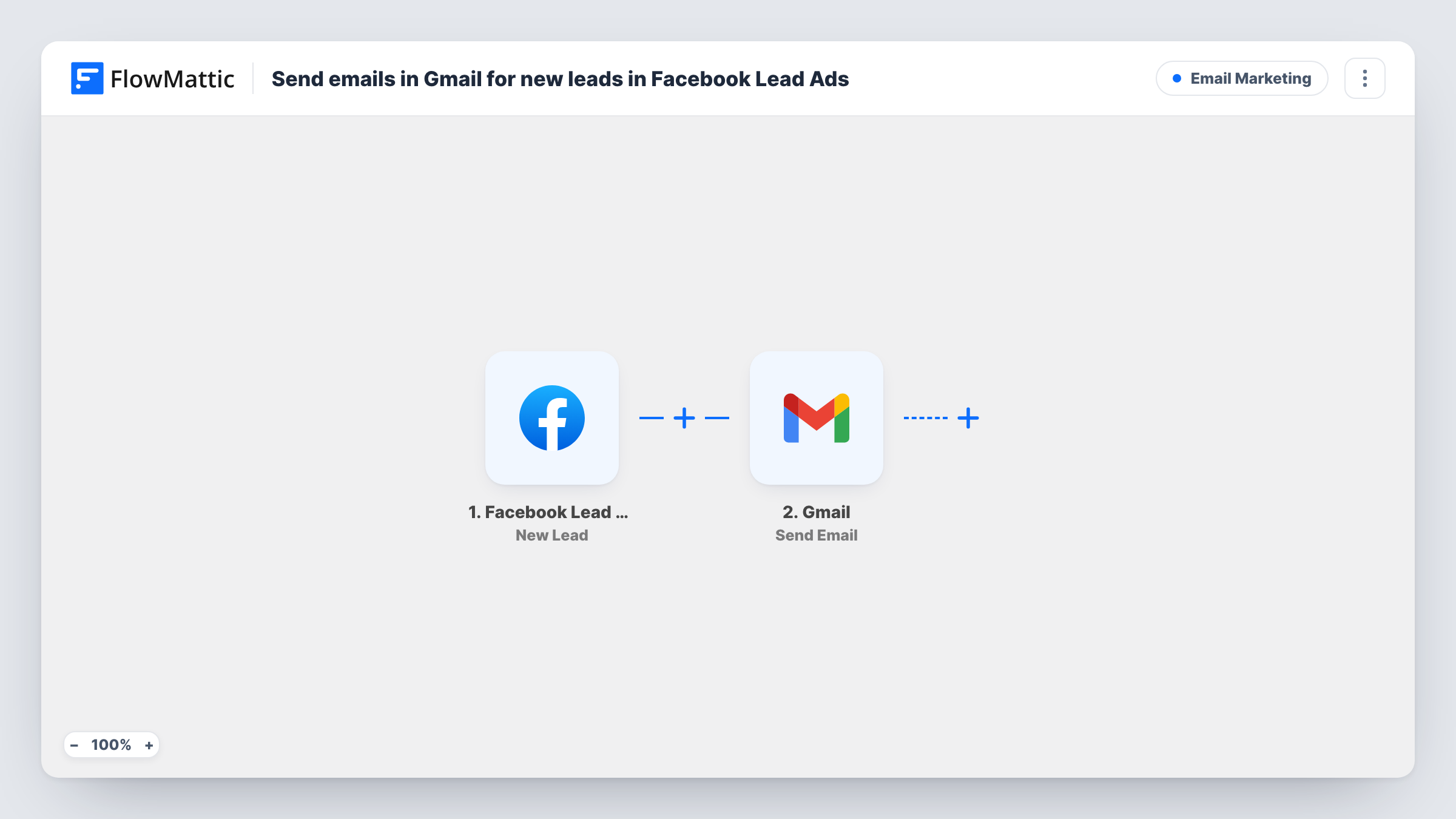
The Facebook Lead Ads trigger fires when a new lead is created on your form. FlowMattic captures the lead's answers for mapping. The Gmail step then sends an email to the recipient you map, which here is the email address the lead entered. You write the subject and body once, and can drop in their name or another answer to make it personal.
The message goes out from your own Gmail address, so any reply lands in your inbox. Every new lead receives one email. Task History lists each send and the lead data used.
Delivering a lead magnet
An ad offers a free price guide. Each lead gets a Gmail message with the download link, sent from the owner's address.
Booking a consultation
A physiotherapy clinic runs a lead ad for a free assessment. The email thanks each lead and links to the clinic's online booking page.
Real estate enquiries
An agent collects buyer leads for a new listing. Every lead gets an email from the agent's Gmail with the property details and a way to arrange a viewing.
How this workflow runs
What happens at each step once the workflow is on, and what you need before you import it.
 Facebook Lead Ads New Lead
Fires when a new lead comes in through your Facebook Lead Ads form. The lead's answers, including their email, are passed to the Gmail step.
- Gmail Send Email
Sends one email from your Gmail account to the lead. Map the lead's email address as the recipient, write your message with any answers you want, and test it on yourself.
What you need
- FlowMatticCore
- Facebook Lead Ads AccountAccount
- Gmail AccountAccount
After importing, map your own data. To keep the template universal, not every step is pre-filled. Open each step in the builder and connect your accounts and fields (channels, lists, sheets, recipients) before you switch the workflow on.
Make it yours
Changes worth making after you import it.
- Add a Delay before the Gmail step if you would rather the email arrive a few minutes after the lead submits instead of at once.
- If you run several lead forms, add a Router with a Gmail step per form so each ad gets its own message, keyed on a value in the test lead that names the form.
- Add a Google Sheets step after Gmail to keep a list of every lead that was emailed.
Questions about this workflow
Does every Facebook lead get the Gmail email?
Yes, as imported. Each new lead runs the workflow once and receives one email. Add a Filter after the trigger to email only some leads.
Which address do Facebook leads see the email from?
Whichever Gmail account you link during setup. Replies from leads come back to that inbox.
Can the Gmail message use the lead's answers from Facebook?
Yes. Any answer the trigger captures can go into the subject or body. Submit a test lead after import so the answers are available to pick.
Are leads collected before import emailed too?
No. Only leads created after the workflow is turned on start a run.
More Email Marketing workflows
Other ready-to-import templates from the same category.






Import this workflow into your WordPress site
Download the JSON, import it from the Workflows screen and connect your accounts. Every run stays on your server, with no per-task fees.
30-day money-back guarantee Unlimited workflows and runs Self-hosted