

Add new AnyChat leads to a Mailchimp audience for follow-up
Each AnyChat form submission adds the visitor to a Mailchimp audience, so chat leads join the list your follow-up emails go to without you exporting and importing them.
 AnyChat
 Mailchimp
2 steps Setup ~5 min Used on 2.6k sites Free to import
What this workflow does
A chat form captures people at the moment they are curious. If their addresses stay inside the chat tool, your email follow-up has to wait until someone exports a file and imports it into Mailchimp. This workflow adds each new AnyChat lead to your audience as the form comes in.
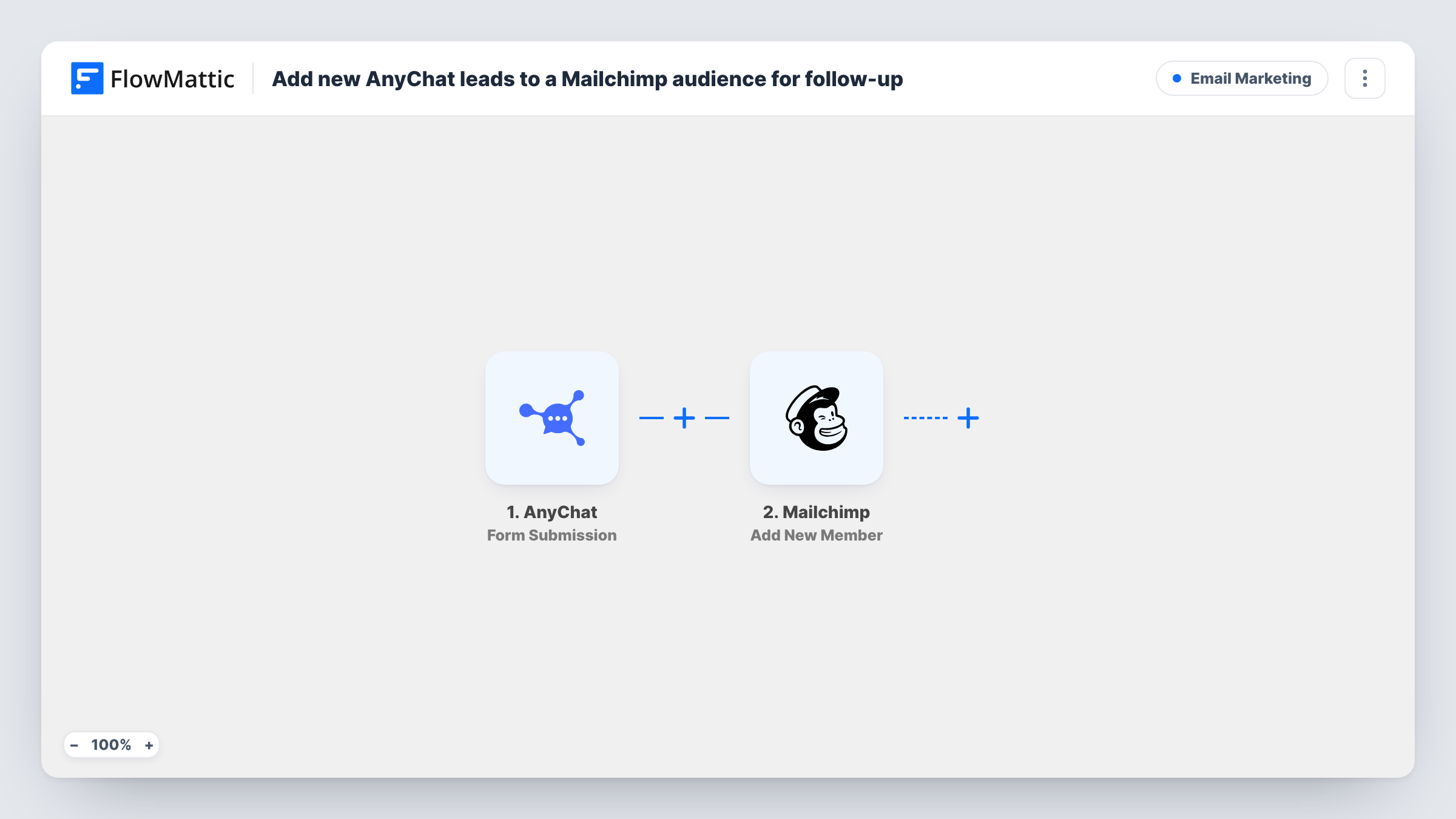
The AnyChat trigger listens for Form Submission events and gives FlowMattic the answers the visitor typed. The second step uses Add New Member in Mailchimp. You map the visitor's email, and any name you collect, into the step, and the lead becomes a member of the audience you choose.
The workflow stops once the member is added. Your welcome series, tags and campaigns stay in Mailchimp, where you already manage them. Task History lists each run, so you can check which submissions were passed to Mailchimp.
Newsletter opt-in inside the chat
Your AnyChat form offers a newsletter sign-up. Each visitor who fills it in becomes a Mailchimp member and gets your next issue.
Product launch waitlist
Visitors asking about an upcoming product leave their email in the AnyChat form, and the Mailchimp audience becomes your launch-day mailing list.
Webinar interest from chat
Leads who ask about training through AnyChat join a Mailchimp audience you use to send webinar dates and replays.
How this workflow runs
What happens at each step once the workflow is on, and what you need before you import it.
 AnyChat Form Submission
Fires when a visitor completes and sends a form in AnyChat. Their answers, such as email and name, are available to map in the Mailchimp step.
- Mailchimp Add New Member
Adds the AnyChat visitor to the Mailchimp audience you select. Map the submitted email into the step and connect your Mailchimp account, then run a test to confirm the member shows up.
What you need
- FlowMatticCore
- AnyChat AccountAccount
- Mailchimp AccountAccount
After importing, map your own data. To keep the template universal, not every step is pre-filled. Open each step in the builder and connect your accounts and fields (channels, lists, sheets, recipients) before you switch the workflow on.
Make it yours
Changes worth making after you import it.
- Add a Filter after the AnyChat trigger that continues only when the email answer is not empty, since Mailchimp needs an address to add a member.
- Include a consent question in your AnyChat form and filter on it, so only visitors who agreed to email updates are added to the audience.
- Add a second action after Mailchimp, such as a Slack message, if your team also wants to see each new chat lead as it arrives.
Questions about this workflow
Does every AnyChat form submission go to Mailchimp?
Yes, as imported. There is no Filter, so each Form Submission event runs the Mailchimp step. Add a Filter after the trigger if some forms should not reach your audience.
What happens when an AnyChat lead is already in my Mailchimp audience?
Add New Member updates an existing member rather than creating a duplicate, so a returning chat visitor stays one entry in the audience. Try it with a known address and check the member in Mailchimp.
Can I send AnyChat leads to a different email tool?
Yes. Keep the AnyChat trigger and replace the Mailchimp step with the add-contact action of another email app in FlowMattic, then map the email again.
More Email Marketing workflows
Other ready-to-import templates from the same category.




Import this workflow into your WordPress site
Download the JSON, import it from the Workflows screen and connect your accounts. Every run stays on your server, with no per-task fees.
30-day money-back guarantee Unlimited workflows and runs Self-hosted