

Subscribe new Mailchimp contacts to Vbout list
Each new subscriber added to your Mailchimp audience is also added as a contact to a Vbout list you choose, so both email platforms hold the same new sign-ups.
 Mailchimp
 Vbout
Vbout2 steps Setup ~5 min Used on 2.7k sites Free to import
What this workflow does
Running two email platforms side by side is common during a migration, or when one team uses Mailchimp and another uses Vbout. Without a link between them, new sign-ups end up in one tool and are missing from the other. This workflow copies each new Mailchimp subscriber into a Vbout list as they join.
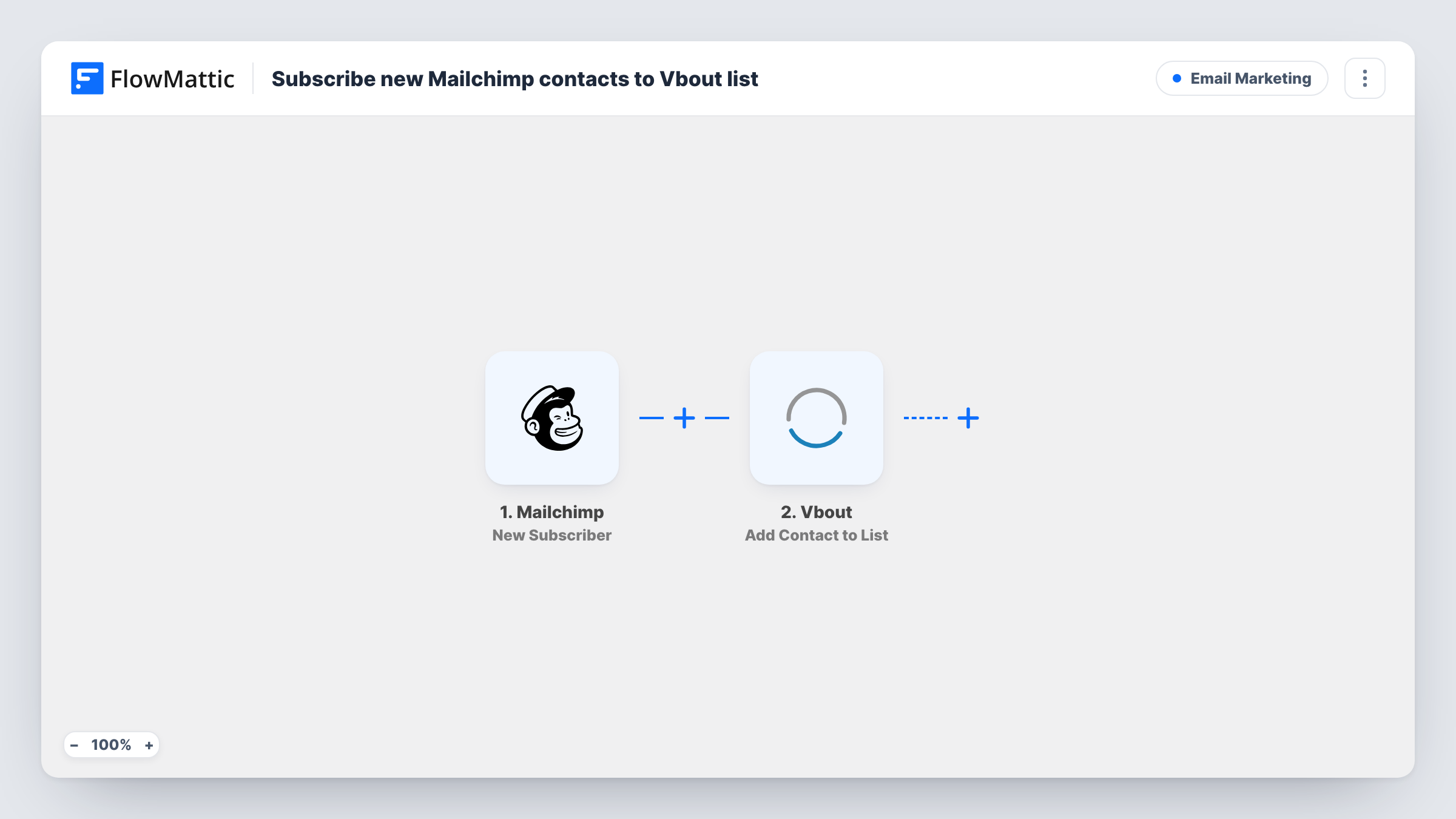
The Mailchimp trigger, New Subscriber, fires when a subscriber is added to the audience you watch. The subscriber's details come into FlowMattic, and the Vbout step runs Add Contact to List, adding the person to the Vbout list you choose with the values you map, such as their email address.
The flow runs one way. Unsubscribes, edits and deletions in Mailchimp don't reach Vbout, and contacts added in Vbout don't go back to Mailchimp. If you need consent handled in both places, check each platform's settings after import. Task History lists each run with Vbout's response.
Moving from Mailchimp to Vbout
While you switch platforms, sign-up forms still feed Mailchimp. New subscribers land in Vbout too, so the new list doesn't fall behind during the move.
Two teams, two tools
The newsletter team works in Mailchimp while sales uses Vbout for nurture campaigns. Every new newsletter subscriber also appears in the sales list.
Agency managing a client's lists
A client collects sign-ups in Mailchimp, and your agency runs automation in Vbout. The workflow keeps the client's new subscribers flowing to your list.
How this workflow runs
What happens at each step once the workflow is on, and what you need before you import it.
 Mailchimp New Subscriber
Fires when a new subscriber is added to the Mailchimp audience you pick. Their email and other member details are passed to the Vbout step.
- Vbout Add Contact to List
Adds the subscriber as a contact to a Vbout list. Connect your Vbout account, pick the list, and map the Mailchimp email address and any name values.
What you need
- FlowMatticCore
- Mailchimp AccountAccount
- VBOUT AccountAccount
After importing, map your own data. To keep the template universal, not every step is pre-filled. Open each step in the builder and connect your accounts and fields (channels, lists, sheets, recipients) before you switch the workflow on.
Make it yours
Changes worth making after you import it.
- Add a test subscriber to your Mailchimp audience after import, so FlowMattic captures the member data and you can map name fields into Vbout.
- Add a Filter after the trigger if only some subscribers should reach Vbout, for example those who joined through a particular sign-up source.
- To cover unsubscribes, build a second workflow on Mailchimp's unsubscribe trigger that removes or updates the contact in Vbout.
Questions about this workflow
Are my current Mailchimp subscribers copied to Vbout?
No. The trigger fires for subscribers added after the workflow is on. Bring existing contacts across with an export and import between the two tools.
What if the person is already in my Vbout list?
Vbout decides how to handle the repeat. Test with an address that is already in the list and check its response in Task History.
Does an unsubscribe in Mailchimp remove the contact from Vbout?
No. This workflow only reacts to new subscribers, so unsubscribes and profile edits stay in Mailchimp.
Can I watch more than one Mailchimp audience?
Each trigger watches one audience. Import the workflow again for a second audience and point it at the same or a different Vbout list.
More Email Marketing workflows
Other ready-to-import templates from the same category.





Import this workflow into your WordPress site
Download the JSON, import it from the Workflows screen and connect your accounts. Every run stays on your server, with no per-task fees.
30-day money-back guarantee Unlimited workflows and runs Self-hosted