

Add new Gumroad buyers to a Mailchimp audience for follow-up
Every new Gumroad sale adds the buyer to the Mailchimp audience you choose, so you can send product updates, onboarding emails or launch news to your customers from Mailchimp.
 Gumroad
 Mailchimp
2 steps Setup ~5 min Used on 3.3k sites Free to import
What this workflow does
Gumroad takes the payment and delivers the product, but your email campaigns may live in Mailchimp. Unless you export buyer lists and import them, your customers never hear about the next update or release from Mailchimp. This workflow adds each buyer to your audience at the time of the sale.
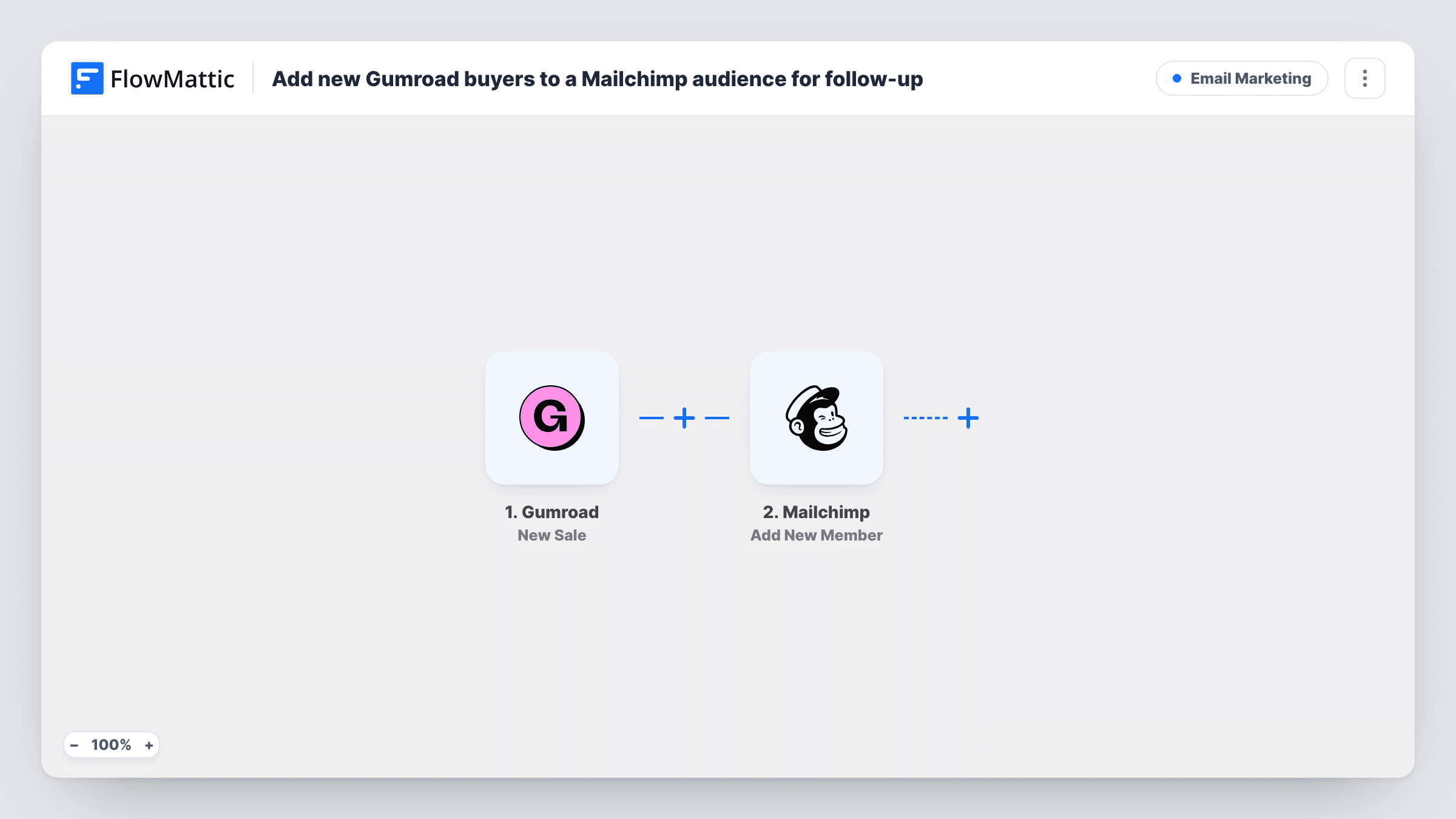
The Gumroad trigger runs on every new sale in your account and hands the sale data to FlowMattic. The Mailchimp step then runs Add New Member, adding the buyer's email to the audience you pick, along with any other sale fields you map, such as their name.
Each sale runs the workflow once, for every product you sell, since there is no Filter in the template. A repeat buyer whose address is already in the audience is not added twice; Add New Member updates their existing member record with the sale fields you map. Check that your Gumroad checkout gives buyers a fair notice that you will email them before you switch this on.
Ebook author building a reader list
Everyone who buys your ebook on Gumroad joins your Mailchimp audience, so they hear about your next book when it launches.
Template or asset creator sending updates
When you release a new version of a design pack, send the update email from Mailchimp to the buyers this workflow added.
Course seller with an onboarding sequence
Buyers land in the audience that starts your Mailchimp onboarding emails, so the course welcome reaches them after purchase.
How this workflow runs
What happens at each step once the workflow is on, and what you need before you import it.
 Gumroad New Sale
Fires for each new sale in your Gumroad account. Connect Gumroad on import and make a test sale or wait for a real one, so the buyer fields appear in FlowMattic for mapping.
- Mailchimp Add New Member
Adds the buyer to your Mailchimp audience as a new member. Connect Mailchimp, pick the audience, and map the Gumroad email, plus name fields if you want them on the member record.
What you need
- FlowMatticCore
- Gumroad AccountAccount
- Mailchimp AccountAccount
After importing, map your own data. To keep the template universal, not every step is pre-filled. Open each step in the builder and connect your accounts and fields (channels, lists, sheets, recipients) before you switch the workflow on.
Make it yours
Changes worth making after you import it.
- Selling several products? Add a Filter after the trigger on the product name so only buyers of the products you choose go to this audience.
- Map the Gumroad product name into a Mailchimp merge field, if your audience has one for it, so you can segment buyers by what they bought.
- If you want one audience per product, use a Router with a route per product name and a Mailchimp step on each route. Distinct product names keep each sale on one route.
Questions about this workflow
What happens when a repeat Gumroad buyer is already in my Mailchimp audience?
Add New Member updates them. The buyer stays one member, and the fields you map from the new Gumroad sale overwrite what was stored.
Are past Gumroad customers added to Mailchimp?
No. Only sales made after you turn the workflow on reach Mailchimp. Earlier buyers need a separate import.
Does a refunded Gumroad sale remove the buyer from Mailchimp?
No. The workflow only reacts to new sales. Remove the member in Mailchimp yourself if a refund means they should not stay on the list.
More Email Marketing workflows
Other ready-to-import templates from the same category.







Import this workflow into your WordPress site
Download the JSON, import it from the Workflows screen and connect your accounts. Every run stays on your server, with no per-task fees.
30-day money-back guarantee Unlimited workflows and runs Self-hosted