

Add new Calldrip leads to an ActiveCampaign automation
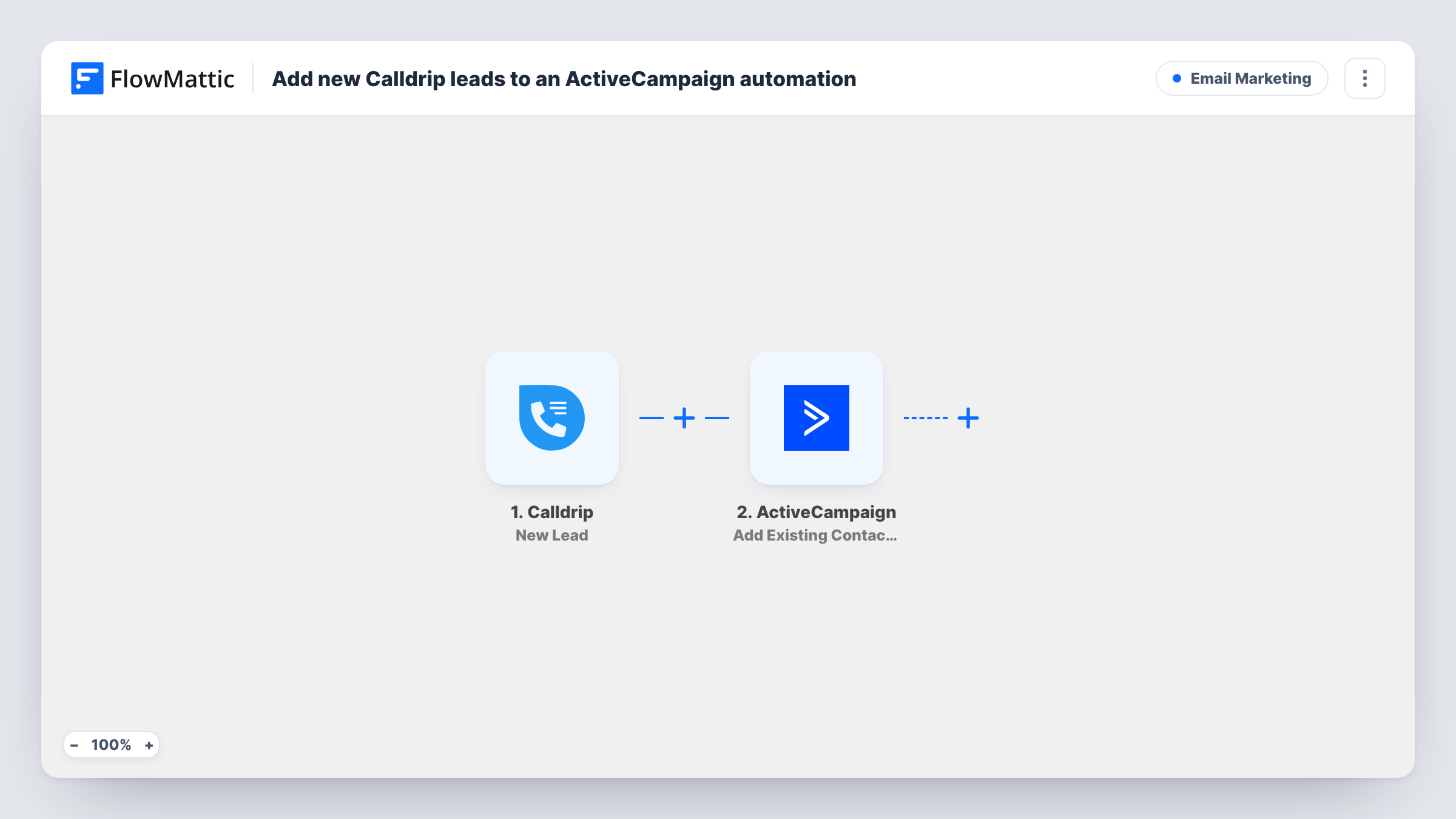
Each lead Calldrip captures from a call is created or updated as an ActiveCampaign contact, then FlowMattic enters that contact into the ActiveCampaign automation you choose.
 Calldrip
 ActiveCampaign
3 steps Setup ~5 min Used on 1.5k sites Free to import
What this workflow does
Calldrip connects your team to new leads by phone, but the follow-up emails usually live elsewhere. This workflow hands each Calldrip lead to ActiveCampaign and starts them on an automation, so a nurture sequence begins as soon as the lead comes in.
The Calldrip trigger fires when a new lead is generated from a call. It passes the lead's details, such as name, phone and email if Calldrip has them, to the next step.
The first ActiveCampaign step creates the contact, or updates the existing one, using the details you map. It ships unmapped, so after import you connect ActiveCampaign and map at least the lead's email. After that, a second ActiveCampaign step places the contact in an automation. Its contact ID is already mapped from the first step, so you only pick the automation.
Because the automation step works on an existing contact, the create-or-update step in front of it makes sure the person is in ActiveCampaign first. A lead without an email may not be accepted by ActiveCampaign, so check a test lead in Task History.
Nurture emails for home service leads
A solar installer gets leads through Calldrip and starts each one on an ActiveCampaign automation that sends case studies and a booking link.
Consultation reminders for a law firm
A law firm's intake calls come through Calldrip, and each lead joins an ActiveCampaign automation that emails what to bring to the first consultation.
Dealership follow-up series
A car dealership routes web enquiries to sales by phone with Calldrip, and every lead also starts an ActiveCampaign automation with test-drive offers.
How this workflow runs
What happens at each step once the workflow is on, and what you need before you import it.
 Calldrip New Lead
Starts a run whenever a call produces a new lead in Calldrip. The lead's contact details become available to map into ActiveCampaign.
- ActiveCampaign Create or Update Contact
Creates the lead as an ActiveCampaign contact, or updates the record if one already matches. The step ships unmapped: map the email, plus name and phone, from the Calldrip lead.
- ActiveCampaign Add Existing Contact to Automation
Enters the contact from step 2 into an ActiveCampaign automation. The contact ID is pre-mapped from the previous step; choose the automation after import.
What you need
- FlowMatticCore
- Calldrip AccountAccount
- ActiveCampaign AccountAccount
After importing, map your own data. To keep the template universal, not every step is pre-filled. Open each step in the builder and connect your accounts and fields (channels, lists, sheets, recipients) before you switch the workflow on.
Make it yours
Changes worth making after you import it.
- Map the Calldrip lead's phone number into the ActiveCampaign contact as well, so your team can call back from the CRM record.
- Add ActiveCampaign's Add/Remove Tag From Contact step after the contact step to tag everyone who came from Calldrip.
- Check the automation's settings in ActiveCampaign so a contact who becomes a Calldrip lead again is handled the way you want, since each new lead runs this workflow.
Questions about this workflow
Does the Calldrip lead need an email address?
ActiveCampaign identifies contacts by email, so map one into the contact step. If a Calldrip lead arrives without an email, ActiveCampaign may refuse it; open the run in Task History to see its response.
What if the Calldrip lead is already an ActiveCampaign contact?
The Create or Update Contact step updates the existing record, and the next step adds that same contact to the automation.
Which ActiveCampaign automation does the lead enter?
The one you select in the Add Existing Contact to Automation step. Build the automation in ActiveCampaign first so it appears in the step after import.
More Email Marketing workflows
Other ready-to-import templates from the same category.





Import this workflow into your WordPress site
Download the JSON, import it from the Workflows screen and connect your accounts. Every run stays on your server, with no per-task fees.
30-day money-back guarantee Unlimited workflows and runs Self-hosted