

Send a welcome email via Gmail to each new Consolto lead
Whenever Consolto collects a new lead, this workflow sends that person a welcome email from your Gmail account, written once by you and filled in with the details the lead left.
 Consolto
 Gmail
Gmail2 steps Setup ~5 min Used on 2.0k sites Free to import
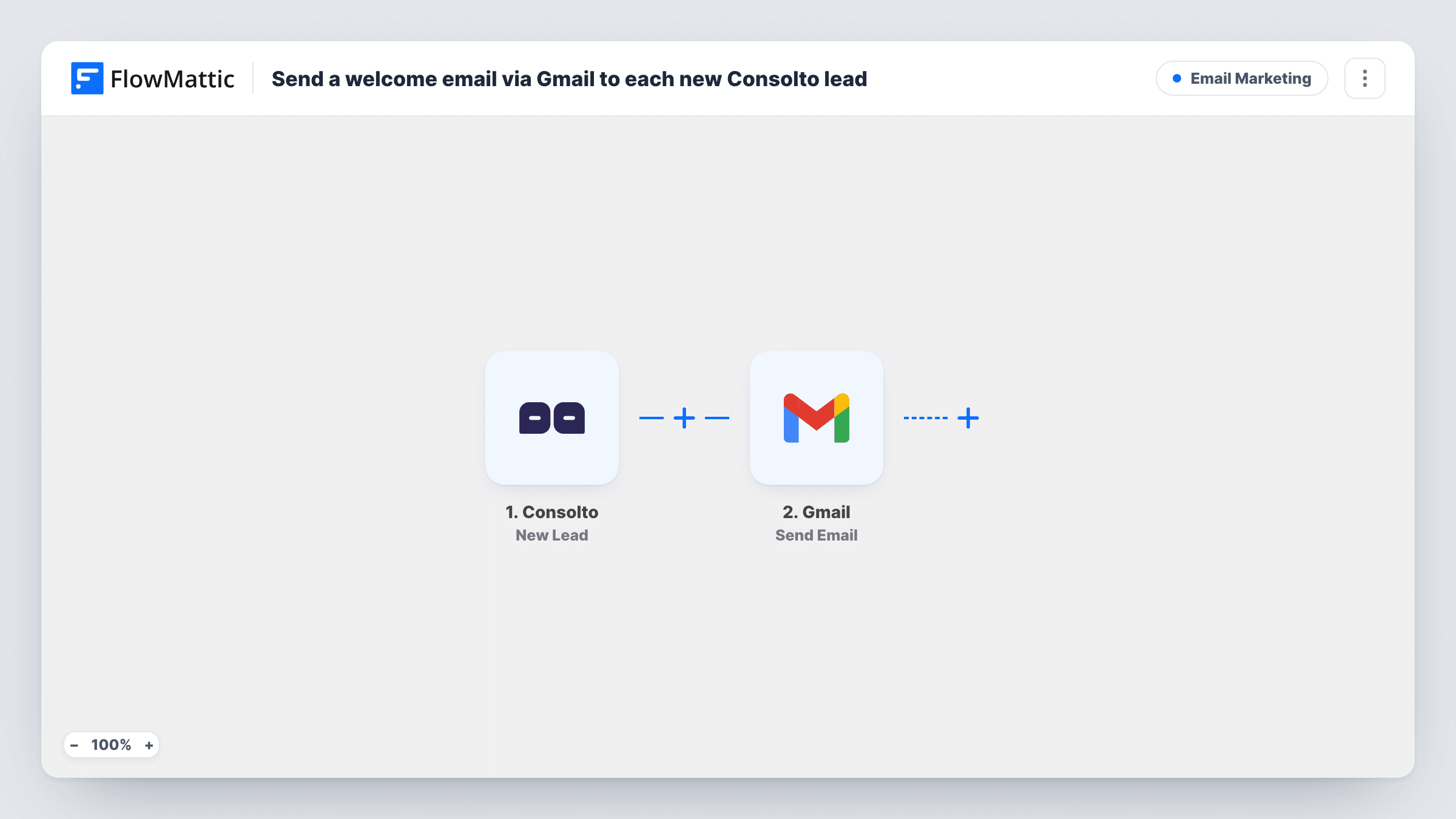
What this workflow does
Visitors who leave their details through Consolto on your website expect to hear back. A prompt, personal reply from your own inbox shows them their message reached a real person. This workflow sends that first email for you each time a lead is collected.
The Consolto trigger fires when a new lead is collected in your Consolto account. FlowMattic passes the lead's details to Gmail, whose Send Email action sends a message to the recipient you map. Use the lead's email address as the recipient, then write the subject and body, dropping in values such as their name.
Because the email goes out through your connected Gmail account, it appears in your Sent folder and replies come straight back to your inbox. Every new lead gets the same message with their own details filled in. Task History lists each run, so you can check which leads were emailed and what was sent.
A consultant confirming a call request
A visitor leaves their details in the Consolto widget on your site. They get an email from your Gmail address thanking them and saying when you usually reply.
A clinic replying to new enquiries
Each lead collected through Consolto receives a welcome note with the clinic's opening hours and a phone number for urgent questions.
A coach sharing a booking link
New Consolto leads are emailed a short message from your own inbox that includes your scheduling page, so they can book a first session.
How this workflow runs
What happens at each step once the workflow is on, and what you need before you import it.
 Consolto New Lead
Fires when a new lead is collected in Consolto. The lead's details are passed on so you can use them as the email recipient and inside the message.
- Gmail Send Email
Emails the new lead through the Gmail account you link on import. Map the Consolto lead's email address as the recipient, then write the subject and body with their details filled in.
What you need
- FlowMatticCore
- Consolto AccountAccount
- Gmail AccountAccount
After importing, map your own data. To keep the template universal, not every step is pre-filled. Open each step in the builder and connect your accounts and fields (channels, lists, sheets, recipients) before you switch the workflow on.
Make it yours
Changes worth making after you import it.
- Collect a test lead through your Consolto widget after import. FlowMattic captures the sample, and you can confirm the lead's email address arrives before you map the recipient.
- Add a Delay before the Gmail step if you prefer the welcome email to arrive a few minutes after the lead is collected rather than at once.
- Add a second action that copies each Consolto lead into Google Sheets or your CRM, so you keep a record alongside the email you sent.
Questions about this workflow
Which address does the Gmail welcome email come from?
It comes from whichever Gmail account you link while setting up the Send Email step. The message sits in that account's Sent folder, and replies from the lead arrive in its inbox.
What if a Consolto lead leaves no email address?
The Gmail step then has no recipient to send to and the send fails for that run. Task History shows the error on the Gmail step, so you can follow up another way.
Will someone who contacts us twice through Consolto get two emails?
Yes, if Consolto collects them as a new lead each time. The template has no check for earlier leads, so every collected lead gets the welcome email.
Can I use a Google Workspace address instead of a personal Gmail one?
Yes. Connect the Google Workspace account you send from in the Gmail step, and the welcome emails go out from that address.
More Email Marketing workflows
Other ready-to-import templates from the same category.




Import this workflow into your WordPress site
Download the JSON, import it from the Workflows screen and connect your accounts. Every run stays on your server, with no per-task fees.
30-day money-back guarantee Unlimited workflows and runs Self-hosted