

Add new Chatfuel leads to a Mailchimp audience
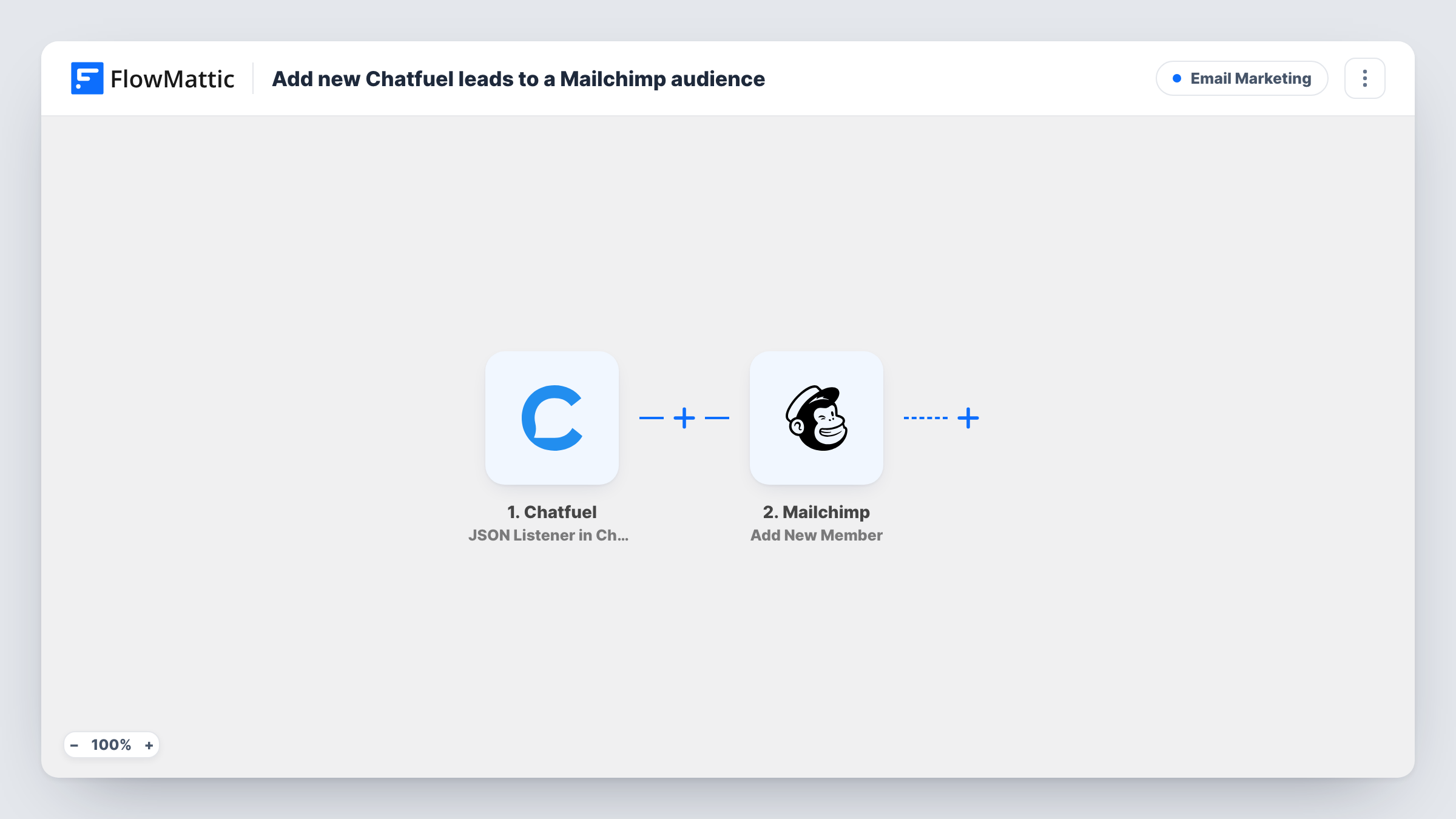
When your Chatfuel bot sends a lead’s details to FlowMattic, this workflow adds that person to your Mailchimp audience, or updates them if they are already a member, so chatbot leads join your email list.
 Chatfuel
 Mailchimp
2 steps Setup ~5 min Used on 2.6k sites Free to import
What this workflow does
A Chatfuel bot can ask for an email address in the middle of a conversation, but that address stays in the bot's data unless you move it. Copying chatbot leads into Mailchimp by hand means some never make it, and the ones that do arrive late. This workflow sends each lead to Mailchimp as the bot hands it over.
The Chatfuel trigger is a JSON listener. You place a request to the FlowMattic URL at the point in your bot's flow where the lead's email has been collected, and FlowMattic receives whatever values the bot includes. Those values then go to Mailchimp's Add New Member action, which adds the person to the audience you choose.
Mailchimp treats the action as add or update. A new address becomes a new member, and an address already in the audience has its details updated instead of failing. Each request from the bot is one run, so if a person passes that point in the conversation twice, Mailchimp simply receives them twice. Task History shows the values each run sent and Mailchimp's reply.
Discount code bot on Messenger
Your bot offers a discount in exchange for an email address. Once the address is collected, the person joins your Mailchimp audience and gets your regular campaigns.
Restaurant reservation bot
Diners who book through the chatbot and share an email are added to the audience you use for event and menu announcements.
Course waitlist via Instagram DMs
A Chatfuel flow on Instagram collects emails from people asking about your next course intake and places them in the waitlist audience in Mailchimp.
How this workflow runs
What happens at each step once the workflow is on, and what you need before you import it.
 Chatfuel JSON Listener in Chatfuel
Receives the request your Chatfuel bot sends to the FlowMattic JSON listener. The values the bot includes, such as the lead's email and name, become available to map into Mailchimp.
- Mailchimp Add New Member
Adds the lead to the Mailchimp audience you pick, or updates the member if that email is already there. Map the email from the bot and any name values you want stored.
What you need
- FlowMatticCore
- Chatfuel AccountAccount
- Mailchimp AccountAccount
After importing, map your own data. To keep the template universal, not every step is pre-filled. Open each step in the builder and connect your accounts and fields (channels, lists, sheets, recipients) before you switch the workflow on.
Make it yours
Changes worth making after you import it.
- Put the request block in your Chatfuel flow after the email question has been answered, so every request that reaches FlowMattic carries an address.
- Add a Filter after the trigger that continues only when the email value is not empty, in case the bot reaches the request before someone has typed an address.
- Send one test request from the bot after import, then check the captured values and map the email before turning the workflow on.
Questions about this workflow
Where in my Chatfuel bot does the lead get sent to Mailchimp?
At whatever point in the flow you add the request to FlowMattic's listener URL. Place it after the bot has collected the email address.
What happens when a Chatfuel lead is already in my Mailchimp audience?
Add New Member adds new people and updates existing ones, so the member's details are updated rather than duplicated.
Does every chatbot user end up in Mailchimp?
Only those whose conversation reaches the request to FlowMattic and who gave an email address. Mailchimp needs an email to create a member.
Can I tag Chatfuel leads in Mailchimp?
Not as imported. The template only adds or updates the member. Add a further Mailchimp step after it if you want to tag people from the bot.
More Email Marketing workflows
Other ready-to-import templates from the same category.






Import this workflow into your WordPress site
Download the JSON, import it from the Workflows screen and connect your accounts. Every run stays on your server, with no per-task fees.
30-day money-back guarantee Unlimited workflows and runs Self-hosted